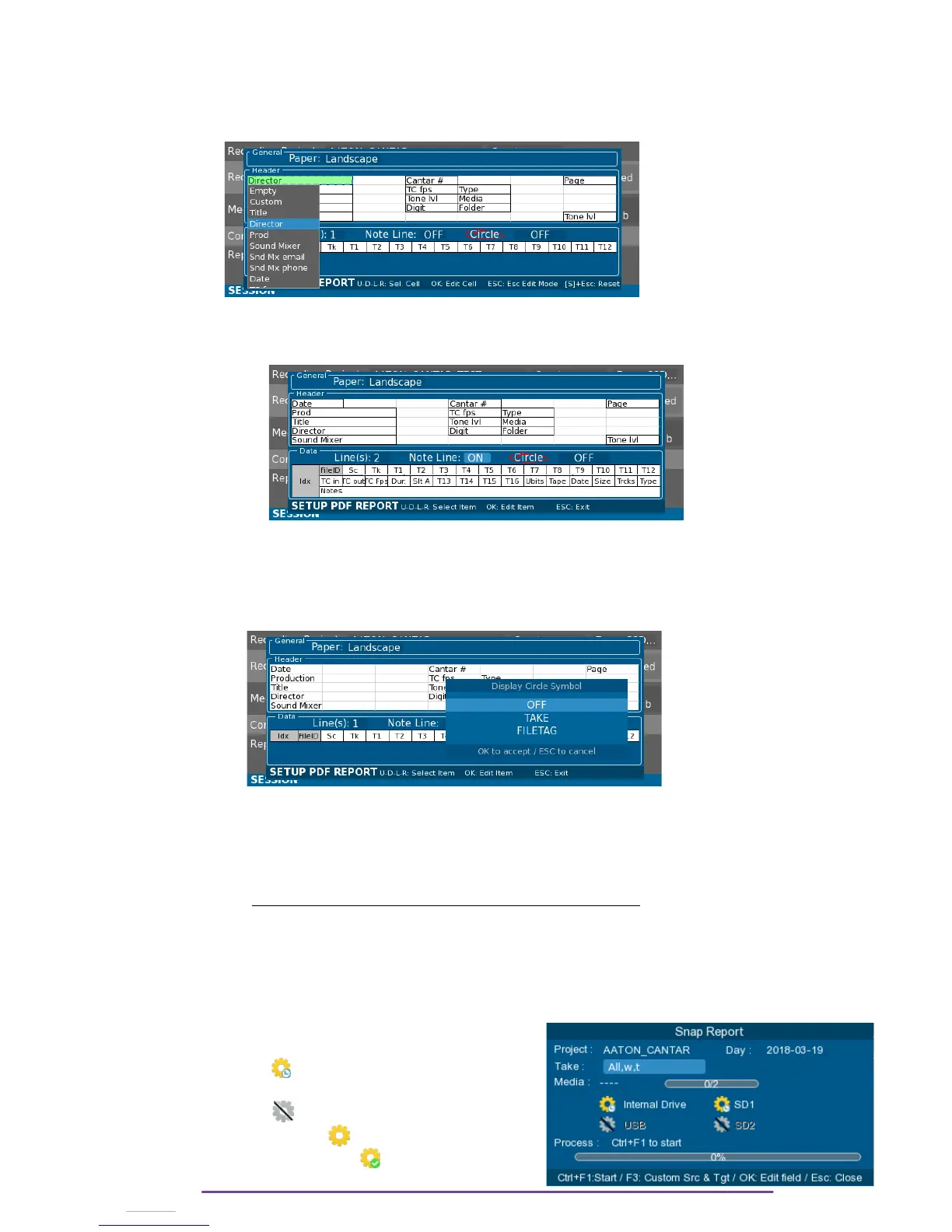
• If a 2-cell wide field is placed on the last column, it's painted in red to show that it is
invalid
• To change the customized text of a field, re-select the first cell and apply the same type.
• To reset to default settings, press the Shift + Escape buttons.
2. Data
Each Take can have one or two data lines plus eventually a note line.
Each data line can have up to 16 columns, given the first column is necessarily the Take index
on the current page and the second column of the first line of the Take is the FileID.
Circled takes may also be reported in the Pdf report with a red circle around the Filetag field or
around the take number field.
II. Generating the report(s) :
Reports are automatically generated at the end of a Backup procedure (while the Main Selector
is on the 1 o’clock position).
It is also possible to generate Pdf at will from the Audio Browser Menu (while the Main Selector
is on the 7 o’clock position) : Snap Report. The Snap Report dialog is opened by pressing the
Ctrl +F2 buttons.
The Snap Report process, for each media detected, scans the current selected Project and Day
folder looking for Mono, Stereo and Poly folder, in order to create a report representing the
media state at the moment.
For each media, the Report process state is displayed:
• Scheduled : at least one Sound folder was
found (.AAD, .AAX, .AAN)
• Non active : no Sound folder found.
• Processing Report .
• Report process finished.
Cantar X3
51


 To Next Page