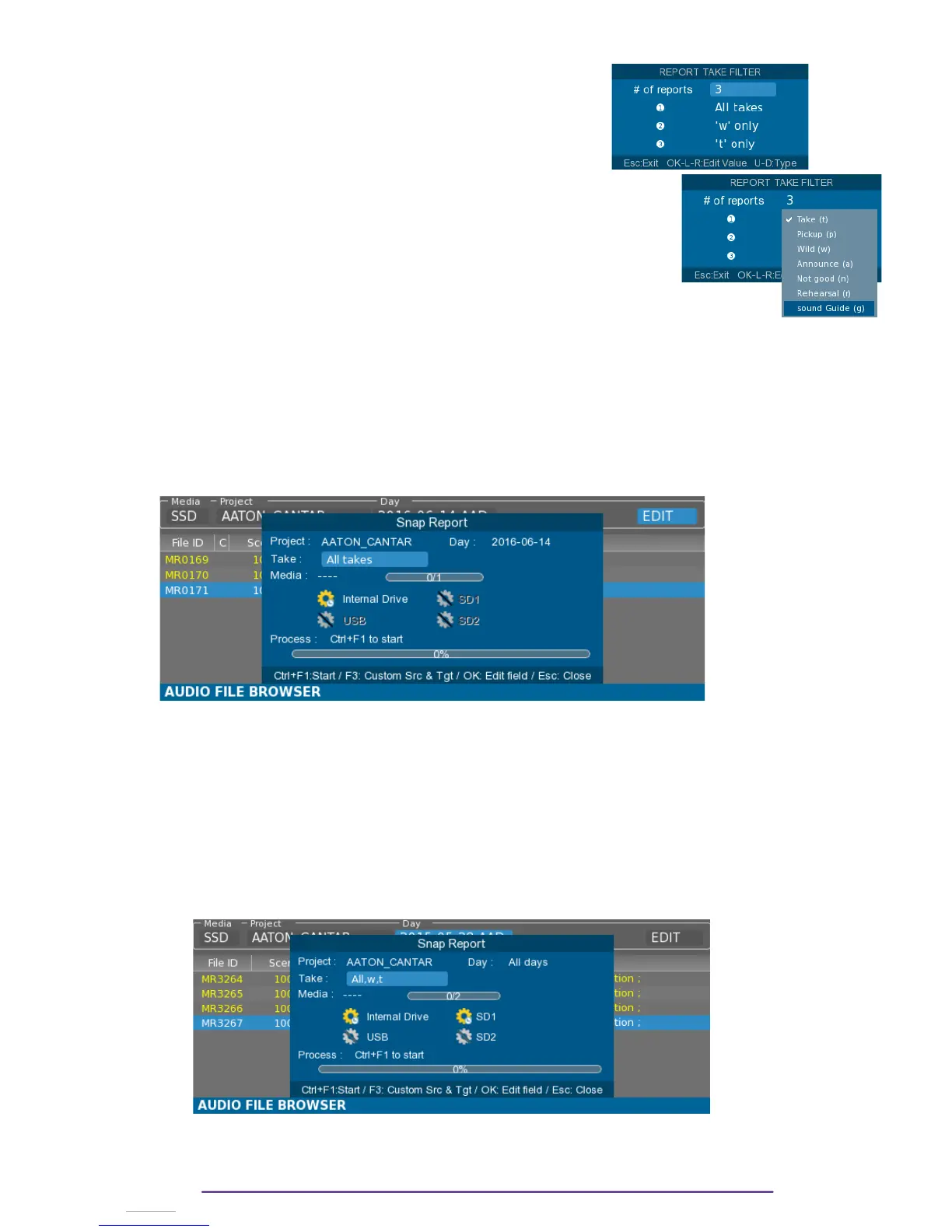
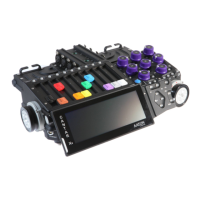
The Snap Report Process may filter takes according to their type.
Select the Take field and press the Ok button
It displays a dialog enabling to choose up to 3 different filters.
For each filter a different report will be generated.
Select the “# of reports field” using the Plus(+) and Minus(-) buttons.
Then use the Left and Right buttons to select how many filters are needed.
Scroll throught the filters using the Plus(+) and Minus(-) buttons and press
the Left or Right button to edit the selected one.
It will open a list with the available types. Scroll throught the types
using the Plus(+) and Minus(-) buttons and select or deselect by pressing
the Left and Right buttons.
Validate the setting by pressing the Ok button.
> Press the Control + F1 button to start the process.
NB: Project Report The Snap Report Process may scans through all the days present in the current
Project by opening the Snap Report dialog box by pressing the Ctrl + Shift + F2 buttons.
Export Snap
The Snap Report process may also be specified a source and target in order for example to
export a report based on the content of a media to another media.
To activate this option, press the F3 button. (F3 button again to go back to the simple snap
process)
Select the Source and Target fields using the Plus(+) and Minus(-) buttons and validate by
pressing the Ok button, a list of choice is then displayed in order to select the desired media.
Pict. 105
Cantar X3
52


 To Next Page