29
Chatper 2 - Connections
www.adcom.com
GFR-700 Owner’s Manual
Control Connections
Sensors, triggers, and PCs, oh my. If you’ve gotten
this far, you’re really fine-tuning your home theater.
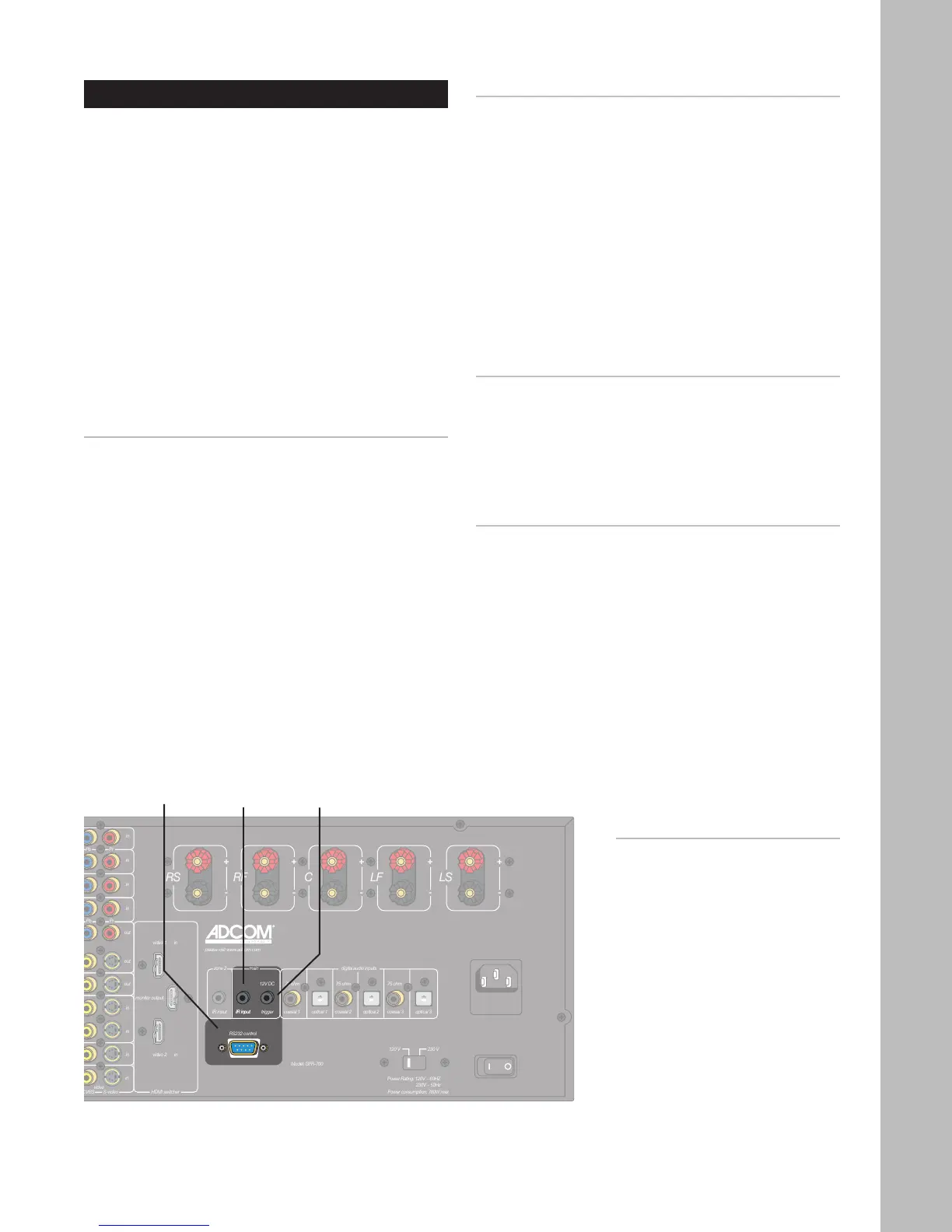
This section is all about control:
• Remote IR sensors - These allow you to control
your GFR-700 even if it is behind closed doors or
otherwise concealed from view.
• Triggers - These allow you to automatically
power on connected devices, such as motorized
movie screens and connected amplifiers, when
the GFR-700 is powered on or a particular input
is selected.
• RS232 Port - This allows you to control the GFR-
700 with a home automation system or to up-
grade the receiver’s firmware through the RS232
port on your PC.
Remote IR Sensor Connections
1 Obtain a remote IR sensor.
• Choose a remote IR sensor from an electron
-
ics distributor that suits your particular in-
stallation needs.
• Install the remote IR sensor according to the
manufacturer’s instructions.
3 Connect the remote IR sensor’s mono mini-plug
to the Main IR input on the GFR-700.
4 Confirm the remote IR sensor is working.
• Conceal the GFR-700 front panel and at-
tempt to control the receiver by pointing the
remote at the remote IR sensor.
Screen/Power Trigger Connections
1 Using a cable with dual mono mini-plugs, con-
nect the Main 12V DC trigger jack to the 12V DC
trigger on your compatible device.
• Common compatible devices include ampli-
fiers, motorized screens, and high-end au-
dio/video components.
2 Make sure the Main Trigger is enabled in the
menu system; see page 33.
• The default setting is on for all inputs.
3 Confirm the trigger is working.
• Power on the GFR-700 or select the input for
which the main trigger is enabled.
• The connected device should power on.
PC Connections
1 Contact Adcom for information on the avail
-
ability of firmware updates and instructions for
implementing them.
2 When instructed, use an RS232 cable to connect
the RS232 port on the GFR-700 to the RS232 port
on your PC.
Media Center & Home Automation Control Systems
1 The RS232 port can also be used to control the
GFR-700 from a media control center, home au
-
tomation system, or PC.
• See Discrete Remote Control Commands on
pages 49-50 for more information.
Notes:
• To configure the Main 12V DC
trigger, see page 33.
• For a list of Discrete Remote
Control Commands, see pages
49-50.
• The 12V trigger is simply a
“trigger” and not a relay driv-
er. Some motorized screens
will require an outboard de
-
vice to be used in association
with the 12V trigger. See the
screen manufacturer’s instruc
-
tions or ask your dealer or
distributor.
RS232
Control
Main IR
Input
Main 12V
DC Trigger



 To Next Page