39
Chapter 3 - Setup
www.adcom.com
GFR-700 Owner’s Manual
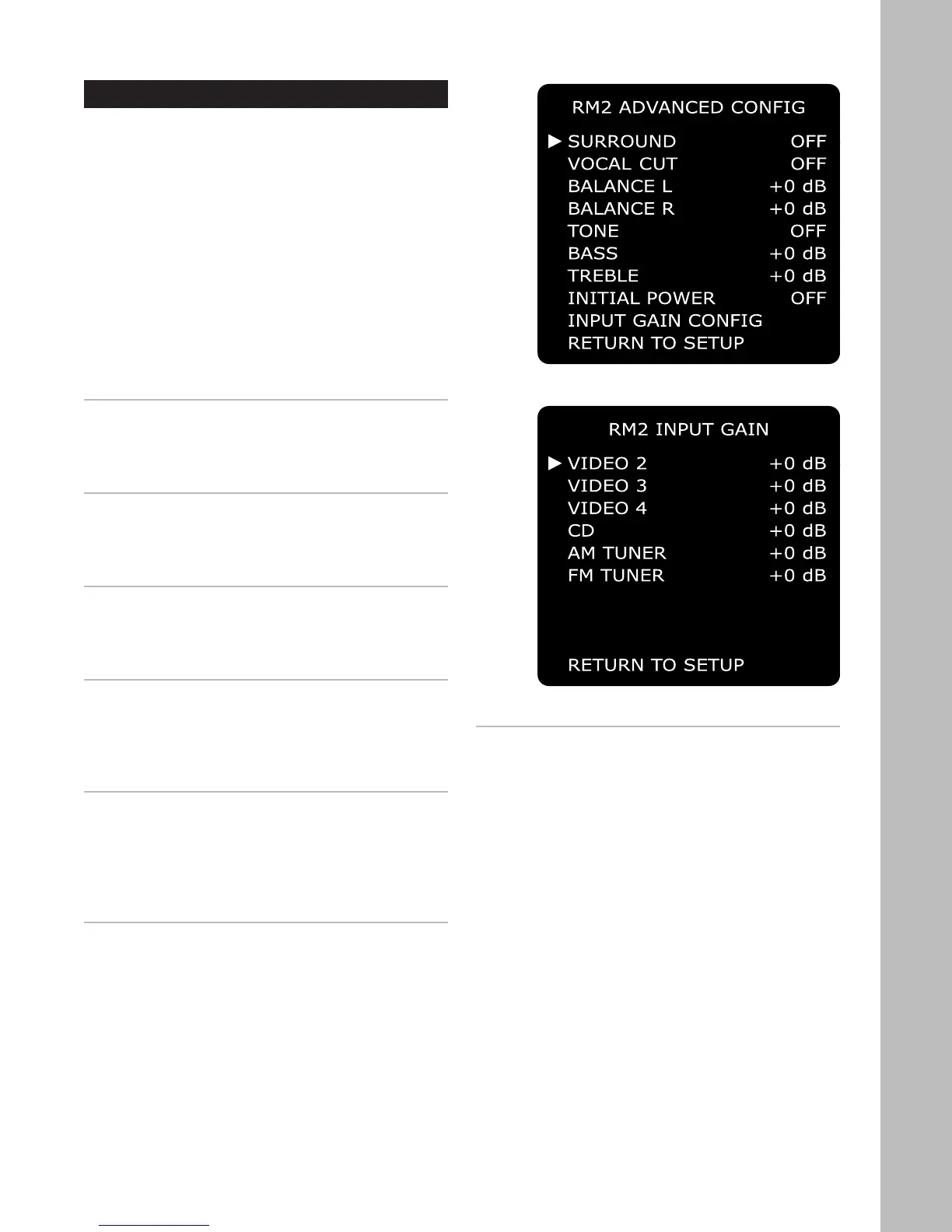
Room 2 Advanced Configuration
The Room 2 Advanced Configuration menu contains
powerful tools to customize and optimize the output
of the GFR-700 to your secondary audio system.
To access the Room 2 Advanced Config menu:
1 Press the Main button on the remote control.
2 Press the Setup button.
3 Use the
/ buttons to select ROOM 2 CONFIG,
then press the Select button.
4 Use the / buttons to select ADVANCED SET-
TINGS, then press the Select button.
5 Use the / buttons to choose from the follow-
ing menu items:
SURROUND
Turns a “pseudo” surround effects mode on/off. Use
the
/ buttons to select:
• On or Off
VOCAL CUT
Attenuates the normal “vocal” audio frequency
range. Use the
/ buttons to select:
• On or Off
BALANCE L / BALANCE R
Adjusts the left and right channel balance from the
Zone 2 outputs. Use the
/ buttons to select:
• -8 to +8 dB
TONE
Turns tone control on/off. Selecting On enables the
Bass & Treble effects (see below). Use the
/ but-
tons to select:
• On or Off
BASS / TREBLE
Adjusts the bass and treble of the audio signal from
the Zone 2 outputs. Bass and Treble (Tone control)
adjustments are only effective when “TONE” is On
(see above). Use the
/ buttons to select:
• -8 to +8 dB
INITIAL POWER
Sets Room 2 to initialize in either On or Off mode
whenever the main rear panel power switch is
turned on. Use the
/ buttons to select:
• On or Off
INPUT GAIN CONFIG
Launches the Room 2 Input Gain menu, where you
can set the relative gain for each possible Room 2
input source.
• Use the / buttons to select the desired input
(Video 2, Video 3, Video 4, CD, AM Tuner, FM
Tuner).
• Then use the / buttons to set the input gain
from -8 to +6 dB.



 To Next Page