139
ADOBE PHOTOSHOP ELEMENTS 2.0
User Guide
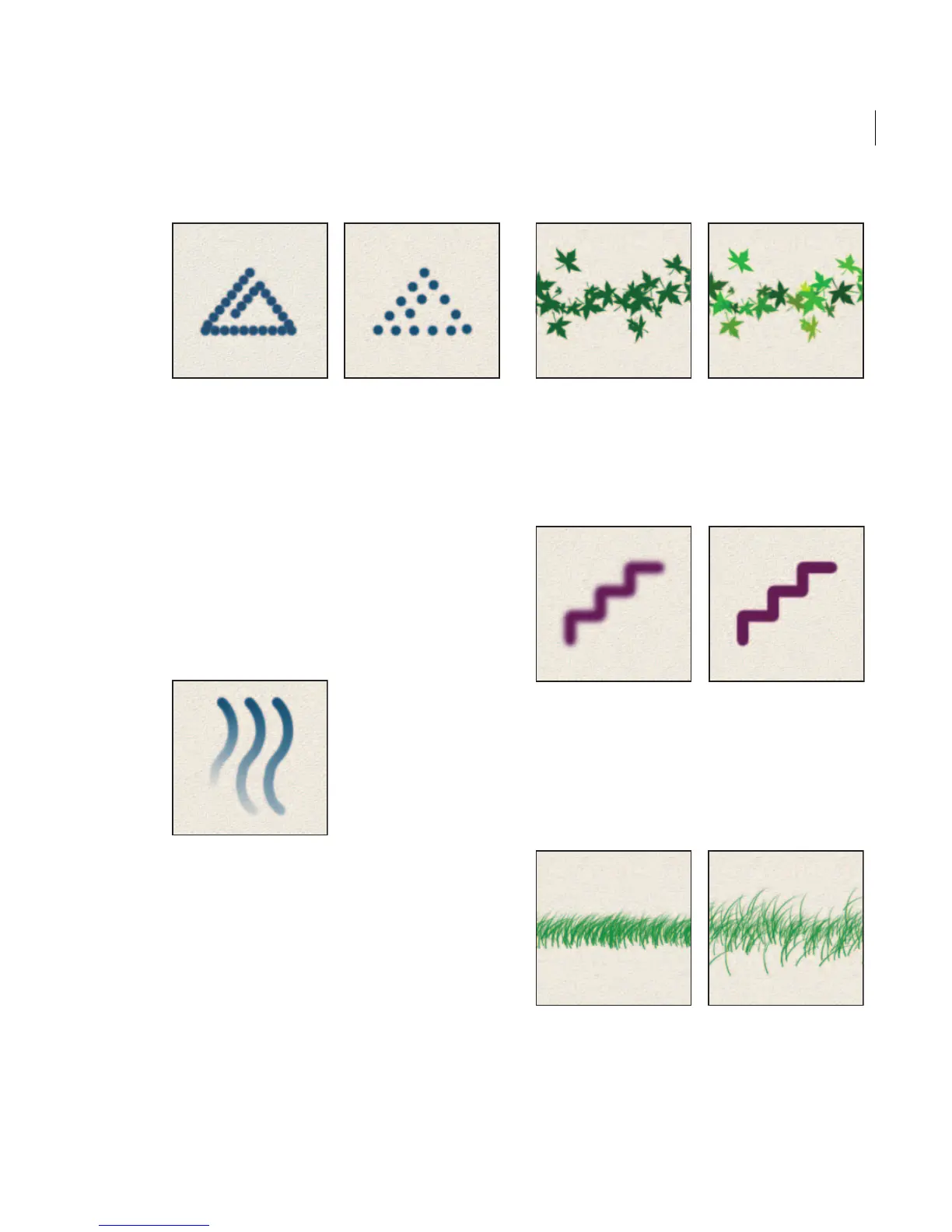
Increasing the spacing makes the brush skip.
Fade Sets the number of steps until the paint flow
fades to nothing. A low value makes the paint
stroke fade away very quickly, and a value of zero
creates no fading effect. Each step is equal to one
mark of the brush tip. Possible values range from 0
to 9999. For example, entering 10 for Fade
produces a fade in 10 increments. For smaller
brushes, you may want to set a value of 25 or
larger. If strokes fade too quickly, increase the
values.
Fade showing setting of 40, 60, and 80 steps
Color jitter Sets the rate at which the stroke color
switches between the foreground and background
colors. Higher values cause more frequent
switches between the two colors than lower values.
(To set the colors used by the color jitter option,
see “Selecting foreground and background colors”
on page 127.)
Paint stroke without and with color jitter
Hardness Controls the size of the brush’s hard
center. Type a number, or use the slider to enter a
value that’s a percentage of the brush diameter.
Brush strokes with different hardness values
Scatter Brush scattering determines how brush
marks are distributed in a stroke. A low value
produces a denser stroke with less paint scattering,
and higher values increase the scattering area.
Brush stroke with low and high scatter values



 To Next Page