CHAPTER 8
140
Painting
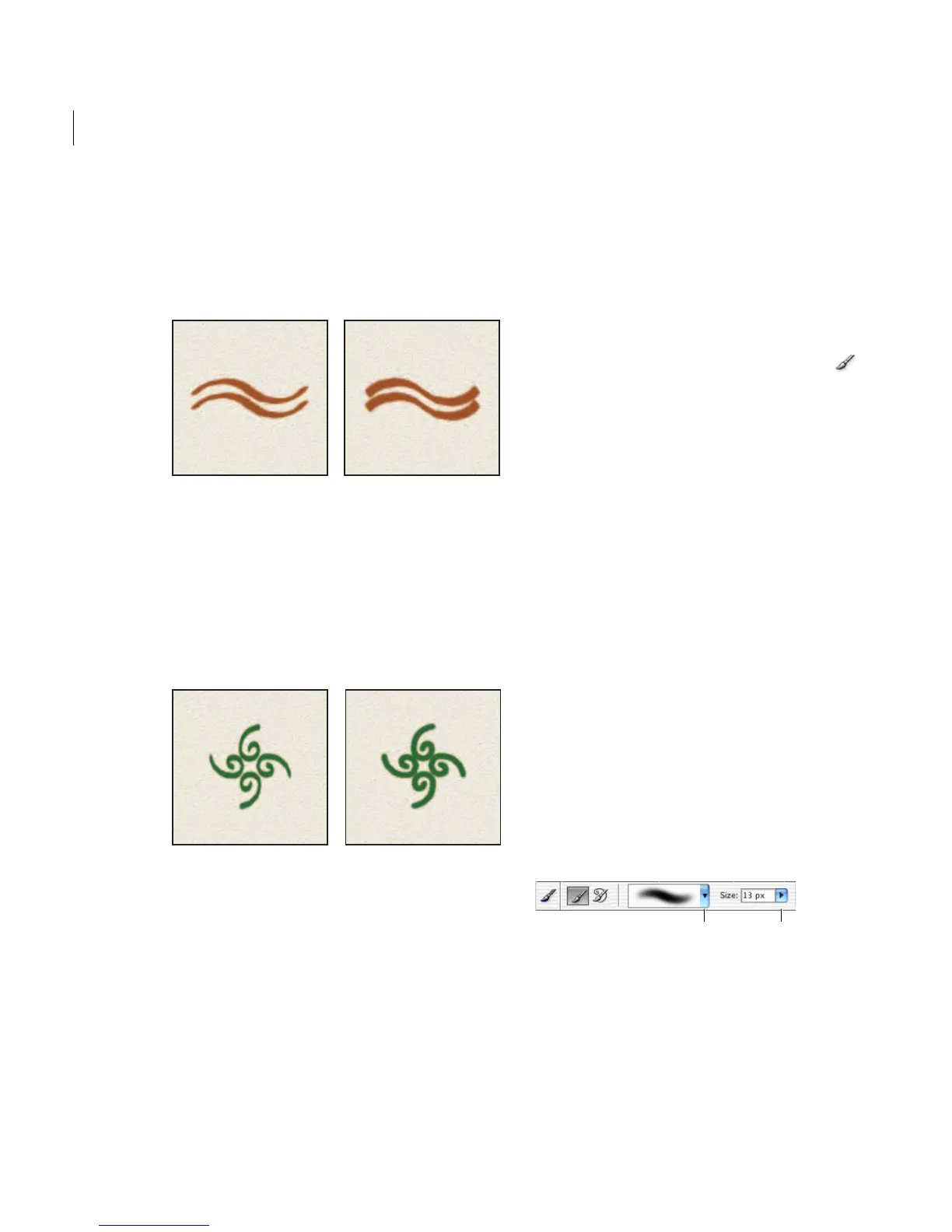
Angle Specifies the angle by which an elliptical
brush’s long axis is offset from horizontal. Type a
value in degrees, or drag the arrowhead in the
angle icon to mark the desired angle.
Angled brushes create a chiseled stroke.
Roundness Specifies the ratio between the brush’s
short and long axes. Enter a percentage value, or
drag a dot in the angle icon away from or toward
the arrow. A value of 100% indicates a circular
brush, a value of 0% indicates a linear brush, and
intermediate values indicate elliptical brushes.
Adjusting roundness affects the shape of a brush tip.
Setting tablet support
Photoshop Elements is compatible with most
pressure-sensitive digitizing tablets, such as the
Wacom
®
tablets. With a software control panel
for your tablet installed, you can vary brush
tool properties based on the chosen Pen Pressure
brush and the amount of pressure you apply with
your stylus.
To enable tablet support:
1 Select the brush tool in the toolbox.
2 In the options bar, click the More Options
button, and select Tablet Support.
3 Select the brushes pop-up palette, choose Pen
Pressure Brushes from the Brushes pop-up menu,
and then select a brush from the list.
Pen Pressure brush names that include the words
opacity, scatter, or size change only that property
when you apply more or less pressure to the pen.
Other Pen Pressure brushes change several
different properties.
Note: If the highest pressure of your stylus does not
reach 100%, contact your tablet vendor. This
problem is caused by the driver software, not
Photoshop Elements.
Creating and editing brushes
You can create new brushes and delete brushes
you no longer need, and you can use part of an
image to create a custom brush. You can also create
a temporary brush that you only expect to use
one time.
Brush options in options bar
A. Brush pop-up palette and brush thumbnail
B. Brush size pop-up slider and text box
AB



 To Next Page