154
CHAPTER 9
Transforming and Distorting Images
2 Choose Image > Rotate, and choose one of the
following commands from the submenu:
• Layer/Selection 90° Left to rotate counter-
clockwise by a quarter-turn.
• Layer/Selection 90° Right to rotate clockwise by
a quarter-turn.
• Layer/Selection 180°
to rotate by a half-turn.
• Flip Layer/Selection Horizontal to flip
horizontally.
• Flip Layer/Selection Vertical to flip vertically.
To freely rotate a layer, selection, or shape:
1 Select the layer, area, or shape you want to
rotate. (See “Specifying what to transform” on
page 153.)
2 Choose Image > Rotate > Free Rotate
Layer/Selection. A bounding box appears in the
image.
3 By default, the rotation occurs around the
center of your selection. To change this behavior,
click a square on the reference point locator in
the options bar.
Each square on the reference point locator repre-
sents a point on the bounding box. For example, to
set the reference point to the top left corner of the
bounding box, click the top left square on the
reference point locator.
4 Do one of the following:
• Move the pointer outside of the bounding
border (it becomes a curved, two-sided arrow)
, and then drag. To constrain the rotation to
15° increments, hold down Shift as you drag.
• Type an angle of rotation (–180 to 180) in the
angle degree text box of the options bar. A
positive value rotates clockwise, and a negative
value rotates counterclockwise.
5 Do one of the following:
• To commit the transformation, double-click
inside the bounding box, click the Commit
button in the options bar, or press Enter
(Windows) or Return (Mac OS).
• To cancel the transformation, click the Cancel
button in the options bar, or press Esc.
To simultaneously apply several transforma-
tions, including rotate, use the Free Transform
command. (See “Using the Free Transform
command” on page 156.)
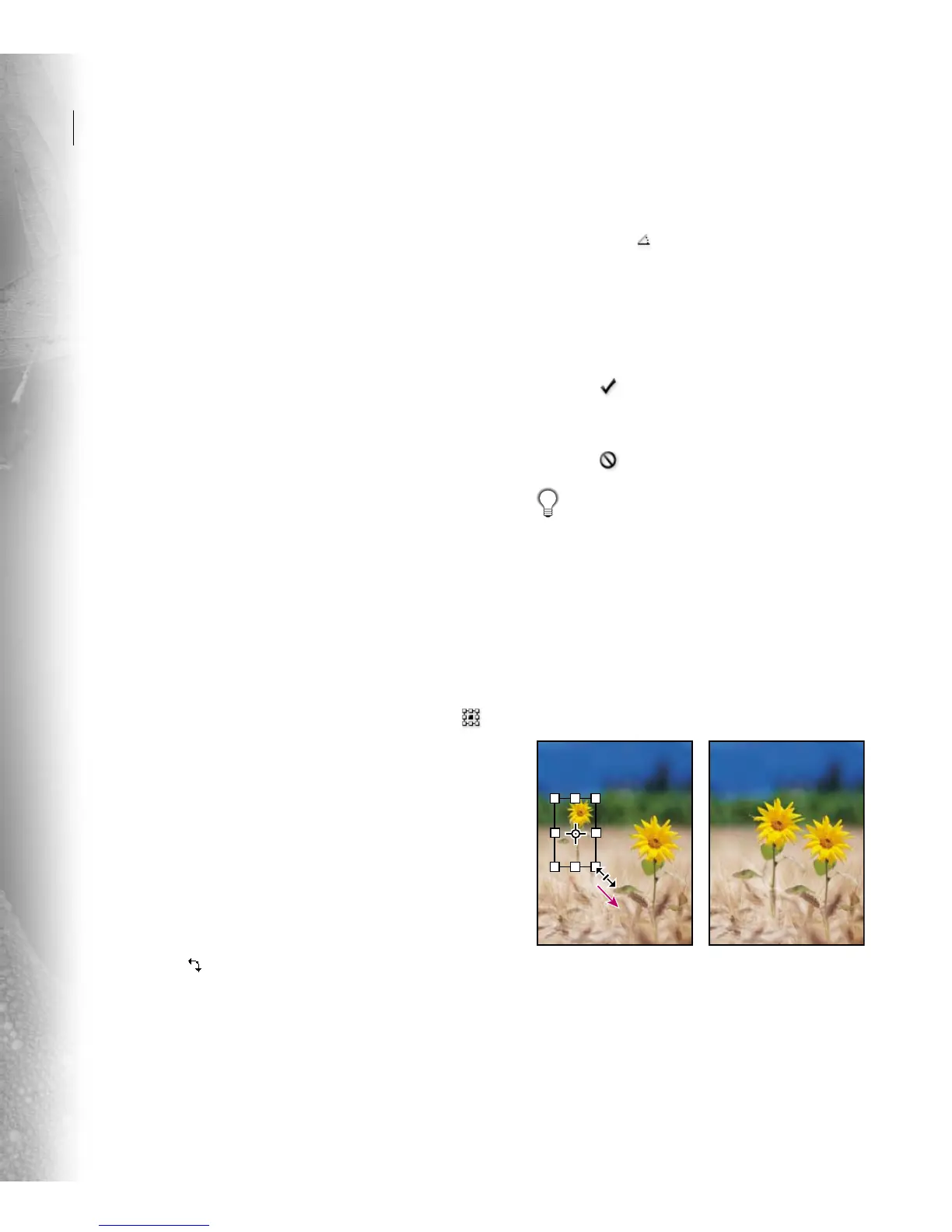
Scaling layers, selections, and shapes
Scaling a layer, a selection on a layer, or a shape
enlarges or reduces it relative to its center point.
You can scale horizontal and vertical dimensions
separately or simultaneously.
Scaling a layer



 To Next Page