CHAPTER 11
194
Creating Shapes and Text
Transforming shapes
You can alter a shape by applying transformations
to it. For example, you can scale, rotate, skew,
distort, and apply perspective to a shape.
To transform a shape:
1 Select the shape selection tool .
2 Do one of the following:
• Double-click the shape you want to transform.
• Select the shape you want to transform, choose
Image > Transform Shape, and choose a trans-
formation command.
3 Tr ansform the shape as described in “Trans-
forming objects in three dimensions” on page 157.
Simplifying shape layers
Simplifying a shape layer converts it to a regular
bitmap layer. Simplifying a layer is necessary when
you want to paint on a shape or apply filters to it.
To simplify a shape layer:
1 Select a shape layer in the Layers palette.
2 Do one of the following:
• Choose Layer > Simplify Layer.
• If a shape tool is selected, click Simplify in the
options bar.
Applying layer styles to shapes
You can apply effects—such as drop shadows
and bevels—to shapes quickly and easily using
layer styles. Keep in mind that a layer style is
applied to all shapes on a layer. For example, if you
apply a drop shadow style to a layer that contains
multiple shapes, all of the shapes will display a
drop shadow.
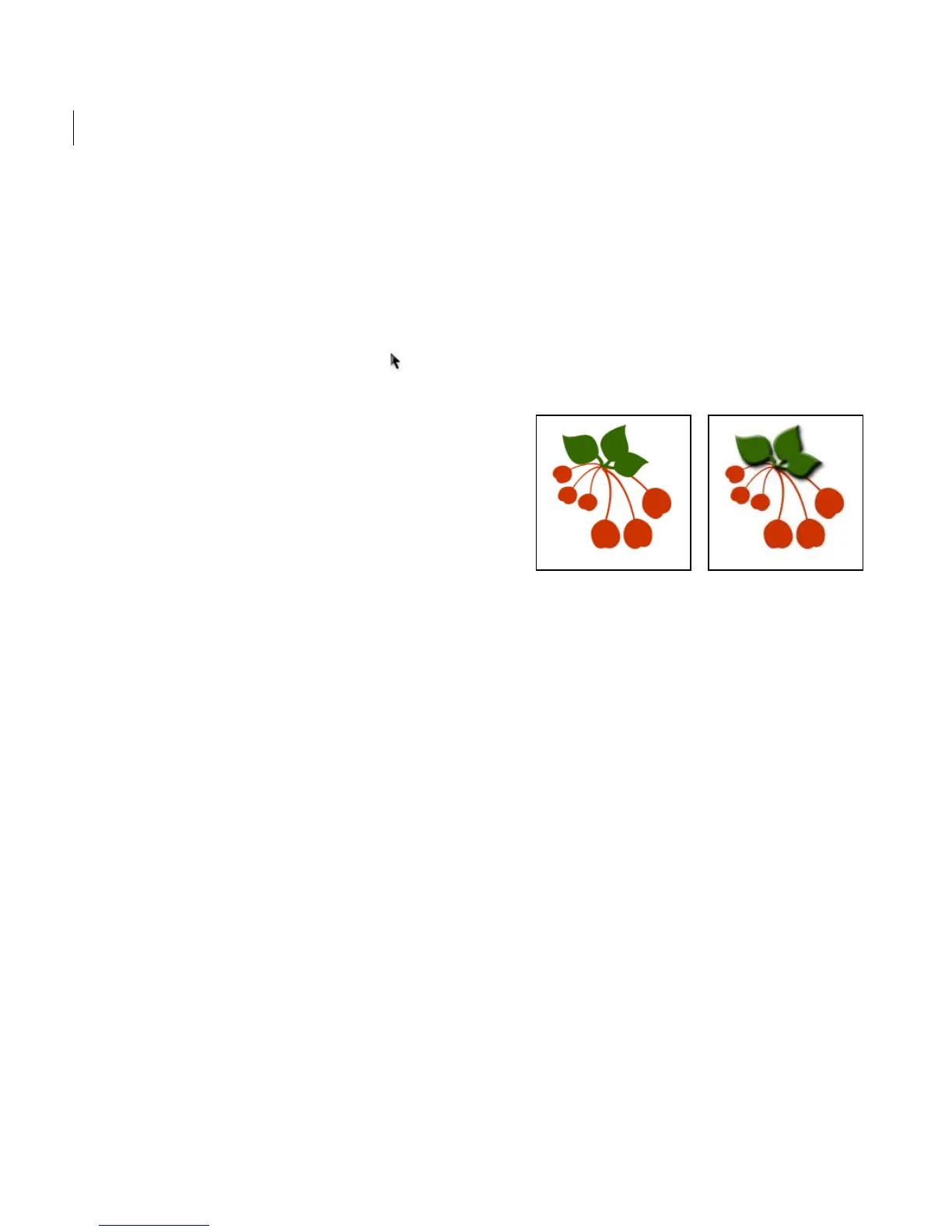
Original vector art (left) and the same art with a style applied
to the leaf layer (right)
To apply a layer style to a shape:
1 Select the shape with the shape selection tool.
(See “Using the shape selection tool” on page 193.)
2 Click the Layer Styles thumbnail in the
options bar.
3 Scroll through the layer styles in the palette. To
view additional layer styles, choose a category
from the drop-down list.
4 Apply the style to the shape:
• Drag a style from the pop-up palette onto a
shape in the image.
• Click a style to apply it to the shape layer.



 To Next Page