195
ADOBE PHOTOSHOP ELEMENTS 2.0
User Guide
Setting shape tool options
Each shape tool provides specific options; for
example, you can set options that allow you to
draw a rectangle with fixed dimensions or a line
with arrowheads.
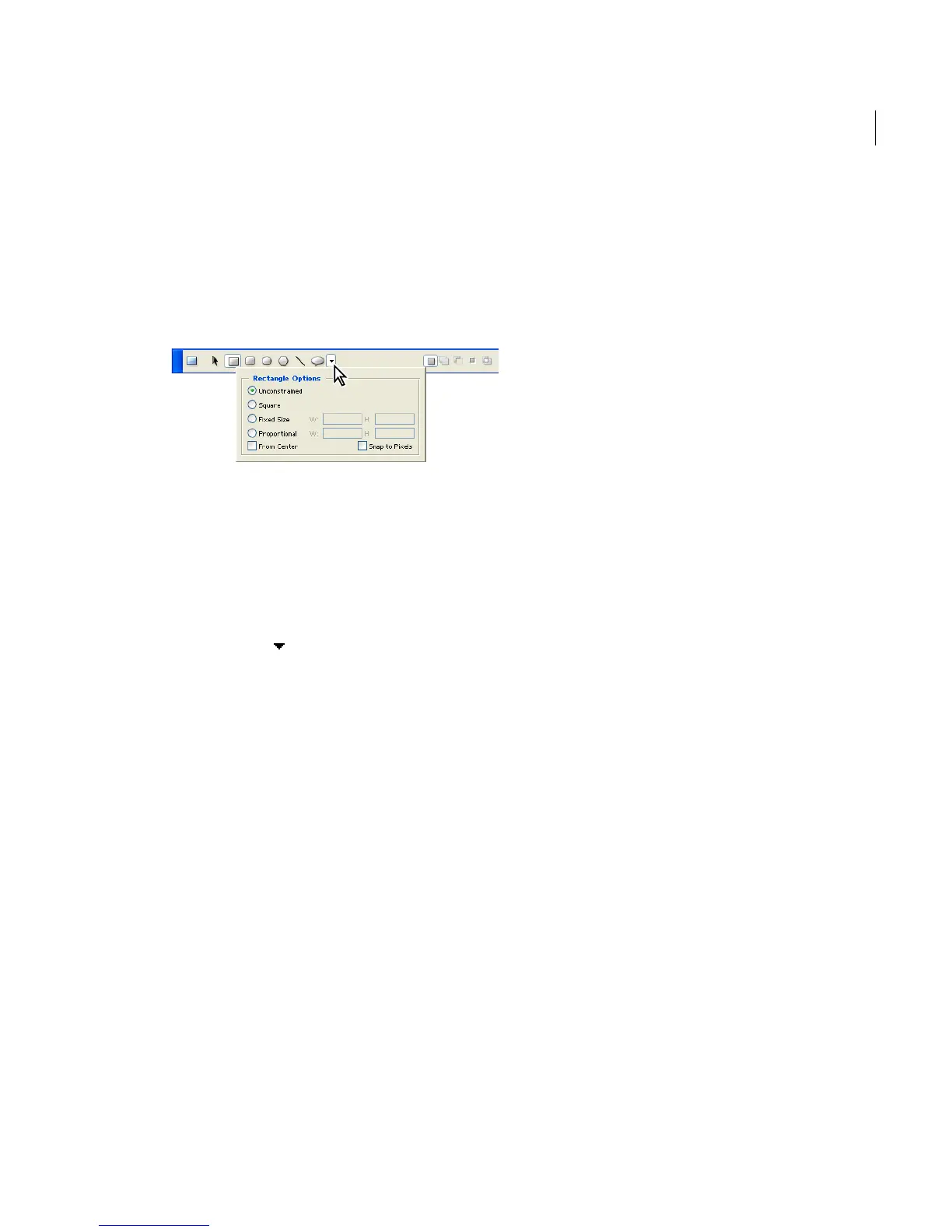
Select a shape in the options bar, and click the inverted
arrow to display options for the selected shape.
To set tool-specific options:
1 Select a shape tool.
2 In the options bar, set the options that are
available for the active shape tool. Click the
inverted arrow next to the shape buttons to
view additional options for the active tool.
Arrowheads Start and End Renders a line with
arrowheads. Select Start, End, or both to specify
on which end of the line arrows are rendered. The
shape options appear in the pop-up dialog box.
Enter values for Width and Length to specify the
proportions of the arrowhead as a percentage of
the line width (10% to 1000% for Width, and 10%
to 5000% for Length). Enter a value for the
concavity of the arrowhead (from –50% to +50%).
The concavity value defines the amount of
curvature on the widest part of the arrowhead,
where the arrowhead meets the line.
Circle Constrains an ellipse to a circle.
Defined Proportions Renders a custom shape
based on the proportions with which it was
created.
Defined Size Renders a custom shape based on
the size at which it was created.
Fixed Size Renders a rectangle, rounded
rectangle, ellipse, or custom shape as a fixed shape
based on the values you enter in the Width and
Height text boxes.
From Center Renders a rectangle, rounded
rectangle, ellipse, or custom shape from the center.
Indent Sides By Tu rns a polygon into a star. Enter
a percentage in the text box to specify the depth of
the star’s indentations.
Proportional Renders a rectangle, rounded
rectangle, or ellipse as a proportional shape based
on the values you enter in the Width and Height
text boxes.
Radius For rounded rectangles, specifies the
corner radius. For polygons, specifies the distance
from the center of a polygon to the outer points.
Sides Specifies the number of sides in a polygon.
Smooth Corners or Smooth Indents Renders a
polygon with smooth corners or indents.
Snap to Pixels Snaps edges of a rectangle or
rounded rectangle to the pixel boundaries.
Square Constrains a rectangle or rounded
rectangle to a square.
Unconstrained Lets you set the width and height
of a rectangle, rounded rectangle, ellipse, or
custom shape by dragging.
Weight Determines the width of a line in pixels.



 To Next Page