197
ADOBE PHOTOSHOP ELEMENTS 2.0
User Guide
Note: To apply the Perspective or Distort commands,
or to transform part of the type layer, you must
simplify the type layer, making the type uneditable.
• Use layer styles.
Editing text in type layers
You can insert new text, change existing text, and
delete text in type layers. If any styles are applied
to a type layer, all text inherits the attributes of
those styles.
To edit text in a type layer:
1 Select the horizontal type tool or the vertical
type tool . (When you click in an existing type
layer, the type tool changes at the insertion point
to match the orientation of the layer.)
2 Select the type layer in the Layers palette,
or click in the text flow to automatically select a
type layer.
3 Position the insertion point in the text, and do
one of the following:
• Click to set the insertion point.
• Select one or more characters you want to edit.
4 Enter text as desired.
5 Commit the changes to the type layer. (See
“Entering text” on page 196.)
Changing type layer orientation
The orientation of a type layer determines the
direction of type lines in relation to the document
window. When a type layer is vertical, the type
lines flow up and down; when a type layer is
horizontal, the type lines flow from left to right.
To change the orientation of a type layer:
1 Select the type layer in the Layers palette.
2 Do one of the following:
• Select a type tool, and click the Flip Orientation
button in the options bar.
• Choose Layer > Type > Horizontal, or choose
Layer > Type > Vertical.
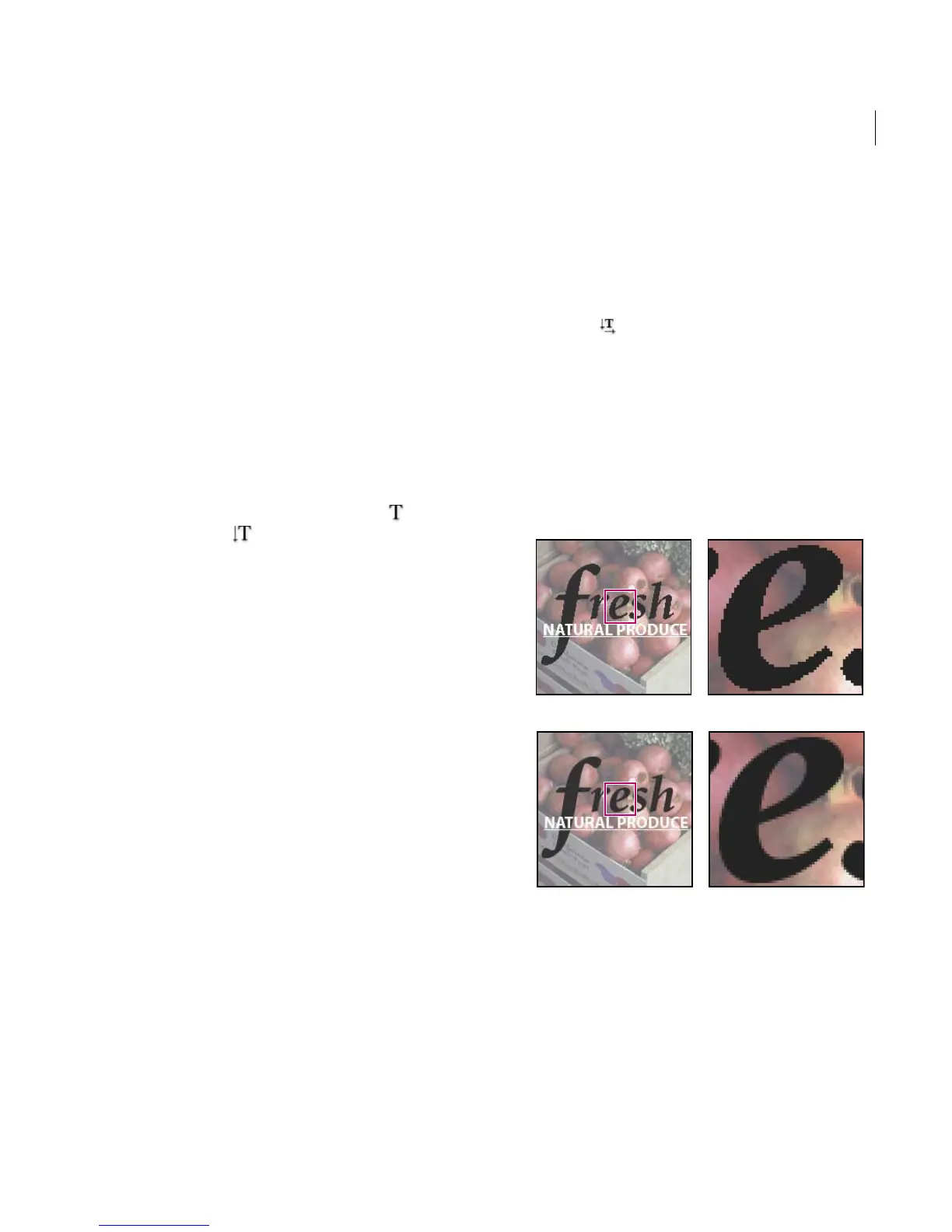
Specifying anti-aliasing
Anti-aliasing lets you produce smooth-edged type
by partially filling the edge pixels, so the edges of
the type blend into the background.
Applying anti-aliasing
A. Anti-aliasing off B. Close up
C. Anti-aliasing on D. Close up
CD
AB



 To Next Page