114
Updated Alarm Bar color mapping function allows for Alarm Bar colors to dynamically change between different
colors based on assigned channel values. There are 12 different color mapping configurations to choose from. To
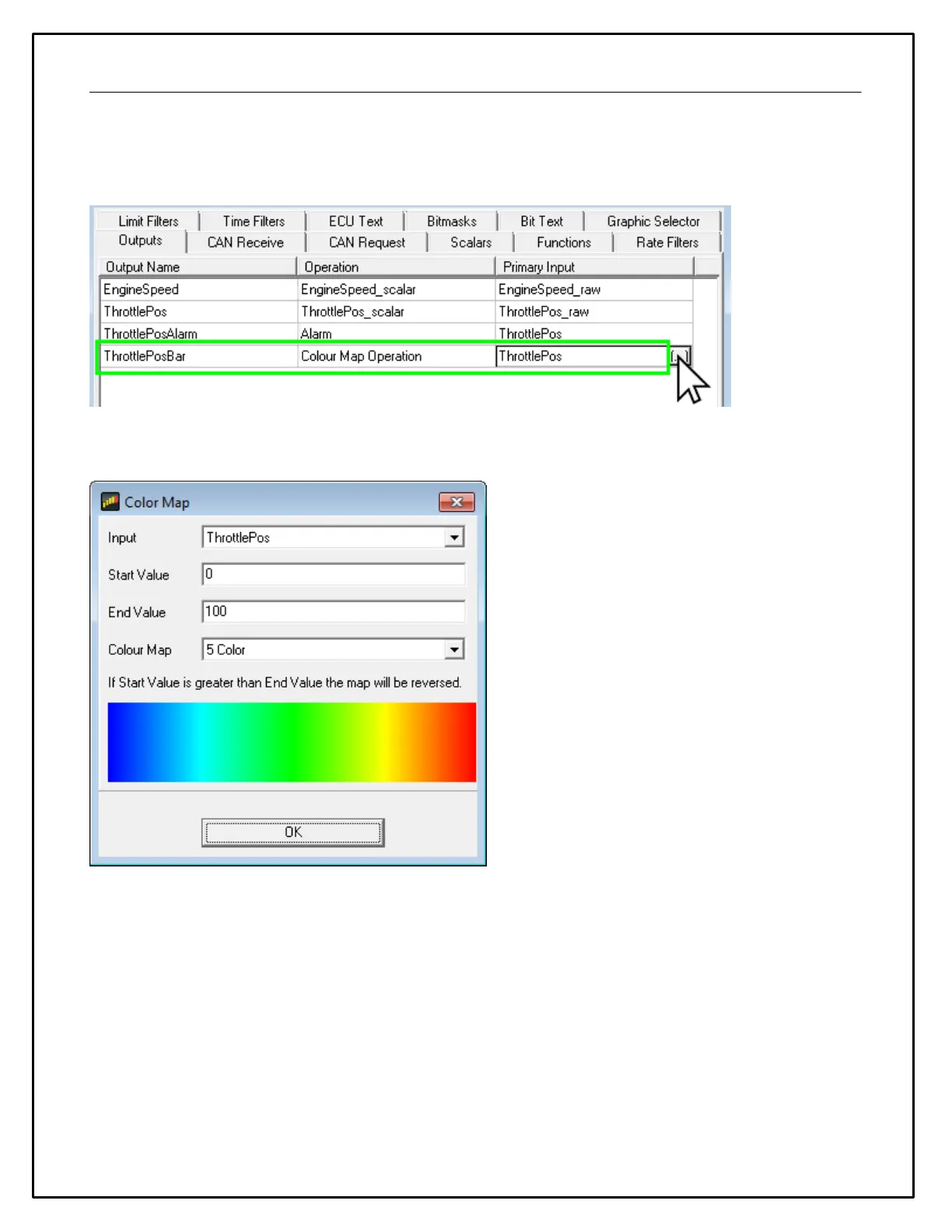
create a color mapped Alarm Bar, first create a new Output channel – for example ThrottlePosBar. Set Operation to
Color Map Operation and then click on the ellipses (“…”).
In the Color Map window, select the channel to reference – in this case ThrottlePos – and set the Start and End
Value to scale the color mapping to and then select the desired Color Map.
To add this element to a layout, unlock the layout and click on the Alarm Bar button (alarm clock icon). Place the
Alarm Bar in your desired location – note that Alarm Bars can be clicked and dragged to set their shape as either a
horizontal or vertical bar. Double click the Alarm Bar once placed to access the Alarm Bar Editor window.


 To Next Page