26
The display editor is the core tool for editing a setup. To open the tool, go to Setup | Display...
You can think of the display editor as a collection of tools for creating items on your screens. A DashDesign setup
consists of four logical components: Primary Inputs, Operations, Outputs and Gauges. These are defined as follows:
·
Primary Inputs are raw data manipulated by an operation.
·
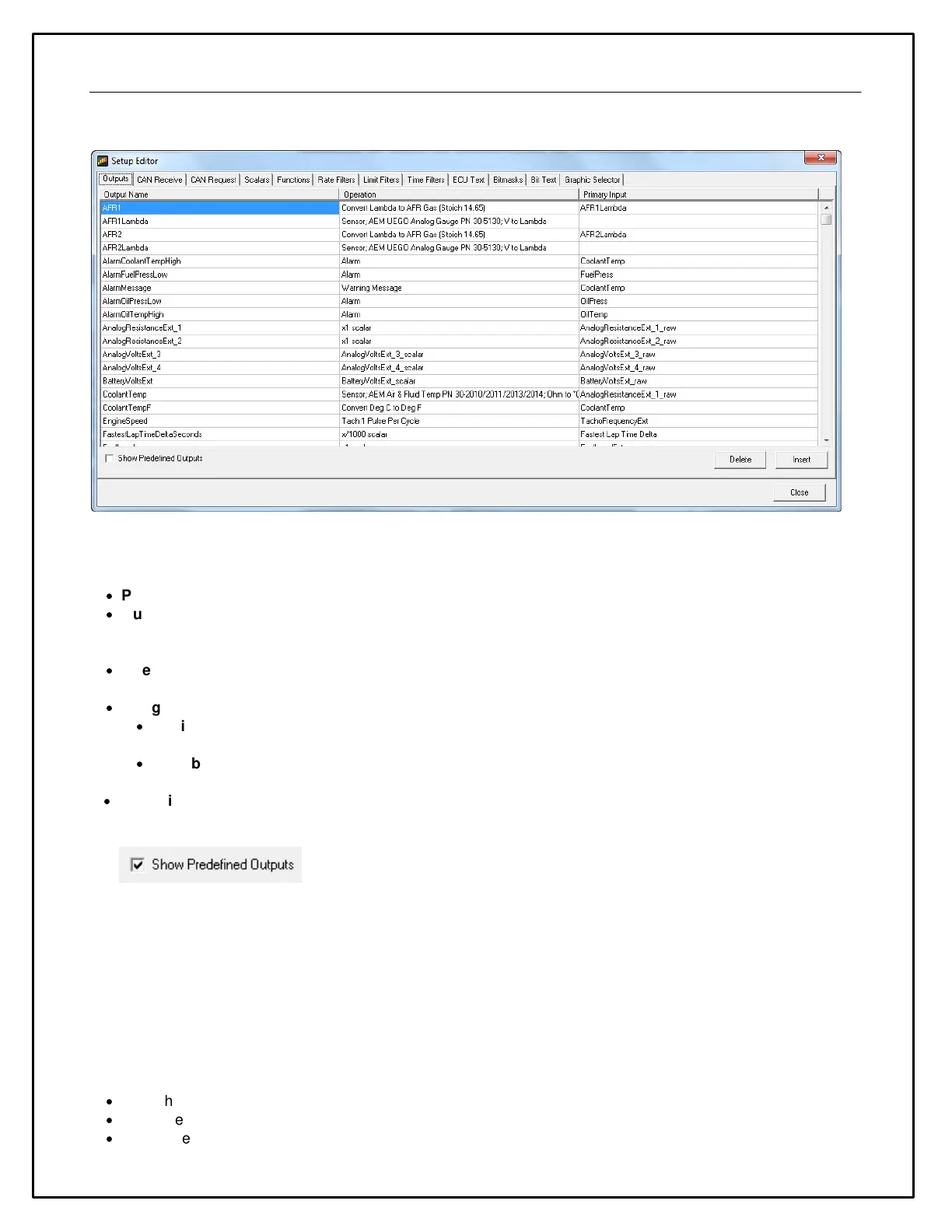
Outputs are objects that obtain information from one or more sources or other outputs. An output manipulates
the obtained data according to the operation associated with the output. The result can then be used in a gauge
or another output.
·
Operations are objects that define how the data is manipulated by an output. Examples of operations are
scalars, functions and alarms.
·
Gauges are objects that are placed on a screen page. There are two types of gauge; static and variable.
·
Static gauges do not change their appearance on the screen and include gauges such as text labels or
graphics.
·
Variable gauges change their appearance to reflect data obtained from an output. Examples of variable
gauges are bar graphs, tachos and numerical text gauges.
·
Predefined Outputs are pre-configured within the system and can be used in many ways. Some examples
include: Log Mem Free (kb) which displays the amount of free logging memory (logging versions only) and Night
Mode Input Status. This output displays the state of the Night Mode 12v input (Grey wire in flying lead bundle).
Click the Show Predefined Outputs box in the Display Editor to add all Predefined
Outputs to the list.
Two common modifications necessary are 1.) Creating a new Pressure Sensor Output and 2.) Modifying the tach
output scalar based on the number of engine cylinders.
Creating a new Pressure Sensor Output
Outputs are values, texts or graphics that are used by gauges or other outputs. The output that it passes is
determined by the operation that it uses.
To set up a new output:
·
Click the Insert button in the Outputs tab.
·
Enter the name of the new output. This should describe what the output actually generates.
·
Select the operation to be used by the output from the drop-down list.


 To Next Page