SmartyCam
User Manual
Release 1.04
16
www.smartycam.com
20
6.4 – How to record videos
It is possible to record images both manually and automatically
Note: do not remove the Micro SD when SmartyCam is recording or is in “Player”
section (Micro SD icon will be red). Otherwise the Micro SD will be permanently
damaged.
35
6.4.1 –Manual recording
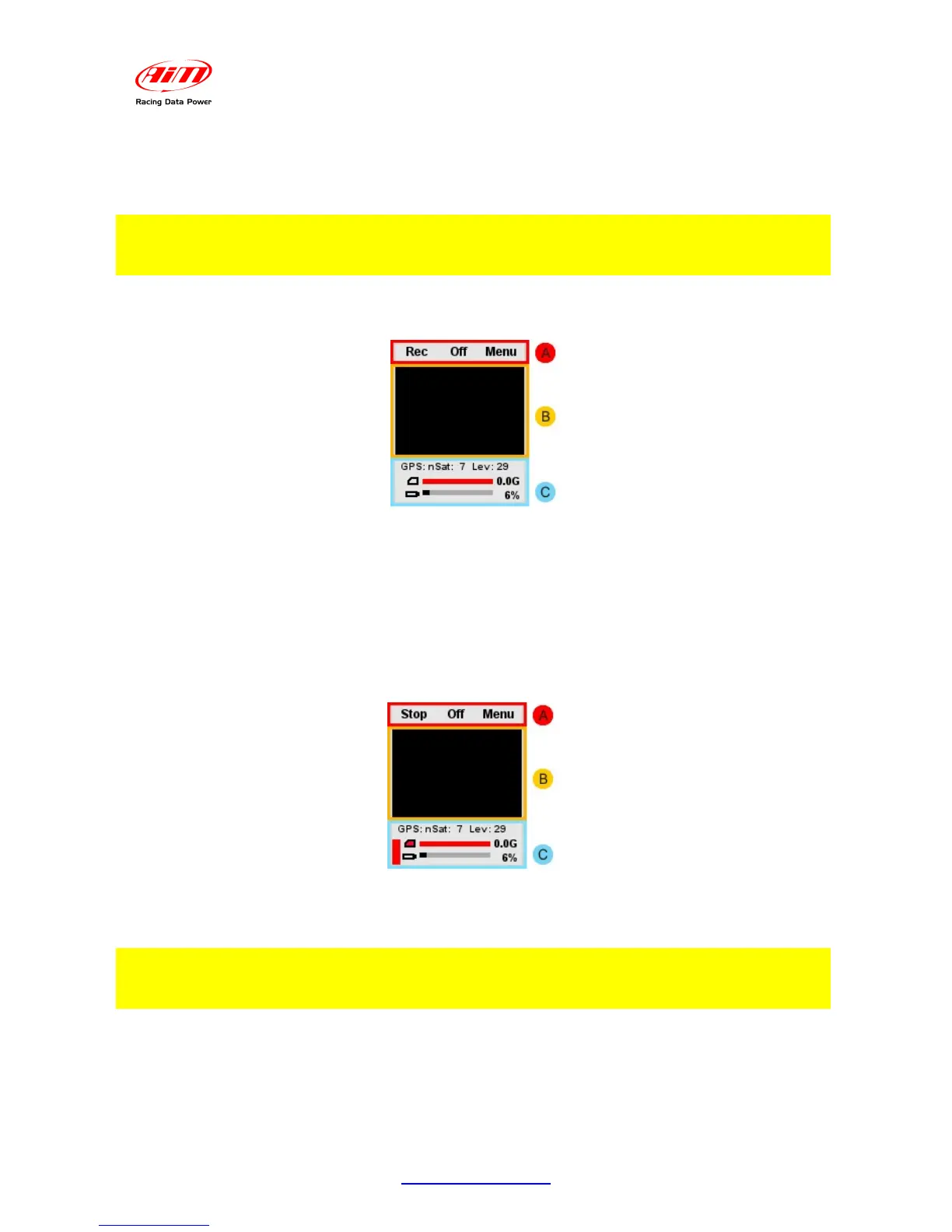
Immediately after switching SmartyCam on, the display shows the following page:
The keyboard (“A”) allows to:
• start recording, pressing “Rec”;
• switch SmartyCam off, pressing “Off”;
• enter “Menu Status”, pressing “Menu”.
The mid of the page (“B”)
• the real time image frame is visible;
To start recording, press “Rec”: SmartyCam will show this page:
The keyboard (“A”) allows to:
• stop recording pressing “Stop”: SmartyCam comes back to “Online Status”;
• switch SmartyCam off, pressing “Off”;
Note: do not remove the Micro SD when SmartyCam is recording or is in “Player”
section (Micro SD icon will be red). Otherwise the Micro SD will be permanently
damaged.
The lower part (“C”) is “Satellites, Battery and Memory Status”.
• When SmartyCam is recording a red indicator appears on the left .
• After a pre-defined time of inactivity the display will switch off (see paragraph 6.3.1).


 To Next Page