Getting Started
17
Copyright 2010 by AirNav Systems
2.4 Quickstart Tutorial
AirNav RadarBox - Quickstart Tutorial
This set of step by step instructions will guide you through the most important application features.
Note: information between [...] means that the command mentioned can be found in the AirNav
RadarBox Menus.
Example: [Tools|Internet|Download Updated Data Now] points you to click on Tools menu, Internet
topic, Download Updated Data Now subtopic.
Step by Step Tutorial
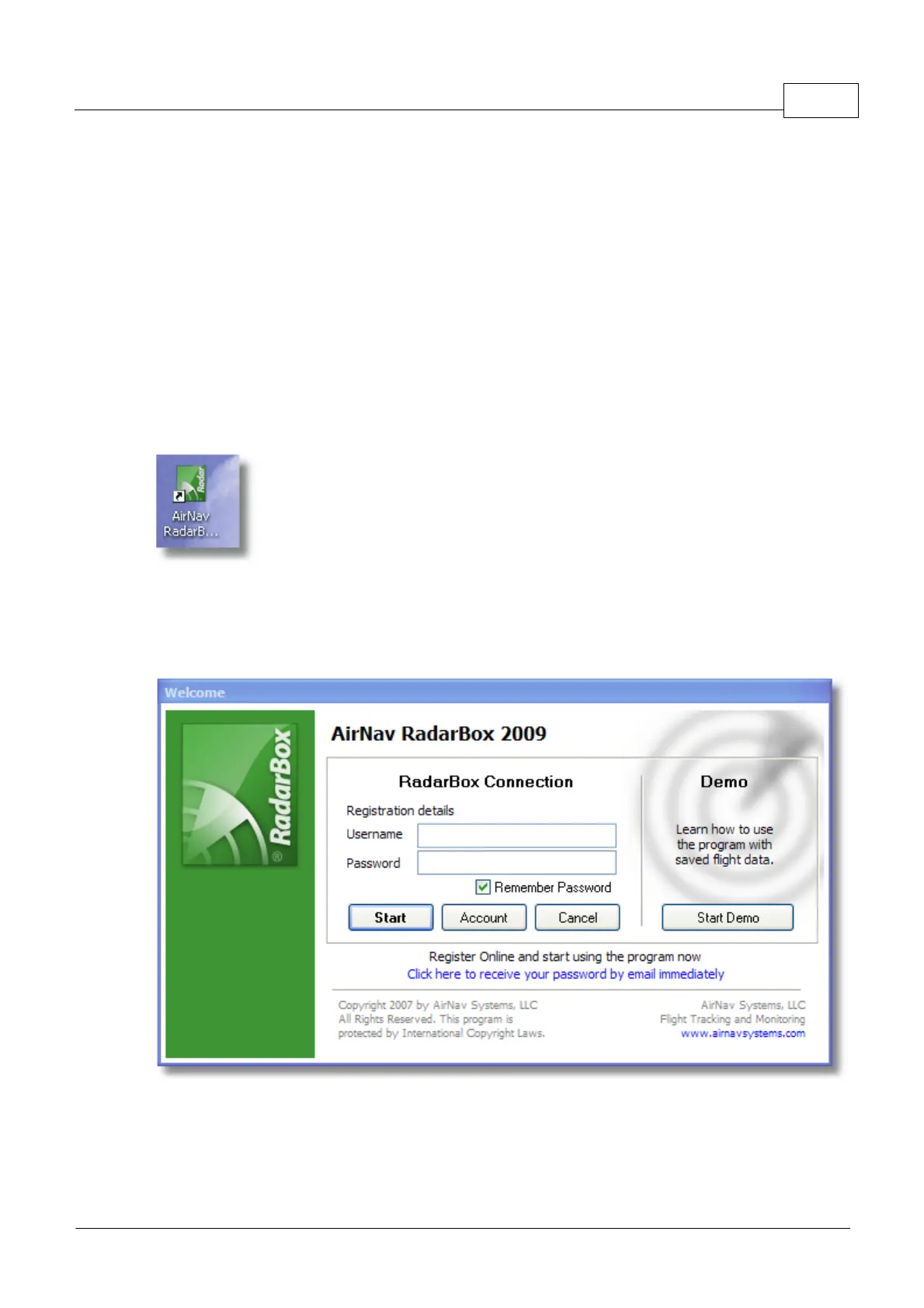
1- Start the software using the windows Shortcut created on your Start Menu or Desktop.
2. The Welcome Window will be shown. Enter your Username and Password then click the
"Start" button. You can 'tick' the Remember password checkbox to save you having to type your
details every time you start RadarBox. The connection to the Hardware will be started and if you are a
subscriber to the AirNav RadarBox Data Sharing Network, the software will try to download network
data.
3- The first time you run RadarBox, the main software window with a world map will be shown as
illustrated below. Dynamic 3D maps are one of RadarBox's most important features. You are now
going to explore some of the RadarBox functions.



 To Next Page