Menus, Windows and Toolbars
47
Copyright 2010 by AirNav Systems
Please note that you can access other map features by clicking your right mouse button over the map.
Working with maps
AirNav RadarBox 2009 new graphical approach gives you the chance to use one of the most
sophisticated map interface currently available in any flight tracking application.
Map functions are available through the map toolbar, or by using your right mouse button over a
map.You may zoom, resize, and change the projection type, fit to screen and hide/show map layers
using the map toolbar. The easiest way to edit a map is using your mouse buttons.
Pan and Rotate
1- Hold down your left mouse button
2- Move your mouse until you move the map to the desired location
Resize
1- Hold down your right mouse button
2- Move your mouse to resize the map as desired
See Custom Outline Maps in the Advanced Users section for information on displaying custom maps.
Avoid Label Overlap
You can avoid aircraft labels being overlapped. This can be done automatically or manually.
Automatically:
Click Track menu, Avoid Label Overlap or F9.
All calculations, label rotation and resizing will be made in order to find the best way each label should
be displayed.
Manually:
1- Move the mouse cursor to an area over the label you want to resize.
2- Hold the Shift Key down and at the same time move the mouse. The label will move to where the
mouse cursor position.
3- Release the Shift key. The label will remain with its current direction and size.
VOR/NDB/FIX/Airport Label overlap avoidance:
Just press F10.
Overlapped labels will be moved or sized for label overlap avoidance.
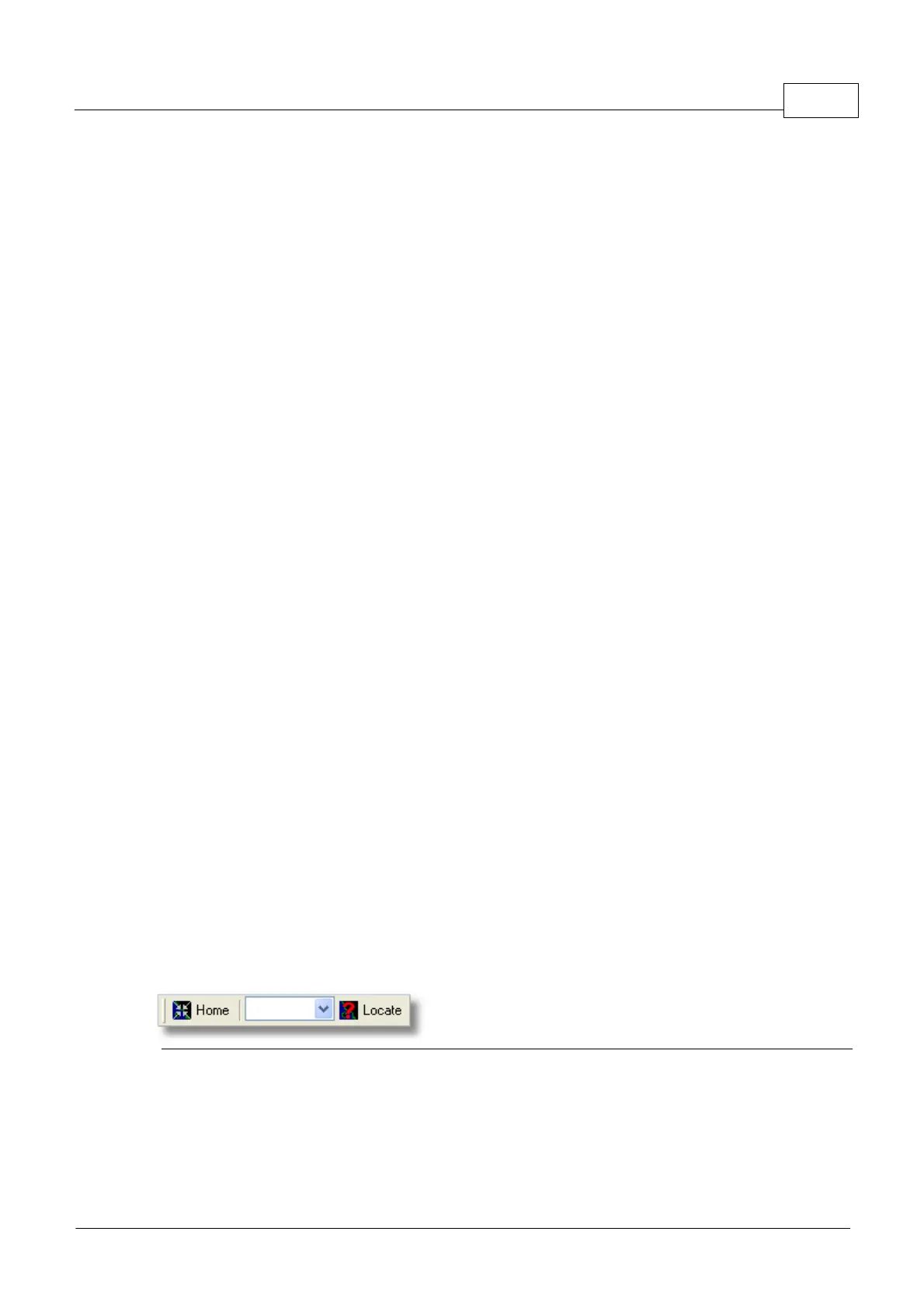
4.1.3 Location Toolbar
Location Toolbar
It is easy to locate anything on a map.
Items to locate include:
· Airport
· VOR
· NDB
· FIX



 To Next Page