Advanced Users
83
Copyright 2010 by AirNav Systems
Files\AirNav Systems\AirNav RadarBox 2009)
2.) Create a new folder called "Outlines"
3.) Open that folder and place your outlines files in there
4.) Close RadarBox if it is open and start RadarBox again
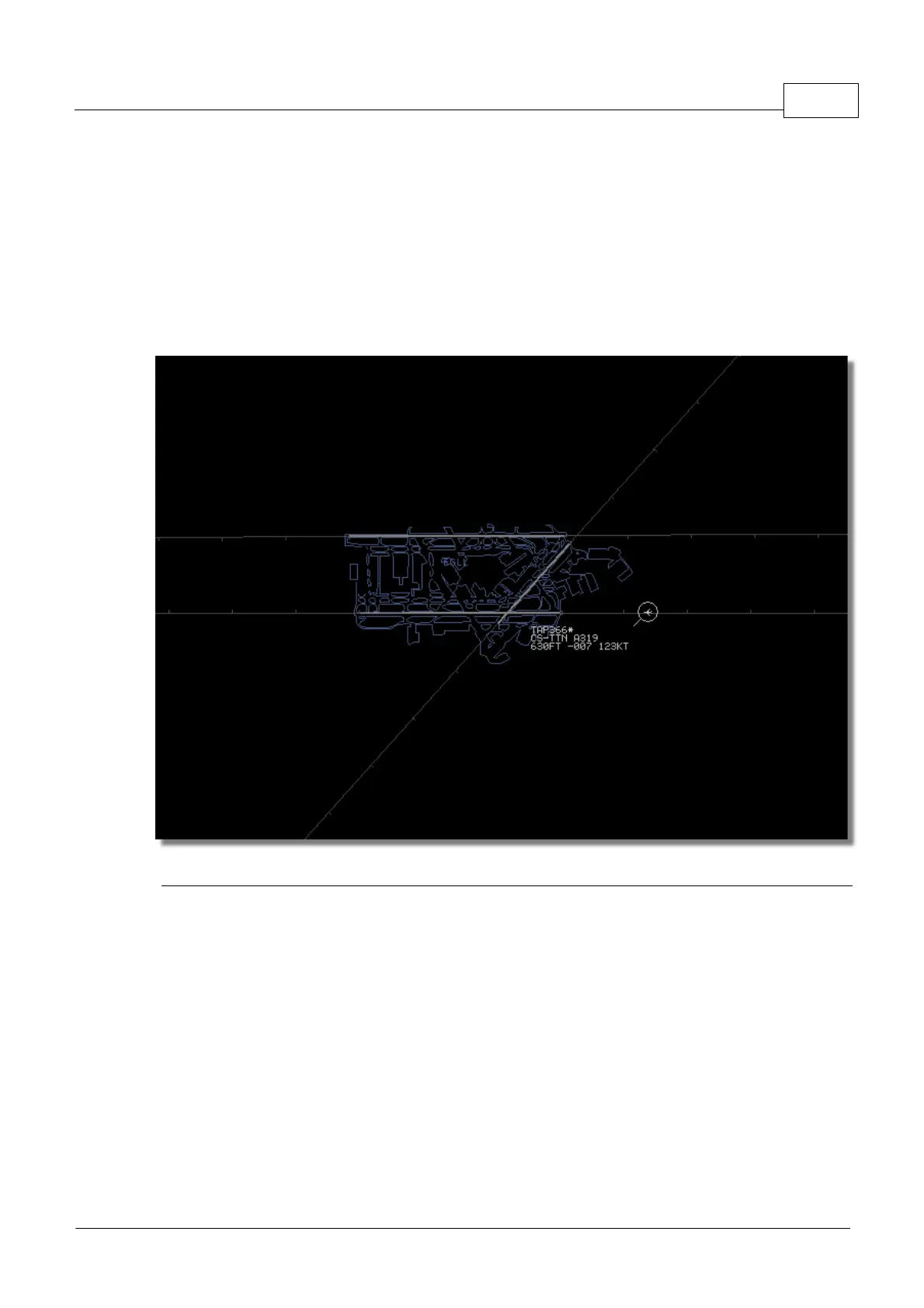
The outlines should now be displayed on your map. If they do not appear go to the Menu Map and
click Outlines. If you cannot see the outlines, make sure you have not changed the color to that of the
background in Preferences | Colors.
To hide Outlines, go the RadarBox Map Menu and untick Outlines or delete the specific outline file
from the Outlines folder.
Above: Detailed airport outline map - London Heathrow.
Airspace and airfield outline files are available at the AirNav Utilities Website
5.4 Data Output on Port 7879
Data Output on Port 7879 and 30003
The data received by RadarBox is available over port 7879 to use for external applications however
the data is delayed by 5 minutes for security reasons (Note: the data you view on the software is not
delayed).
The feed works the following way:
1- Flight messages are received in real-time from the decoder.



 To Next Page