AirNav RadarBox Manual
88
Copyright 2010 by AirNav Systems
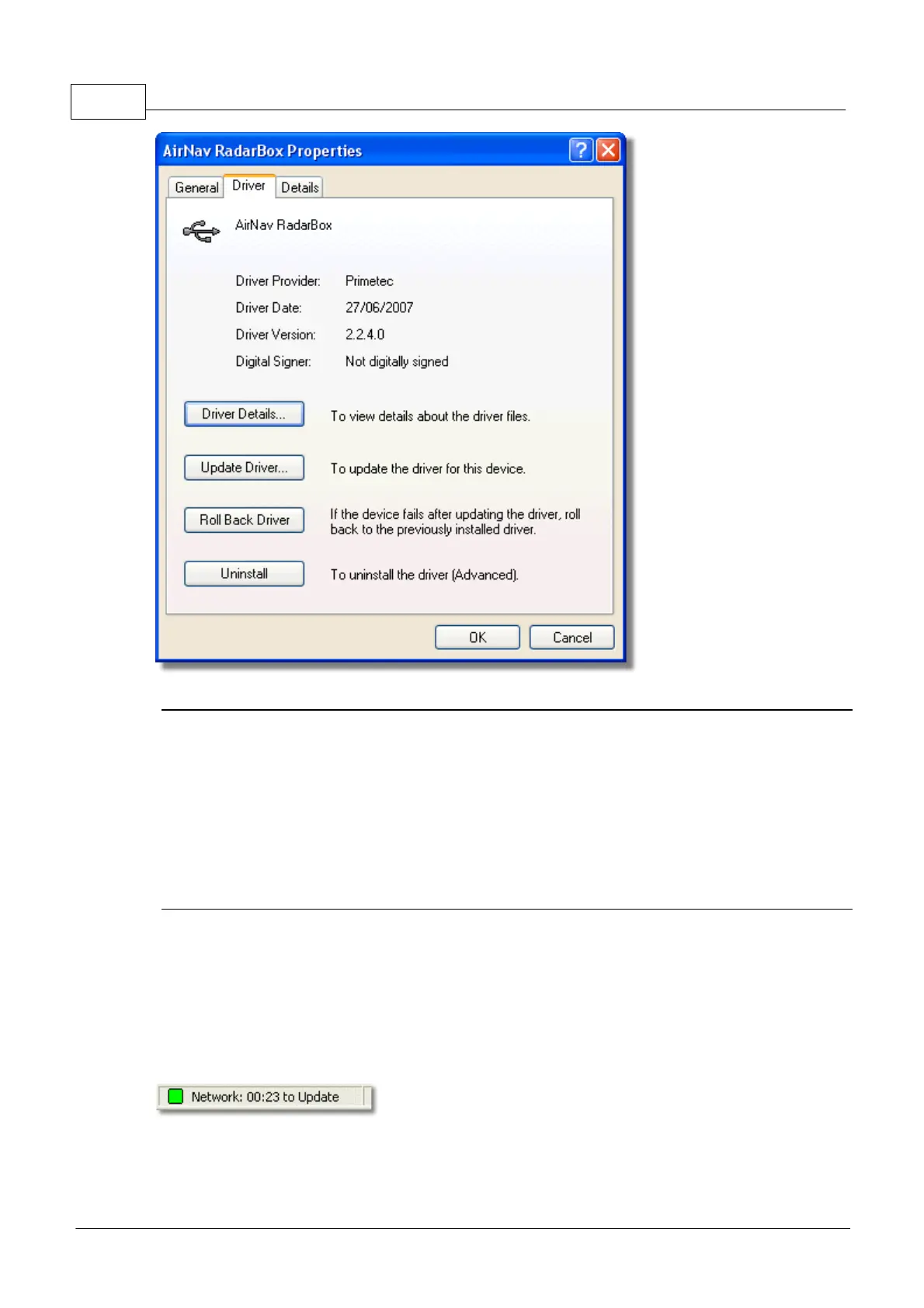
AirNav (Primetec) RadarBox USB Driver version 2.2.4.0
For further assistance, contact AirNav Support at support@airnavsystems.com
6.2 Network Connection
Network Connection Problems
See the AirNav RadarBox Network section for a description of the network function.
Connecting to the Network
To connect to AirNav RadarBox network you need to have your RadarBox hardware connected to your
computer and your computer must have an Internet connection. Open the RadarBox Interface if not
already open and go to the Network tab and make sure that the "Get flights from RadarBox Network"
check box is ticked. Look at the Network connection status light at the bottom of the RadarBox
Interface panel. Data is downloaded each 30 seconds.
It is not possible to receive network data if your RadarBox hardware is not connected. Also, you will
have to be a registered user of the software and have an active AirNav RadarBox account to be able
to receive network flights. You can do this at the main menu [RadarBox | Network Account



 To Next Page