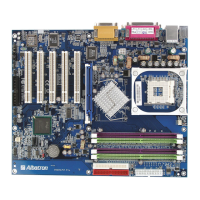
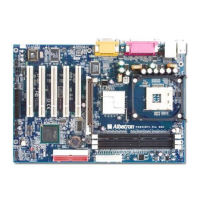
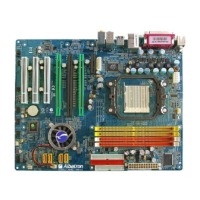
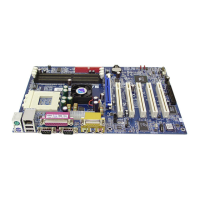
PM266A PRO/ PM266A
33
USB 2.0 Support
This option should be enabled if your system has a USB 2.0 device installed on the system board.
You will need to disable this feature if you install a USB 1.1 device.
Options: Enabled (default)、Disabled
USB Keyboard Support
Enables support for USB attached keyboard. Options: Disabled (default)、Enabled
Super IO Device” label and then press the enter
the following options:
er
nboard Serial Port 1
terrupt for the first serial port.
al Port 2
rial port.
ult)、3F8/IRQ4、3E8/IRQ4、2E8/IRQ3、Auto.
used.
IR。
Transmission Delay
This item allows you to enable/ disable IR transmission delay. This field only configurable if “UART
Mode Select” is set to “ASKIR” or “IrDA”. Options: Enabled (default)、Disabled
Super IO Device
If you highlight the literal “Press Enter” next to the “
key, it will take you a submenu with
Onboard FDC Controll
Select Enabled if your system has a floppy disk controller (FDC) installed on the system board and
you wish to use it. If you install an add-in FDC or the system has no floppy drive, select “Disabled”
in this field. Options: Enabled (default)、Disabled
O
Select an address and corresponding in
Options: Disabled、 3F8/IRQ4 (default)、 2F8/IRQ3、 3E8/IRQ4、 2E8/IRQ3、 Auto
Onboard Seri
Select an address and corresponding interrupt for the second se
Options: Disabled、2F8/IRQ3 (defa
UART Mode Select
This item allows you to select the Infra Red (IR) standard to be
Option: Normal (default)、IrDA、ASK
RxD, TxD Active
This item determines the RxD and TxD frequencies. This field only configurable if “UART Mode
Select” is set to “ASKIR” or “IrDA”. Options: Hi/ Lo (default)、Hi/ Hi、Lo/ Hi、Lo/ Lo
IR


 To Next Page