Calling using speed dial key
You can unhook the handset or the headset to make a call with the handset or the headset otherwise
you make a call in hands-free mode.
• Select the speed dial icon from the phone menu (see the navigation section of your phone model).
• Select the contact to call.
• The call in progress icon is displayed near the contact: .
Receiving a call
When receiving a call, you can:
• Lift the handset to take the call.
• Use the headset to take the call. If your headset has no Off-hook/On-hook key, use the phone
keys and switch on the audio on the headset ( ).
• Press the loudspeaker/hands-free key to take the call in hands-free mode.
• or / Press the 'take the call' or blinking 'line key' key to take the call with the
headset, if connected, or in hands-free mode.
• Take call or Take the call with the headset if connected, or in hands-free mode.
• Reject call Reject the call. The incoming call is ended.
• Silent Mute the ringer (the call is still incoming but the phone no longer rings).
• Deflect Deflect the call to another contact:
o Use one of the following:
▪ Using the up and down navigator (if necessary), find the contact to call.
▪ Enter the number or name of the contact to whom the call will be deflected.
o Deflect the call to the selected contact.
• Deflect VM Deflect the call to your voicemail.
Switching between audio modes
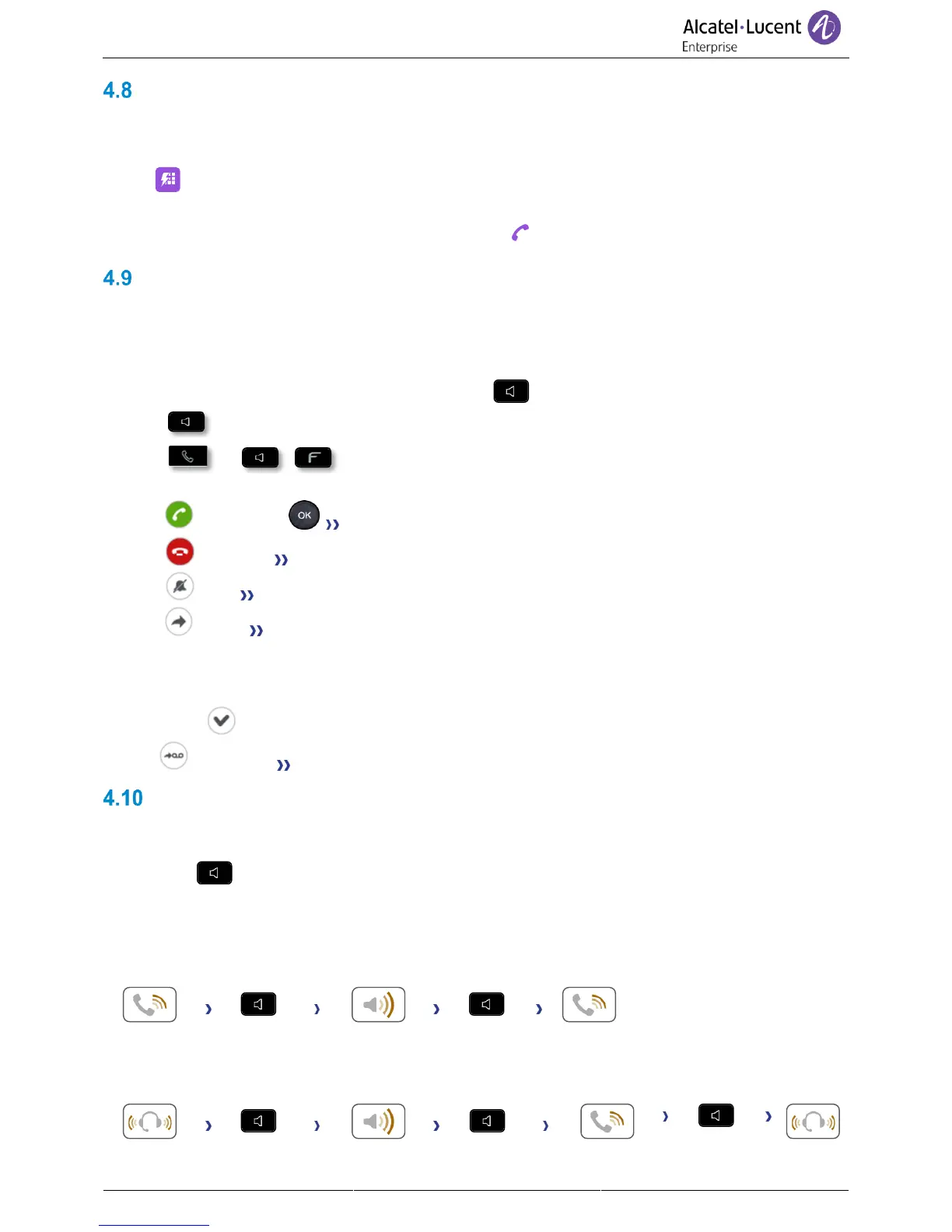
During the conversation, you can switch between different audio modes (handset, loudspeaker, hands-
free or headset, if connected) by pressing the loudspeaker/hands-free key until the desired audio mode
is displayed: . This feature depends on connected devices. The key is lit when the loudspeaker or
hands-free mode is selected.
You are in conversation with the handset, you can switch between following audio modes by short
pressing on the loudspeaker/hands-free key:



 To Next Page