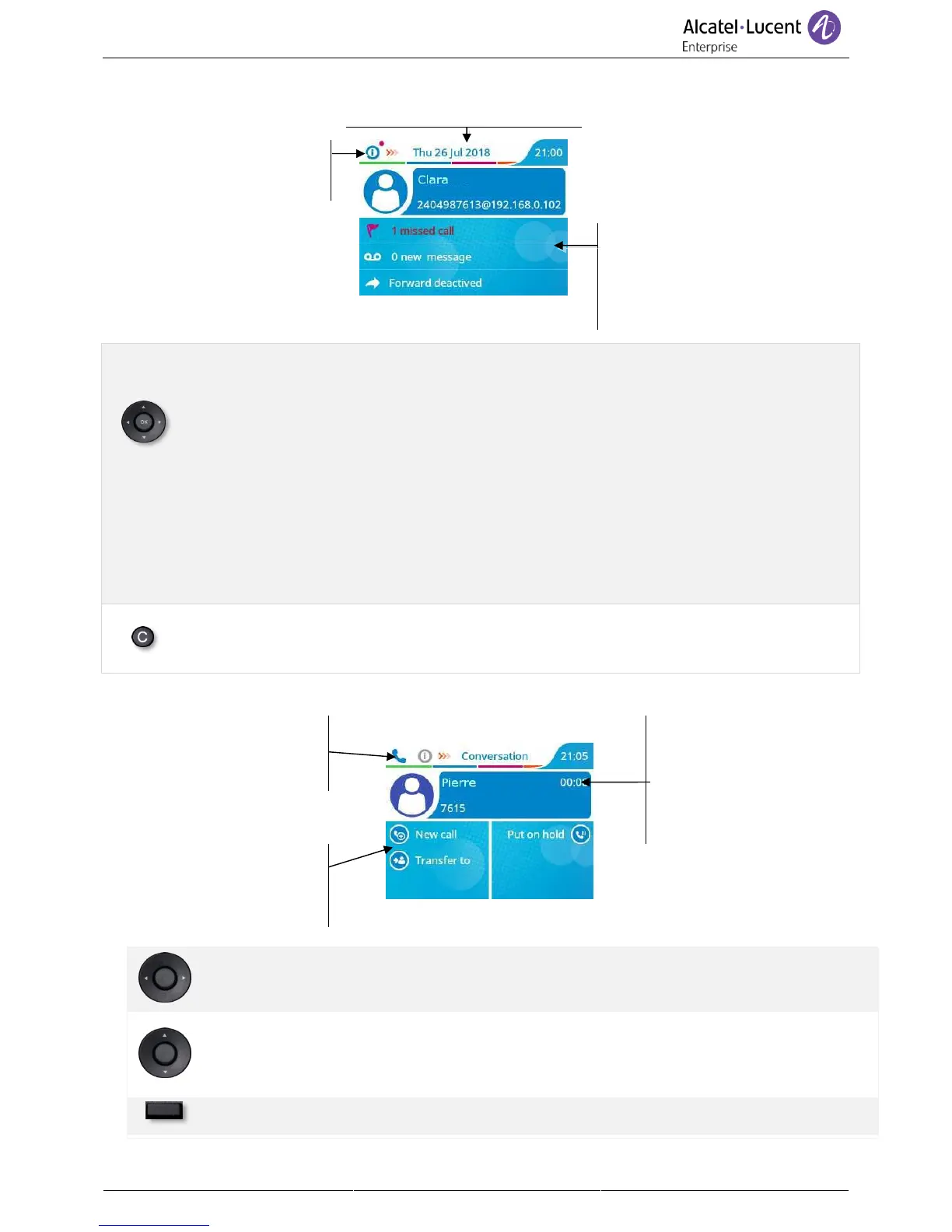
1.2.2 Main screen and navigation keys
Top bar (date, time, status icons)
Open Menu.
Display the page by selecting
the corresponding tab
The default homepage shows
information about the phone
(name, number, number of
missed calls, number of new
messages, forwarding status).
Right navigator:
Open the menu to access features for configuring the phone or managing calls.
OK key:
Use this key to validate your choices and options while programming or configuring (Short
press). Used to access features for managing the call log such as delete a log, delete all
logs, display missed calls only and acknowledge missed calls (In idle state).
Left-right navigator:
Used to move from one page to another and display information about current calls (call in
progress, calls on hold, incoming call).
Up-down navigator:
When information extends over more than one page, use the down navigation key to
display the next page. Use the up navigation key to display the previous page.
Back/Exit key:
Use this key to go back to the previous step.
Use this key to delete one number or character at a time.
1.2.3 Call management screen
Incoming call icon, Call in
progress, Call on hold, …
Incoming call and
conversation
presentation screen
Softkeys: actions available
depending on the call
status (when presentation
screen is not displayed)
Each tab corresponds to a call, the status of which is symbolized by its icon (in progress,
call on hold, arrival of new call). When a call is in progress, use the left-right navigator to
look at calls on hold or incoming calls.
All features are accessible while the call is displayed on the screen. Use the Up and Down
arrows to move up or down a page. These functions (transfer, conference, etc.) are directly
related to the status of the call consulted. For example, the transfer function will not be
available between a call in progress or on hold and an incoming call.
Press the key in front of the label to select the corresponding feature.
You can select another page, 'consult history' for example, whilst the call is in progress by selecting it on
the menu. Retrieve the call management screen by selecting the 'call in progress' icon.



 To Next Page