34 Neo User’s Guide
Finding text
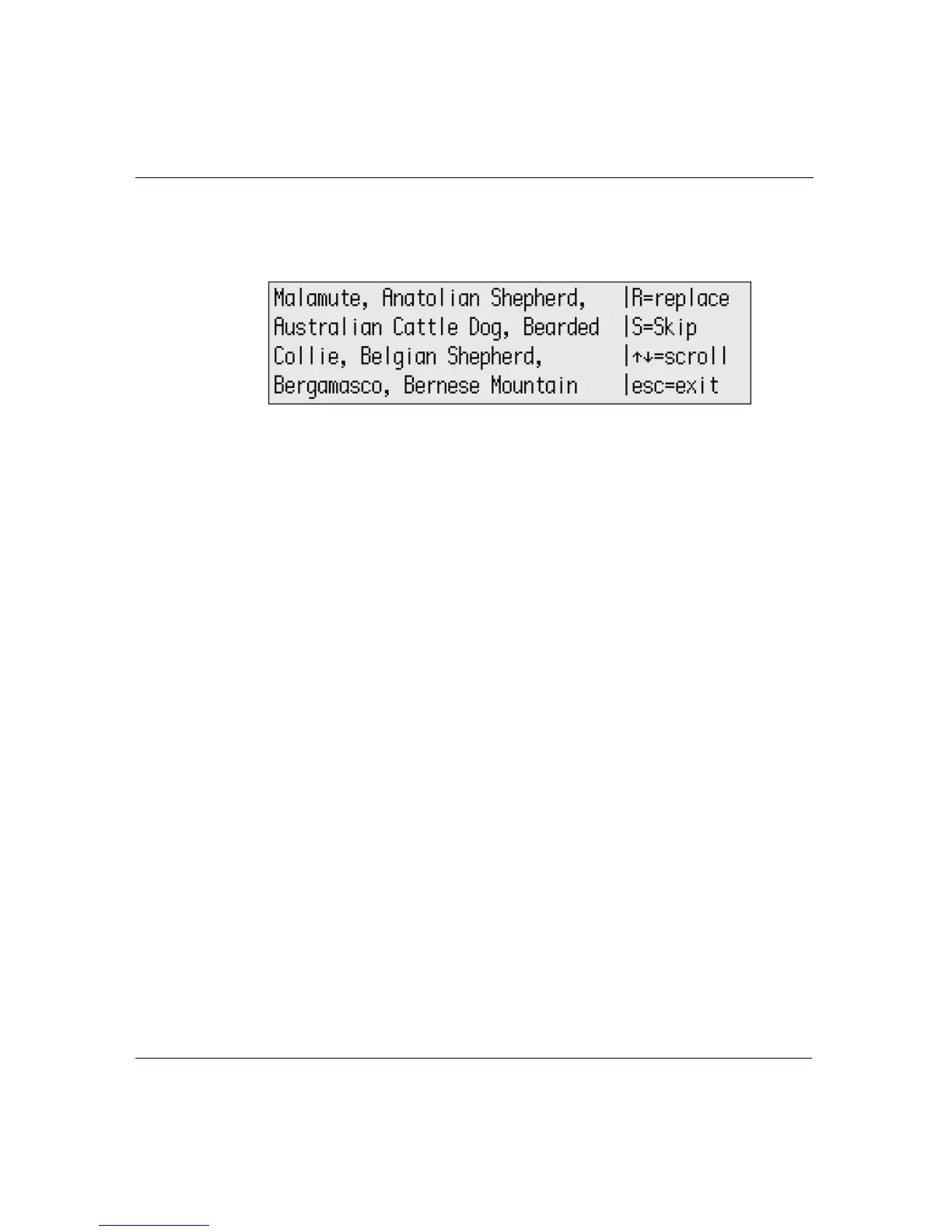
6. Press enter to begin the search. The following screen appears
when AlphaWord Plus finds the word you specified.
7. Do one of the following:
• Type R to replace the found string with the replacement
string.
• Type S to skip that occurrence of the found string.
• Press the arrow keys to scroll the surrounding text so you can
see the found string in the context of nearby text.
• Press esc to exit without finding or replacing any other
strings.
Tips on finding text
Keep these tips in mind when searching your files:
• You can search and replace up to 100 characters, including
spaces.
• Unless you specify otherwise, a search is not case sensitive, so if
you are looking for CAT and type cat, the search finds cat, CAT, Cat,
or caT, and so on.
• If you don’t restrict the search to whole words (the default)
AlphaWord Plus also finds partial words or characters embedded
in other words. For example, if you search for cat, it also finds
catalog.



 To Next Page