en
12
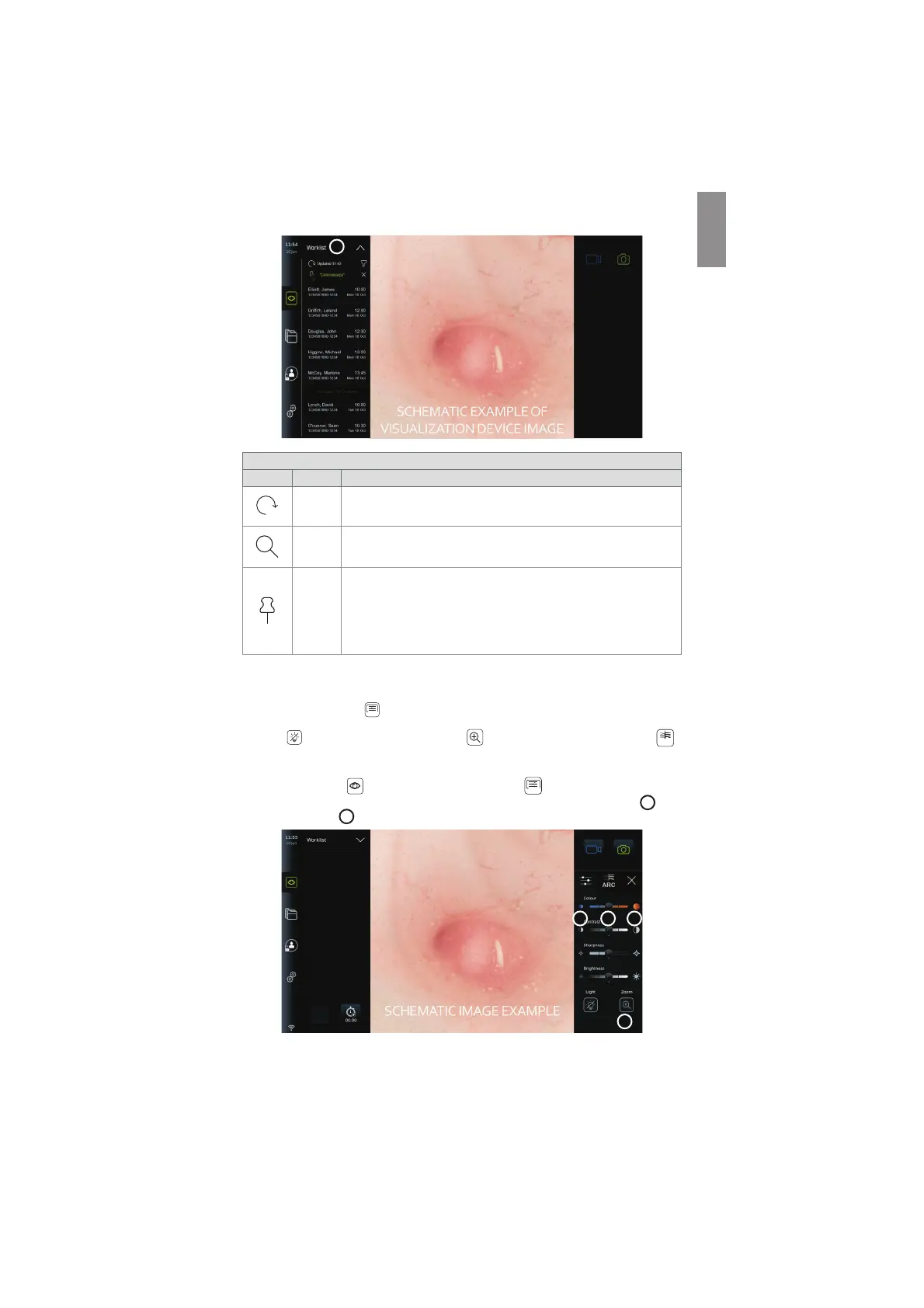
Explanations of functions in Worklist
Icon Name Function
Update
Press update to retrieve patient information from the hospital system
via a PACS* server. The information is downloaded in DICOM** format.
Search
Press the search field and type to search for a patient name or another
parameter. This could be a physicians name a procedure type.
Pin
Press the Pin icon to save a search term. Type a couple of letters
and a list will show possible search terms to choose from. Choose one
to filter the Worklist for the specific term. To clear a pinned search,
press the X. It is only possible to pin one search term at a time.
Example: A physician using the displaying unit can pin his/her own
name to filter for only his/her patients.
*Picture Archiving and Communication System),
**Digital Imaging and Communications in Medicine).
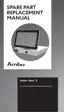
7.3.6. Adjusting live image appearance
In the Image adjustment
+ARC
menu, you can adjust Colour, Contrast, and Sharpness of the
live image as well as the Brightness (backlight) of the LCD screen. You can also activate the
Light off
function (see section 7.3.8.), Zoom function (see se ction 7.3.7.) and ARC
ARC
(Advanced Red Contrast) imaging technology (see section 7.3.9.).
To change the image parameters:
• In the Live view
tab, press the Image adjustment
+ARC
icon to open the menu.
• Adjust the image settings by either pressing an icon at one end of the slider bar
13
or
drag the slider
14
left/right.
13 1314
15
NOTE: The displaying unit will save any changes made to the image settings for the type of
visualization device that has been connected. As an example, if the settings are changed for a
29



 To Next Page