Ambu® aScope™ Gastro, these will also apply to all other endoscopes of the same type but will
not apply to any other aScope variant.
Explanations of functions in Image adjustments
+ARC
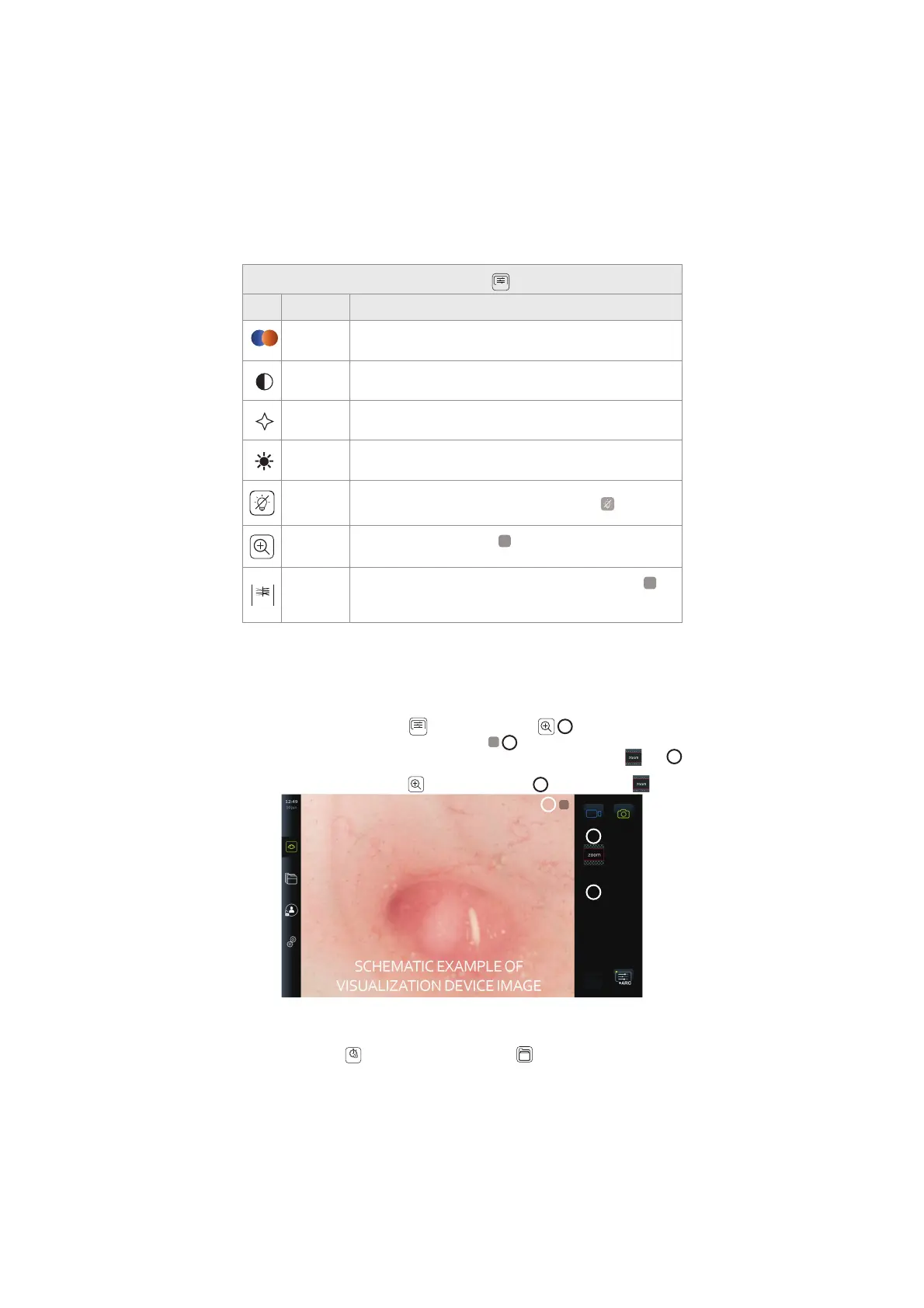
Icon Name Function
Colour Adjusts the image colour temperature from cold to warm.
Contrast
Adjusts the image contrast. A higher value equals a larger
difference between dark and bright areas.
Sharpness
Enhances the image details. A higher value equals a more detailed
image.
Brightness
Adjusts the overall screen brightness. A higher value equals more
brightness.
Light off
Turns off the LED light on the distal end of the connected
visualization device. When Light off is active, the icon will show on
the top right corner of the live image (see section 7.3.8. for details).
ZOOM
Zooms in on the live image. A
Z
icon in the top right corner of the
live image indicates that Zoom is active.
ARC
ARC tab
Open the ARC tab to adjust advanced red colour contrast. An
A
icon in the top right corner of the live image indicates that ARC is
active (see section 7.3.9. for details).
7.3.7. Zoom
By using the zoom function, you can expand the size of the live image shown on the screen of
the displaying unit or a connected external monitor. The zoom image is enlarged and cropped
at the top and bottom. This function can be enabled by Administrator in General settings
(see section 5.8).
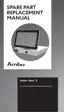
To use the Zoom function:
• Open the Image adjustment
+ARC
menu and press Zoom
15
.
• The live image will expand, and the watermark
Z
16
will appear in the upper right
corner of the live image, indicating that zoom is active. Further, a Zoom crop
icon
16
will appear, to indicate how the image is cropped to obtain the zoomed view.
• To disable zoom, press Zoom
, the black background
17
or the zoom crop icon.
Z
16
17
18
NOTES:
• If photos or videos are recorded while using the zoom function, the original full-size
image area is recorded as if the zoom function was not activated.
• The Stopwatch
00:00
button, the Current Procedure folder, and the worklist
dropdown menu are not visible when Zoom is activated, but it is still possible to use the
30



 To Next Page