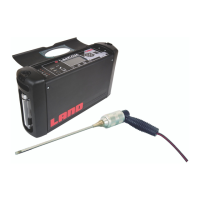
Portable Flue Gas Analyser
User Guide
Lancom 4
9 - 2
To select a location tag for a specific measurement:
1) From the Main Menu, select the Settings option.
2) Select the Data log option.
3) Select Use Location Tags and choose “Yes”.
4) Press Exit.
5) Return to the Readings screen and press ?.
You will be prompted to select a location tag.
6) Thelocationtagwillbeusedtoidentifythelogle.Forexample,the
tag“BoilerEast”wouldproducealoglename“Lancom4BoilerEast.
csv”.
7) Each time a new data entry is logged, it will be appended to the
selectedlogle.
To dene your printer header and footer:
1) UseatexteditorsuchasWindowsNotebooktocreatealecontaining
the location tags as shown above
2) Createadditionallesshowingthexedheaderandfootertextto
be printed with each log; these can contain your company name,
instrument operator or other text that will not change
3) CopytheselestotheLancom4as
“Datalog\HeadersandFooters\Header.txt”and
”Datalog\HeadersandFooters\Footer.txt”
4) Each time you print a set of readings, the header text and location tag
will be printed above the readings, and the footer text will be printed
below the readings.
5) To change the location tag, go to the Readings screen and press ?.
You will be prompted to select a location tag.


 To Next Page
 Loading...