www.amgmicro.com 14
EVOS
fl
User Guide
REV B Published 20 SEP 2010
ADVANCED OPERATION
SAVING IMAGES & WORKING WITH FILES
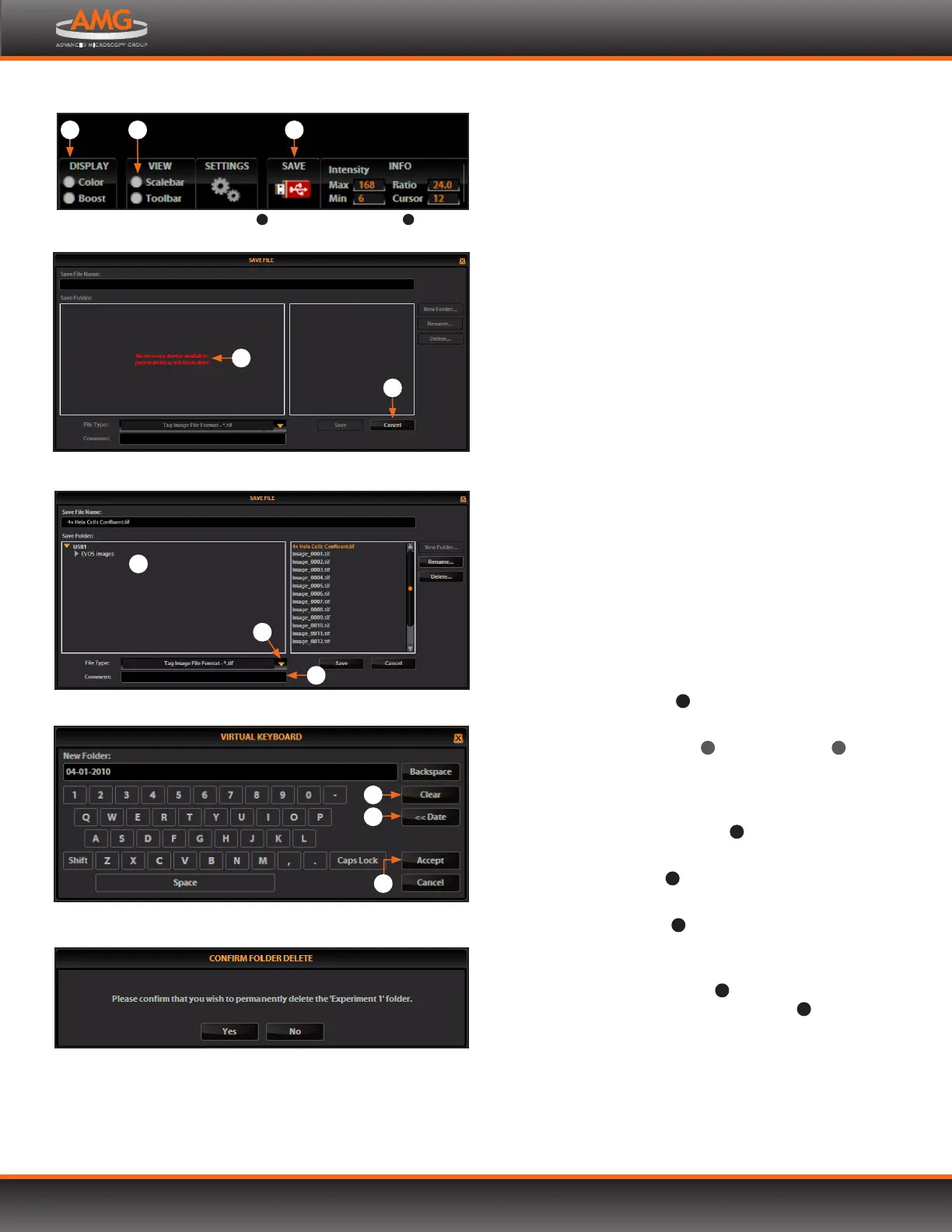
When you click the Save button , the Save File dialog
box appears. If there is no USB flash drive or network
connection in place, an information message will
appear. Click the Cancel button to clear this message.
In the Save Folder list and the saved files list , selected
items will appear orange. If a USB keyboard is installed,
the virtual keyboard will not appear. Note that pressing the
Enter key on a physical keyboard is like pressing the Save
button in the Save file dialog box.
1. Click in the Save File Name text field . Enter a file
name and click the Accept button .
To overwrite a file, simply select the name of the file
from the saved files list instead of clicking on the
Save File Name text field. A Save As confirmation
dialog box will pop up. It is not possible to recover an
overwritten file.
2. Click on the name of a folder in the Save Folder list to
select the destination for the new image.
3. To create a new folder, first click the name of the parent
folder, and then click the New Folder button to enter
a folder name and, if desired, date.
Note: Clicking the Date button anywhere within a
text field will automatically insert the current
date (MM-DD-YYYY) wherever the cursor is in
that field.
4. Select a file format (.tif, .png, .jpg or .bmp) from the File
Type drop-down menu
10
.
Note: To save a 16-bit image, select .tif or .png and
ensure the Scalebar
11
and Color/Boost
12
options are o. File types .jpg and .bmp (as well
as images of all types with the Scalebar, Color, or
Boost options engaged) only save at 8-bit depth.
5. Click in the Comment text field
13
to enter a comment
and date (optional).
6. Click the Save button
14
to save the file.
7. To delete a file or folder, highlight the item on the list and
click the Delete button
15
. A confirmation dialog box will
pop up. It is not possible to recover a deleted file.
8. To rename a file or folder, highlight the item on the list
and click the Rename button
16
. The virtual keyboard
will pop up; you can use the Clear button
17
to reset to a
blank field.
Confirmation popup
Save button , Scalebar option
11
, and Display options
12
1112 1
Virtual keyboard
9
7
17
5
6
8
14
15
16
Save File dialog box
4
13
10
2
Save File information message
3


 To Next Page