www.amgmicro.com 17
EVOS
fl
User Guide
REV B Published 20 SEP 2010
ADVANCED OPERATION
USING THE TRANSFECTION TOOL
EVOS’ Transfection tool expedites the capture and overlay
of images for transfection analysis.
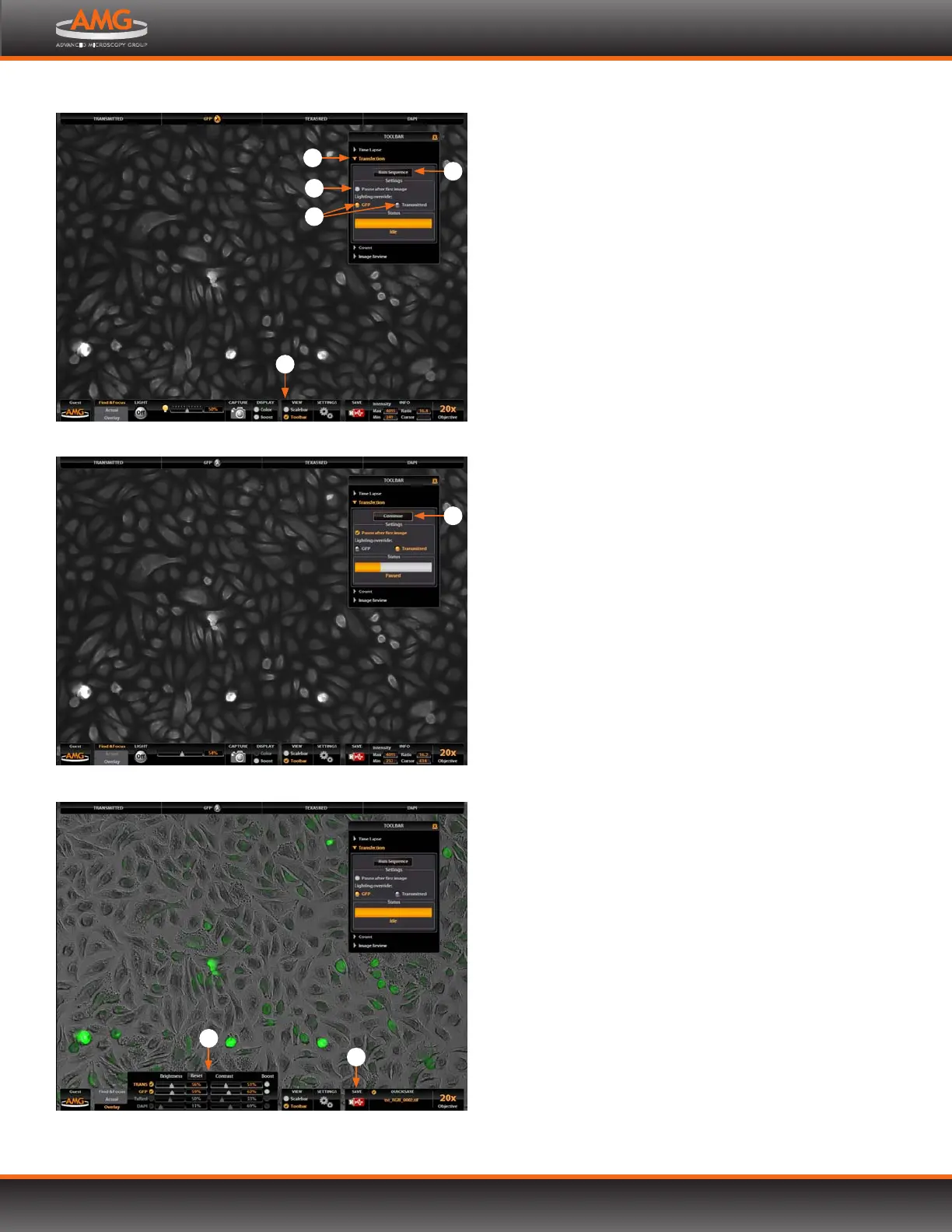
1. Choose a light cube, focus on the sample, and adjust
the lighting. See steps 1-13 of Fluorescence Operation
(p.9) for detailed instructions.
2. Open the Toolbar and expand the Transfection tool .
Note: The “Pause after first image” option allows
you to adjust focus, if necessary, before
capturing the transmitted light channel.
3. Click the Run Sequence button . The sequence always
starts with the fluorescence channel and finishes with
the transmitted light channel.
Note: The Lighting Override feature allows you to
select a channel to activate with the LIGHT ON/
OFF button.
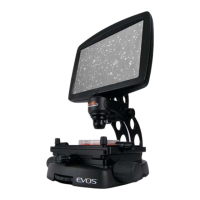
4. If the Pause option is selected, adjust focus and click the
Continue button . If Pause is deselected, go to step 5.
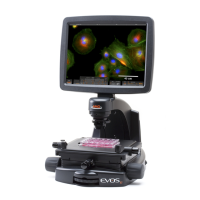
5. The dual-channel image will display with the Overlay
tab selected. Adjust the brightness and contrast
settings as desired, and save the image . See
Saving Images & Working with Files (p.14) for detailed
instructions.
Sequence paused between images
6
Sample ready for transfection analysis
2
3
4
5
1
Transfection overlay image
7
8


 To Next Page