The AmScope UHM210-11 is a digital microscope designed for various applications, including observation, recording, and image capture. It can operate as a standalone device when paired with an HDMI monitor, or connected to a PC via USB for more advanced functionalities.
Function Description
The UHM210-11 digital microscope serves as a versatile tool for detailed observation and documentation. It allows users to view magnified images, capture photos, and record videos. The device can be used independently with an HDMI monitor or connected to a computer for PC mode operation, which enables the use of compatible software for further analysis and control. The control panel on the microscope head provides direct access to various settings, including zoom, focus, illumination, and menu navigation, making it user-friendly for both standalone and PC-connected operations.
Important Technical Specifications
The UHM210-11 boasts several key technical specifications that contribute to its performance:
- Model: UHM210-11
- Optical Magnification: 0.11X-0.79X
- Working Distance: 44mm-230mm
- Depth of Field: 0.8mm-6.5mm
- Sensor: IMX291 (color)
- Sensor Type: CMOS
- Sensor Optical Format: 1/2.8"
- Active Recording Pixels: 2.07M (1920 x 1080)
- Pixel Size: 2.9µm x 2.9µm
- Active Sensor Area: 5.57mm x 3.13mm
- Shutter: electronic rolling shutter
- Sensitivity: 1300mV @ 1/30s (f/5.6)
- Video Resolutions: 1920x1080 30fps, 1280x720 60fps
- File Formats: JPG (photo), MOV (video)
- Recording Media: MicroSD up to 128GB
- I/O: Mini-HDMI (video out), USB-C (data and power)
- Ring Light 1: 18 LED
- Ring Light 2: 13 LED
- Power Requirements: DC 5V 900mA over USB
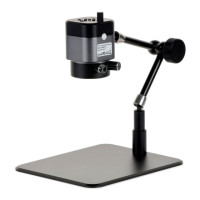
The microscope's physical dimensions are 208mm in height, with a base measuring 180mm by 215mm. It comes with a standard outfit that includes the microscope head, an articulating stand, one HDMI cable, one USB cable, and one power adapter.
Usage Features
The UHM210-11 offers a range of usage features that enhance its versatility and ease of operation:
Operation Modes
- HDMI Mode: Connects to an HDMI monitor for standalone viewing. The USB-C port can be used for power or to connect to a PC. A 5V USB power bank can also be used.
- PC Mode: Connects to a PC via USB-C, allowing the microscope to function as a UVC (USB Video Class) camera. Compatible Windows software (Camera App or KoPaCapture) can be used for advanced control and image processing.
Articulating Arm
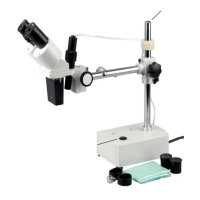
The articulating arm provides flexibility in positioning the microscope. It has three adjustable joints that can be locked using a knob. This allows users to precisely adjust the viewing angle and distance to the specimen. Proper adjustment and tightening of the knob are crucial to prevent the microscope from tipping over.
Focus
Focus is mechanically controlled by rotating a knob on the control panel. Clockwise rotation extends the working distance, focusing on objects further away, while counter-clockwise rotation reduces the working distance, focusing on closer objects. Magnification adjustments also affect the working distance, requiring refocusing after changes.
Illumination
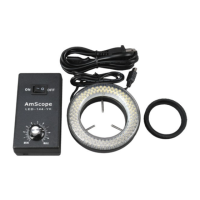
The microscope is equipped with two independent ring lights. Each ring light is controlled by a separate knob on the power switch. Ring light 1 (outer ring) provides diffuse illumination, suitable for most observation. Ring light 2 (inner ring) provides direct illumination, ideal for viewing surface details, scratches, and textures. Both knobs can be rotated clockwise to increase brightness or counter-clockwise to decrease brightness.
The microscope supports recording photos and videos to a formatted MicroSD card (up to 128GB). Captured photos are saved as JPG files, and videos as MOV files. The device is compatible with MicroSD cards up to 128GB, but for 64GB or larger cards, FAT32 formatting is recommended.
Imaging Modes
The microscope has three imaging modes: Photo, Video, and Playback.
- Photo Mode: Allows capturing still images.
- Video Mode: Allows recording video footage.
- Playback Mode: Allows reviewing captured photos and videos.
The control panel buttons provide functionality for zooming in/out, menu navigation, freezing images, and capturing images.
Photo and Video Settings
The menu system allows for detailed configuration of image and video parameters:
- Brightness: Adjusts the image brightness from 1 to 24. Auto Exposure can be set to render an average mid-grey exposure, or manually adjusted.
- Exposure (EV): Controls the amount of light gathered by the sensor. Auto mode continuously adjusts exposure, while Single Auto mode performs a one-time adjustment. Manual mode allows setting values from 1 to 10.
- White Balance: Compensates for color casts. Auto mode attempts to compensate for detected color biases. Standard mode uses a predefined color temperature. Manual mode allows adjusting primary colors (red, green, blue) independently.
- HDR (High Dynamic Range): Compresses exposure values to limit excess highlights and shadows. Can be toggled on or off.
- Image Rotation: Allows changing image orientation (mirror, rotate 180°, flip).
- Color: Toggles between Normal (color) and Black & White (greyscale).
- Capture Mode: Sets a delay for image capture (Single, 2S Timer, 5S Timer, 10S Timer).
- Quick Review: Sets the duration an image remains on-screen after capture (Off, 2 Seconds, 5 Seconds).
- Resolution: Sets video image size and frame-rate (1920x1080 30fps, 1280x720 60fps).
- Loop Recording: Records continuously, overwriting older footage after a set duration (Off, 3 Minutes, 5 Minutes, 10 Minutes).
- Frozen: Freezes the live video stream to display a static image.
- Reticle: Sets an on-screen overlay for measurements and segmentation (Off, Reticle1, Reticle2, Reticle3). Reticle1 is a simple crosshair, Reticle2 is a grid of squares, and Reticle3 is a crosshair with concentric circles.
- Frequency: Sets the capture frequency to avoid flicker (50 Hz, 60 Hz).
- Auto Power Off: Automatically disables video output after inactivity (Off, 30 Minutes, 60 Minutes).
- Language: Sets the system's display language (Japanese, English, Simplified Chinese, Traditional Chinese).
- Date/Time: Allows setting the current date and time for timestamps.
- Default Setting: Resets system settings to factory defaults.
- Format: Formats the MicroSD card.
- Display Time: Determines whether the time is displayed on-screen.
- Version: Displays the current firmware version.
Playback Mode
In playback mode, users can review recorded photos and videos. The top button displays the previous file, the bottom button displays the next file, and the left button opens the menu. When the menu is open, the top button navigates up, the bottom button navigates down, the left button exits the current setting or menu, and the right button selects a menu or option.
- Delete: Deletes the currently displayed file or all files in the media folder. Confirmation is required.
- Protect: Locks and unlocks files to prevent them from deletion. Options include Lock Current, Lock All, Unlock All.
- Slide Show: Displays saved images in sequence. Users can select an interval (2, 5, or 8 seconds) between images.
Maintenance Features
The UHM210-11 requires minimal maintenance, primarily focusing on safety and proper handling:
- Safety Precautions: Always follow safety guidelines to prevent damage to the product or injury.
- Environmental Conditions: Avoid using the instrument in wet environments or where it may be exposed to water. Do not use if unusual odors, smoke, or electrical problems are detected.
- Power Adapter: Only use the provided power adapter or an authorized replacement. Incompatible adapters can cause damage.
- Disposal: Dispose of the instrument and potential exposure to dangerous materials or electric current responsibly.
- Proposition 65 Notice: Cables included with the product may expose users to chemicals known to cause cancer, birth defects, or other reproductive harm. Users are advised to visit www.P65Warnings.ca.gov for more information.
- Firmware Updates: The "Version" setting in the Photo and Video settings menu allows users to check the current firmware version, which may indicate the need for updates to improve performance or compatibility.
- MicroSD Card Formatting: Regularly formatting the MicroSD card ensures optimal performance and prevents data corruption. The "Format" option in the Photo and Video settings menu facilitates this.

 Need help?
 General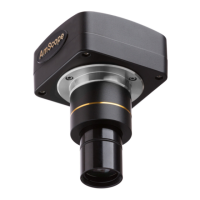


 To Next Page