Timers
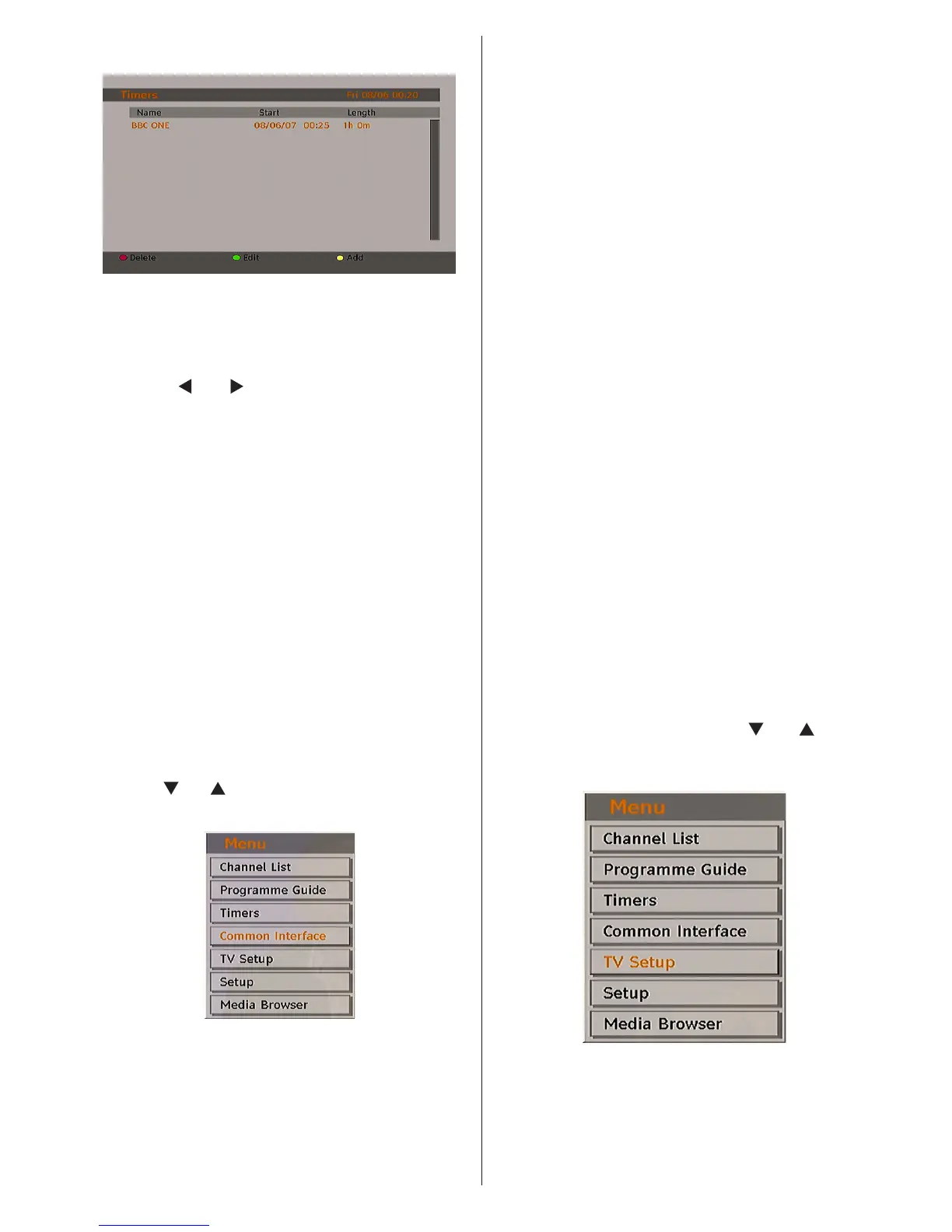
To display timers window, activate the item
from the main menu. To add a timer, press the
YELLOW button on the remote control. Then
“Add Timer” window appears.
Channel: “
” or “ ” keys will navigate the user
through the TV or Radio list.
Date: Starting date is entered via the Left/Right
or the numeric buttons.
Start: Starting time is entered via the Left/Right
or the numeric buttons.
End: Ending time is entered via the Left/Right
or the numeric buttons.
Change/Delete: permits or prohibits any
modications for other users.
You can save the adjustments by pressing the
GREEN key or cancel the process by pressing
the RED button. You can edit the list via GREEN
key and delete with the RED button.
Common Interface
• Press the M button to display the main menu and
use the “ ” or “ ” button to highlight the “Common
Interface” line and press the OK button:
Some Digital Terrestrial channels operate
on a Pay Per View basis. These require a
subscription and a hardware decoder.
Obtain the Conditional Access Module (CAM)
and the viewing card by subscribing to a pay
channel company, then insert those to the TV
using the following procedure.
• Switch off the TV and unplug from the mains.
• Insert the CAM and then the viewing card to the
slot that is located in the terminal cover at the
left-hand side of the TV (from front view).
• The CAM should be correctly inserted, it is
impossible to insert fully if reversed. The CAM
or the TV terminal may be damaged if the CAM
is forcefully inserted.
• Connect the TV to the mains supply, switch
on and then wait for few moments until the
card is activated.
• Some CAMs may require the following set
up. Please set the CAM by entering the IDTV
menu, Common Interface then pressing the
OK button. (CAM set up menu is not displayed
when it is not required.)
• To see the viewing contract information: enter
IDTV; press the “M” button, then highlight
Common Interface and press the OK button.
• When no module is inserted, “No Common
Interface module detected” message appears
on the screen.
• Refer to the module instruction manual for
details of the settings.
TV Setup
You can use this item to display the TV functions.
The digital TV Setup menu screen is accessed
from the main menu. Press the “M” button to
display the main menu and use “
” or “ ” button
to highlight “TV Setup”, press the OK button to
display TV Setup menu screen.
You can nd detailed information for all menu
items in “Analogue TV Menu System” section.



 To Next Page