Menu Background
Press “ ” or “ ” button to select Menu
Background. You can set menu background
level by pressing “ ” or “ ” button.
Backlight
This setting controls the backlight level. Select
Backlight by pressing “
” or “ ” button.
Press“ ” or “ ” button to set Backlight to
Medium, Maximum or Minimum.
Menu Timeout
To set a specific display timeout for menu
screens, set a value for this option.
Press “
” or “ ” button to select Menu Timeout.
Use “ ” or “ ” button to change menu timeout
to 15 sec, 30 sec or 60 sec.
Teletext Language
Press “
” or “ ” button to select Teletext
Language. Use “ ” or “ ” button to change
Teletext Language to West, East, Turk/Gre,
Cyrillic or Arabic.
Antenna Power (optional)
When antenna power option is set as On, +5V
will be transmitted to the antenna output.
This feature enables the use of active antennas.
Note: Antenna power should be “Off” when standard
antenna is used instead of the active antenna.
Ext Out
Press “
” or “ ” button to select Ext Out. Use “ ”
or “ ” button to set the Ext Out as On or Off.
Note:
For copying from a DVD or VCR device, you should
choose desired source from source menu and turn
“On” to EXT Out from feature menu.
HDMI PC Full Mode (optional)
If you want to view PC screen in HDMI mode
by using external connection, HDMI PC FULL
MODE option should be On to adjust the screen
ratio correctly. This item might be inactive in
some resolutions.
Install Menu
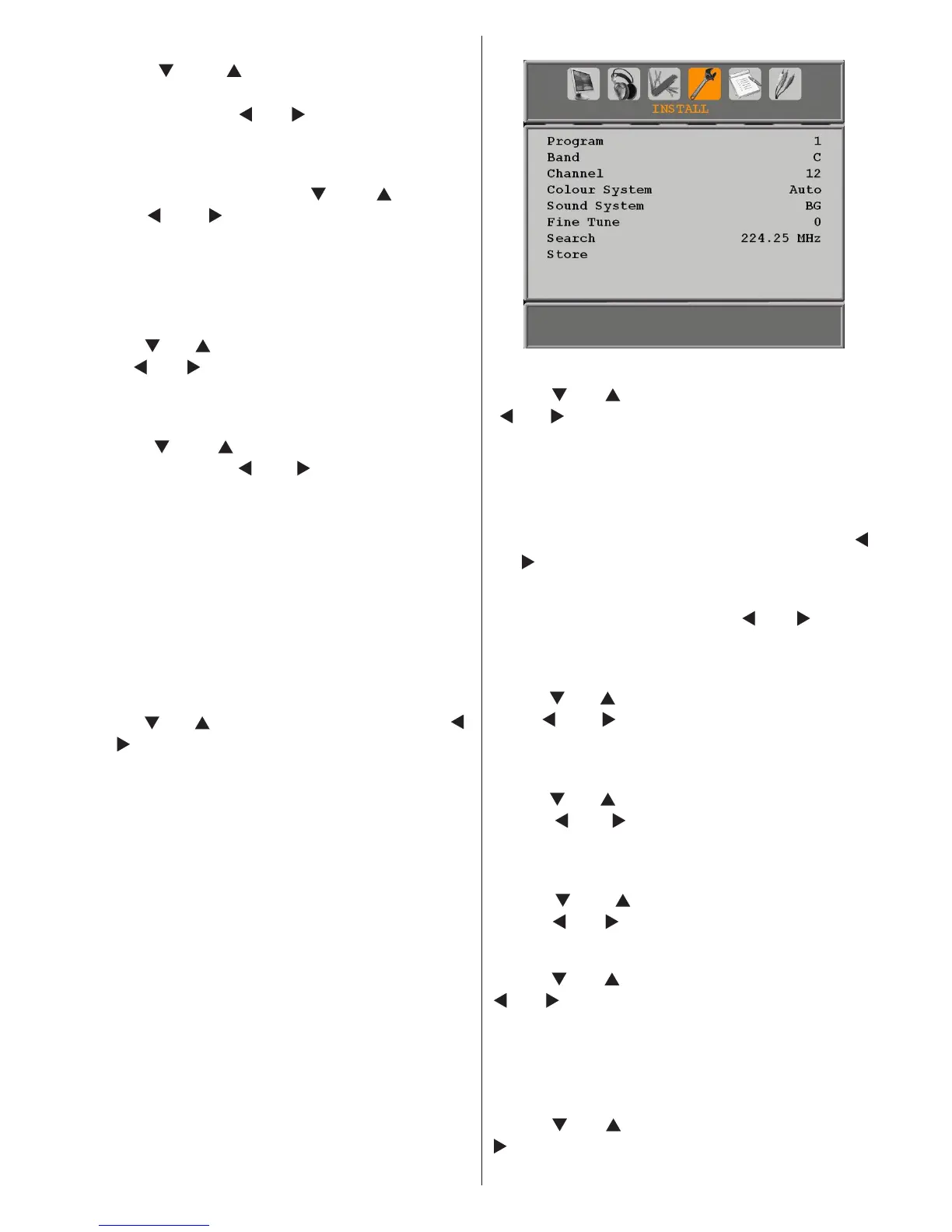
Program
Press “ ” or “ ” button to select Program. Use
“ ” or “ ” button to select the program number.
You can also enter a number using the numeric
buttons on the remote control. There are 200
programme storage between 0 and 199.
Band
Band can be selected either C or S. Press “
”
or “ ” button to set Band.
Channel
Channel can be changed by “
” or “ ” button
or numeric buttons.
Colour System
Press “
” or “ ” button to select Colour System.
Use “ ” or “ ” button to change the colour
system to PAL, PAL 60, SECAM or AUTO.
Sound System
Press “
” or “ ” button to select Sound System.
Press “ ” or “ ” button to change the sound
system to BG,DK, I, L or L’.
Fine Tune
Press “
” or “ ” button to select Fine Tune.
Press “ ” or “ ” button to adjust the tuning.
Search
Press “
” or “ ” button to select Search. Use “
” or “ ” button to start programme searching.
You can also enter the desired frequency
using the numeric buttons while Search item
is highlighted.
Store
Press “
” or “ ” button to select Store. Press “
” or OK button to store the settings. “Stored...”
will be displayed on the screen.



 To Next Page