Symptom: The audio quality is compromised (distortion, choppy audio, "buzzy" audio).
Solution: There are several remedies for audio that is distorted, choppy or otherwise compromised:
1. Hot-plug Quartet
2. Toggle sample rate (in your DAW or, in the case of iTunes, Audio MIDI Setup)
3. Reload DAW driver (for example, in Logic choose Logic Pro > Preferences > Audio. Click on the
Devices tab, then the Core Audio tab. Uncheck Enabled, then re-check it.
4. In iTunes, stop then re-start audio playback.
Symptom: Quartet isn't recognized in System Preferences, Maestro or my DAW application.
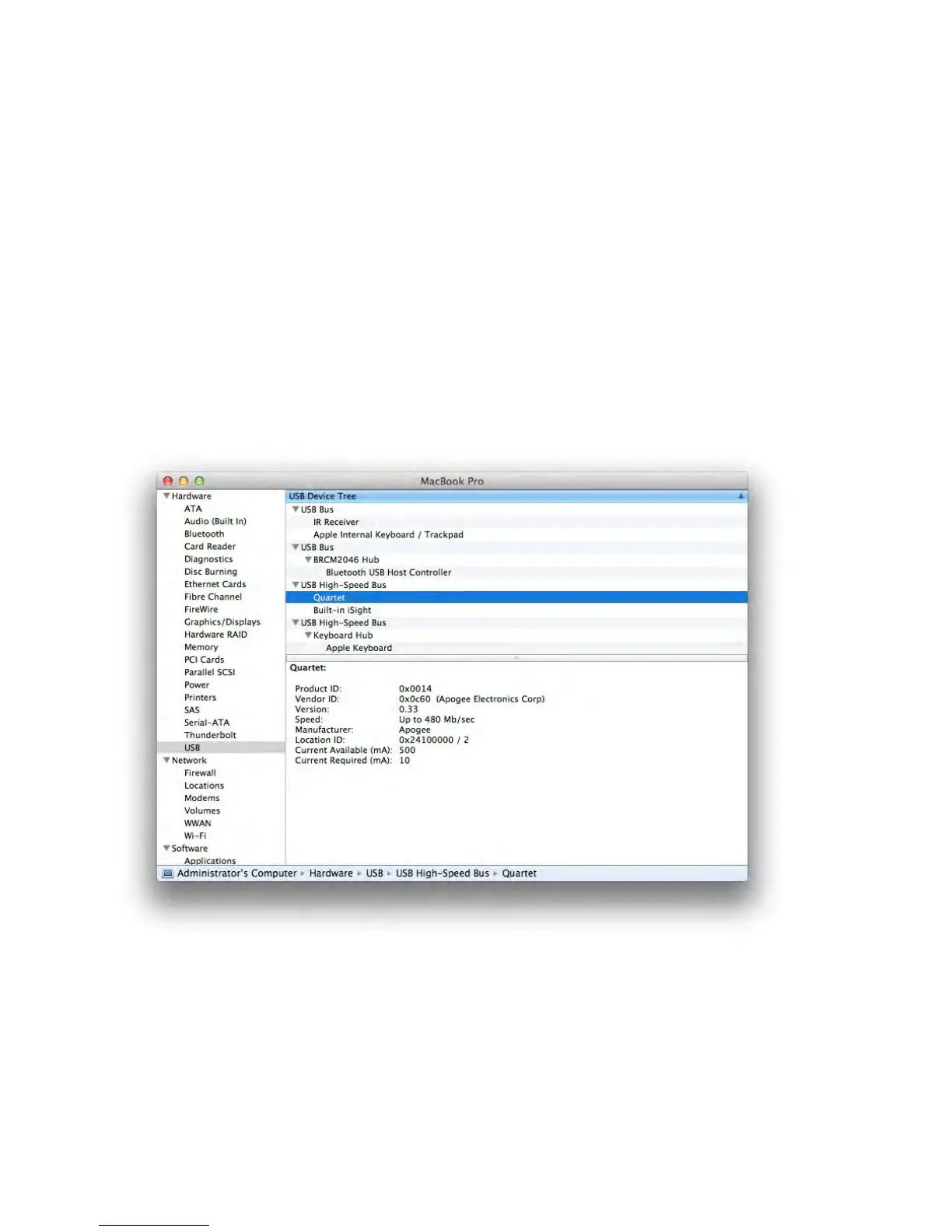
Solution: Here are the steps, in order, to check if Quartet isn't recognized: Open System Profiler by
choosing About This Mac under the Apple menu and clicking More Info...
1. In System Profilers Contents column, open the Hardware disclosure triangle and click USB.
2. Find Quartet USB in the USB Device Tree and click on it to display the device's properties. Verify that
the properties are the same as shown below:
If Quartet doesn't appear in the USB Device Tree
1. Hot-plug Quartet
2. Try a different USB cable or try a different USB port on your Mac.
Troubleshooting - Apogee Quartet User’s Guide
Version 1, September 2012 61


 To Next Page