ENGLISH
22
SETTINGS
------------------------------------------------------------------------------------------------------------------
Editing digital channels
Channels found at the end of the scan are
stored separately for each tuner mode.
You can change the order of channels, skip
channels, rename channels and delete the chan-
nel list via the channel management. You can
also create and edit your favorites list.
You can edit the television channels from the
»Channels« menu, or you can easily edit the
channels with the »Channel Editor« application
built into your television.
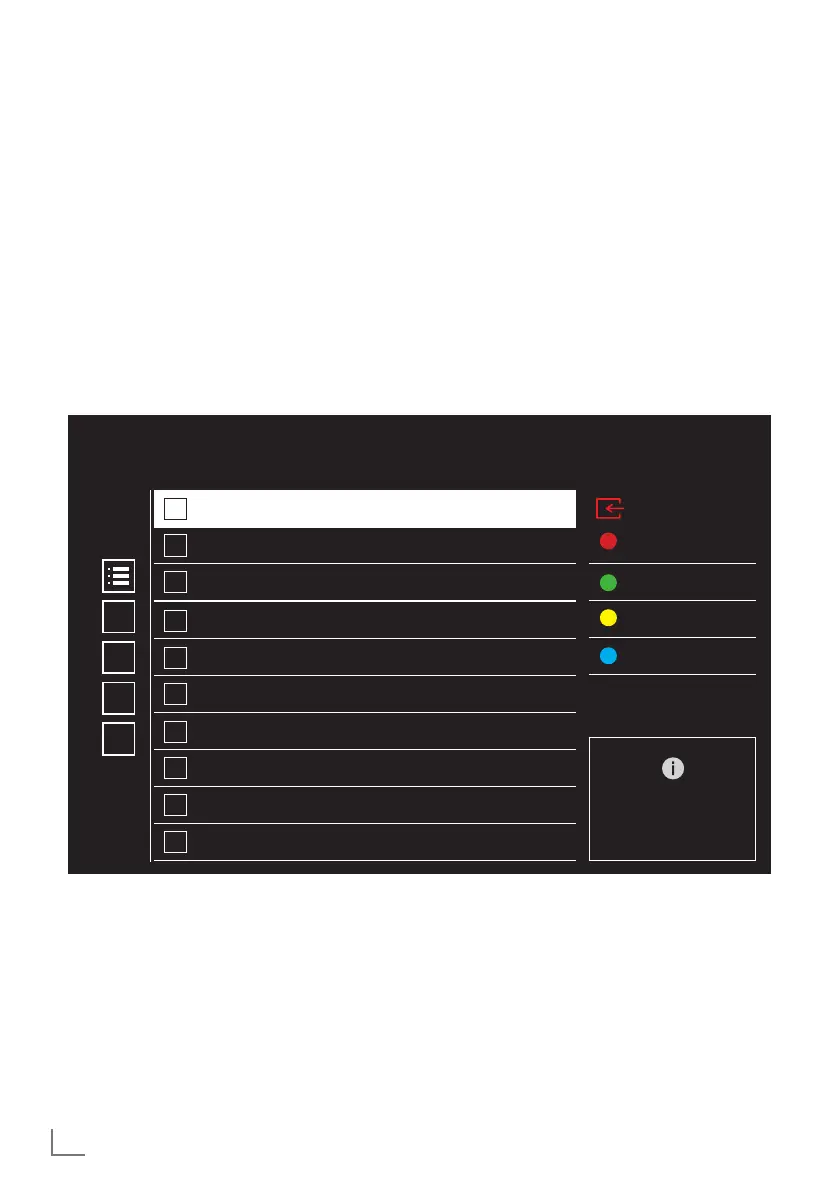
Starting Channel Editor Application
1 Press »
T
«.
2 In the »Applications« tab, select the »Chan-
nel Editor« application and confirm with
»
«.
– »Channel Editor« menu is displayed.
Notes:
7
Select "Show all" if "Channel Editor" is not
among your favorite apps.
7
Additional procedures are explained in the
following sections.
13 Channel
12 Channel
14 Channel
15 Channel
16 Channel
17 Channel
18 Channel
19 Channel
20 Channel
11 Channel
1
2
3
4
Satellite
Favorite
Move
Channel Swap
Go to channels 0-9
P +/- Skip Page
Delete
Edit Number
Other
Full List
Tuner mode selection
The channel table for all sources as satellite
(Standard), satellite (Operator), cable and an-
tenna is stored separately. To edit, first select the
broadcast source you will edit.
1 Select »
s
« from »Channel Editor« menu
with »
>
«, »
V
« or »
Λ
« and confirm with
»
«.
– »Input Source« menu will be displayed.
2 Select the source you want to edit from »An-
tenna«, »Cable«, »Satellite« or «Analogue«
options with »
V
« or »
Λ
« and confirm with
»
«.
– The channel list is displayed based on
your choice of channel.



 To Next Page