67
ENGLISH
CHROMECAST BUILT-IN™
--------------------------------------------------------------------
Your TV has Chromecast built in. You can in-
stantly switch from your phone, tablet or laptop
to TV. With the built-in Chromecast feature, you
can cast all your favourite movies, TV shows,
applications, games and more directly to your
TV. Chromecast runs on Android and iOS. Your
mobile device or computer must be connected
to the same Wi-Fi home network as your TV.
For more information;visit
www.support.google.com/googletv.
Turning TV on with Chromecast
When the TV is in stand-by mode, you can send
content to the TV via Chromecast and turn the
TV on.
1 Press »
)
«
on Home Screen.
2 Select »Settings »
)
«
and confirm with
»
«.
3 Select »Network and Internet« with »
V
«
and confirm with »
«.
– Network and Internet menu shall be
displayed.
4 Select »Wake on Wireless Network« and
»
V
« and »Wake Up configurations and«
confirm with »
«.
5 Use »
V
« or »
Λ
« to select »WoC« and
confirm with »
«button.
6 Select »OK« to confirm the switch-on;
or
select »Cancel« to cancel and press »
« to
confirm.
Note:
7
When this Setting is set to On, your TV's
power consumption may increase.
7 Press »
r
« to return to the previous menu or
press »
T
« to return to Home menu.
Using Chromecast on an An-
droid or iOS mobile device
You may cast photos, videos or games using an
application with Chromecast feature or from an
iOS mobile device to your TV.
Notes
7
The Google TV and your mobile device
shall have the latest version of Chromecast
application installed.
7
Chromecast function works on Android 4.4
and above for Android devices and on
iOS versions 7.0 and above for Apple iOS
devices.
7
Broadcasting from Google Chrome browser
is not supported on mobile devices.
1 The TV and the mobile device shall be con-
nected to the same network.
2 Start the application featuring Chromecast
from the mobile device.
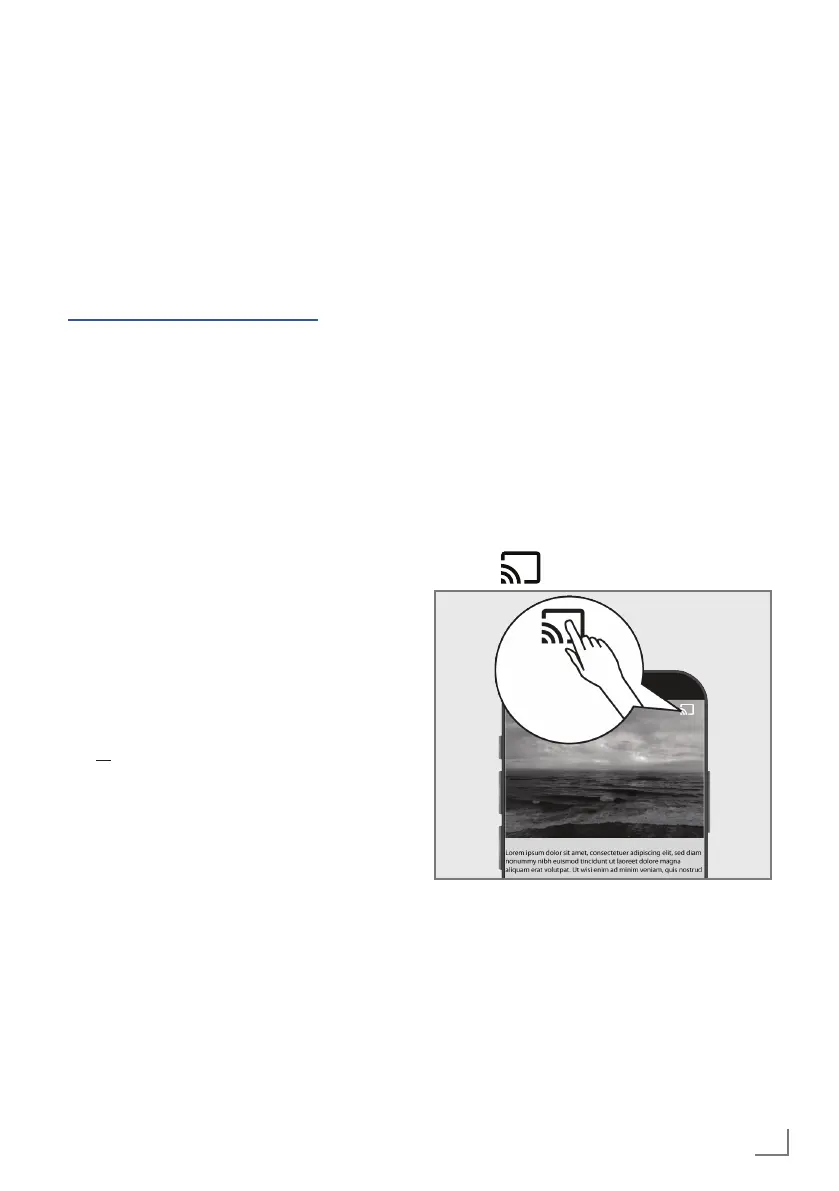
3 Press
on the application screen.
4 Select TV from the list to start playback.
– The content starts playing on the TV
screen.


 To Next Page