MAX1000 User Guide www.arrow.com
Page | 58 July 2017
5.2.11 Pinning Assignments
Before the design can be downloaded to the FPGA, pin assignments that match the hardware on
the board are needed. There are different ways to do this such as the Pin Planner, Assignment
Editor, and text files.
The following steps will show one of these ways, the Pin Planner. Since there are only 10 pins that
need to be assigned, the Pin Planner can be used. If many pins are needed, other ways can be
used such as the Quartus Assignment Editor, or by importing constraints from a text file or
spreadsheet.
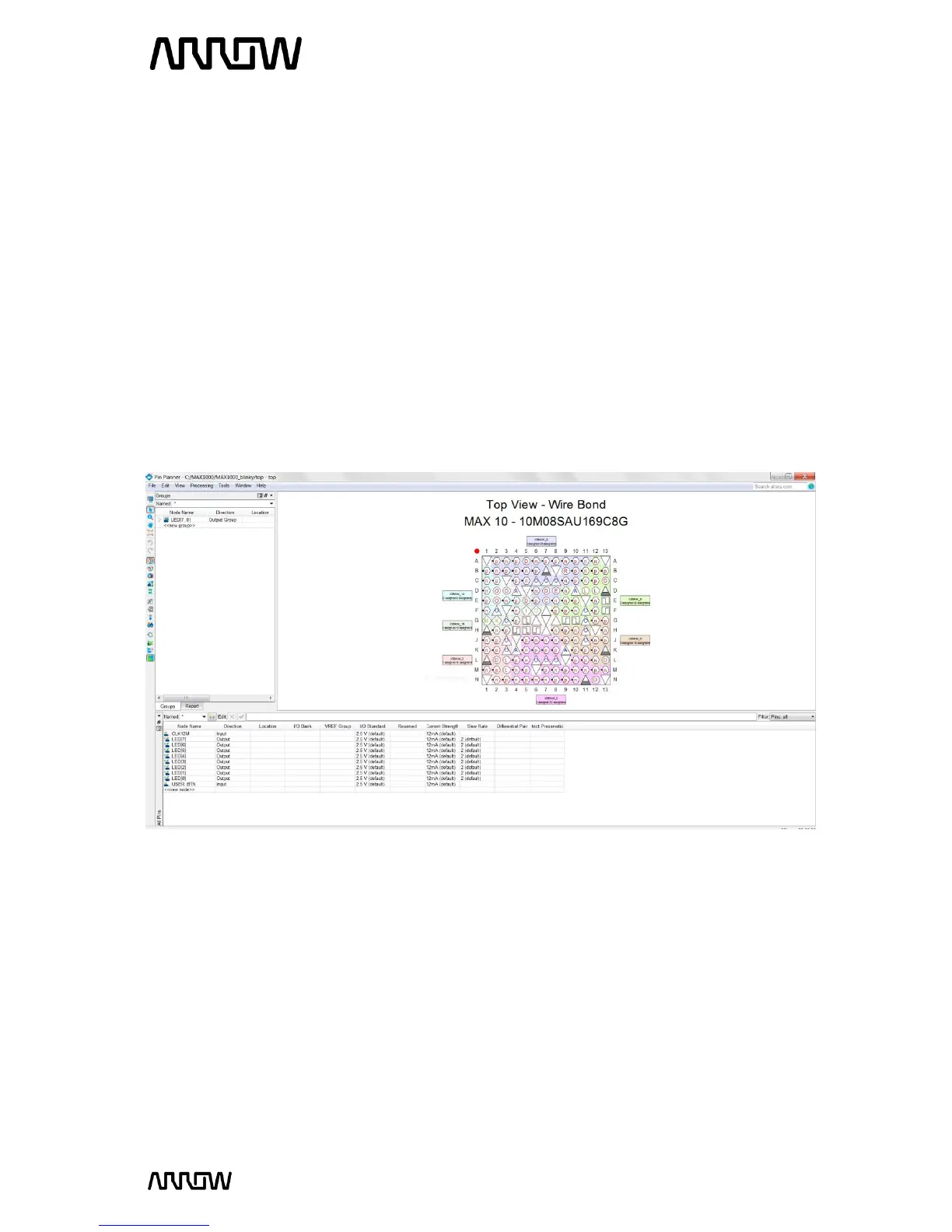
5.2.11.1 Open the Pin Planner: Assignments Pin Planner.
A new window will open as seen below:
5.2.11.2 To make pin assignments, select the CLK12M (node name) on the bottom portion and
drag and drop it to pin H6 of the Top View of the FPGA or alternatively set the Location
field of the CLK12M to PIN_H6.


 To Next Page