29
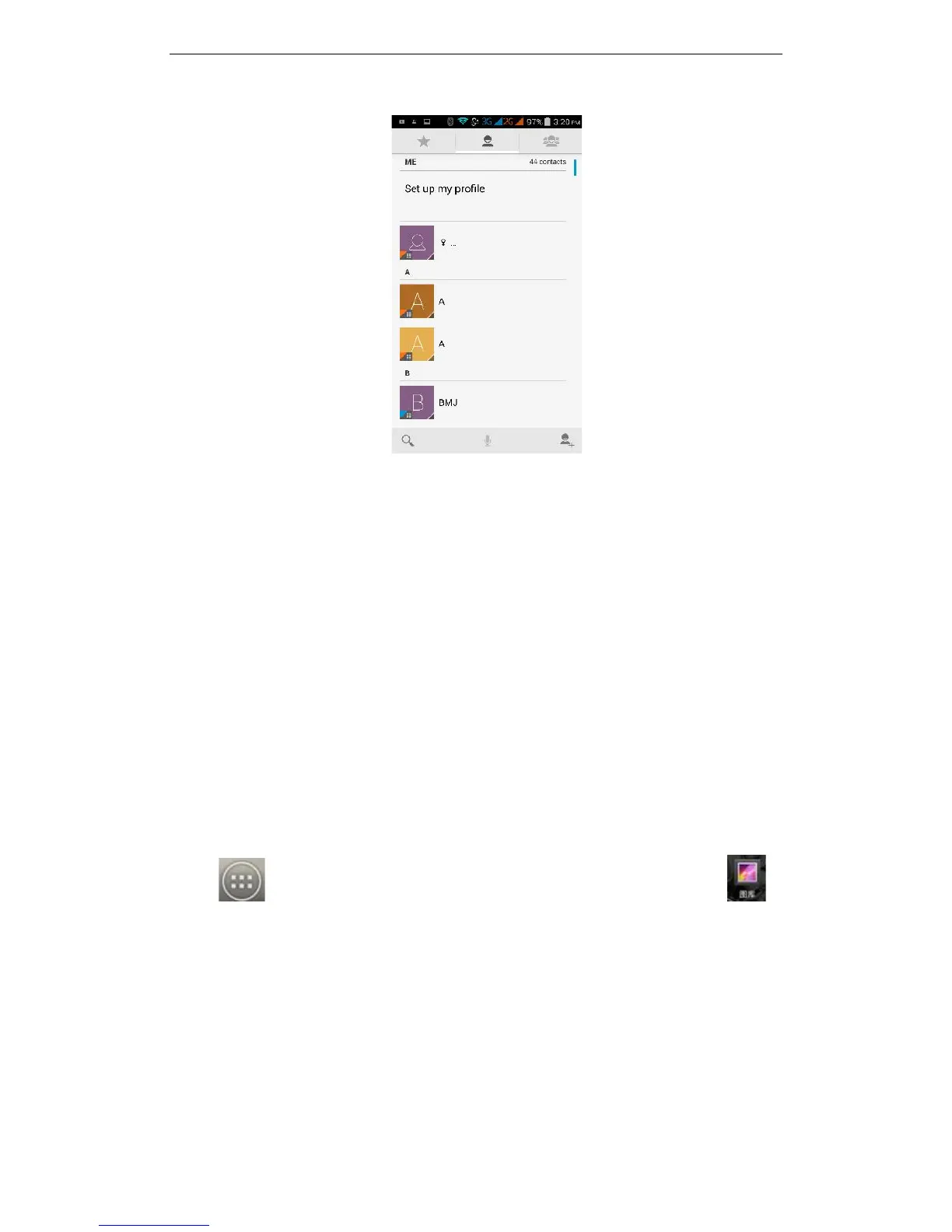
New Contact:
Enter contacts directly into the phone or to import contacts from the SIM card. (The
number of contacts that you can add is only limited by the amount of available memory
on the phone.)
Search Contact:
In the contact interface, press the search button, it will pop up the search bar, enter the
content. You can search for contacts using their first name, last name or company name.
As you type in the search bar, matching contact information immediately appears.
Modify Contact:
Open Option, select "Edit Contact" for contact information for editing.
Delete Contact:
Open Option, select the "Delete Contact" to delete the current contact.
In the menu option, you can also set ringtones for contacts, account sharing and
synchronization, import and export operations.
3.17 Images
Tap on the main screen to see installed applications, and then click . In
the Gallery you can view all the pictures and video files that are saved on the mobile
phone and SD card. Press the menu key to browse images, delete and group



 To Next Page