33
3.5.3 Troubleshooting
If your AiMesh router cannot find any AiMesh node nearby or
synchronization fails, please check followings and try again.
1) Move your AiMesh node closer to the AiMesh router ideally.
Ensure it is within 1-3 meters.
2) Y
our AiMesh node is powered on
.
3)
Your AiMesh node is upgraded to AiMesh supported
firmware.
i. Download AiMesh - supported fireware at:
https://www.asus.com/AiMesh/
ii. Power on your AiMesh node and connect it to your PC via a
network cable.
iii. Launch a web GUI. You will be redirected to the ASUS Setup
Wizard. If not, navigate to http://www.asusrouter.com
iv. Go to Administration > Firmware Upgrade. Click on
Choose File, and upload the AiMesh-supported firmware.
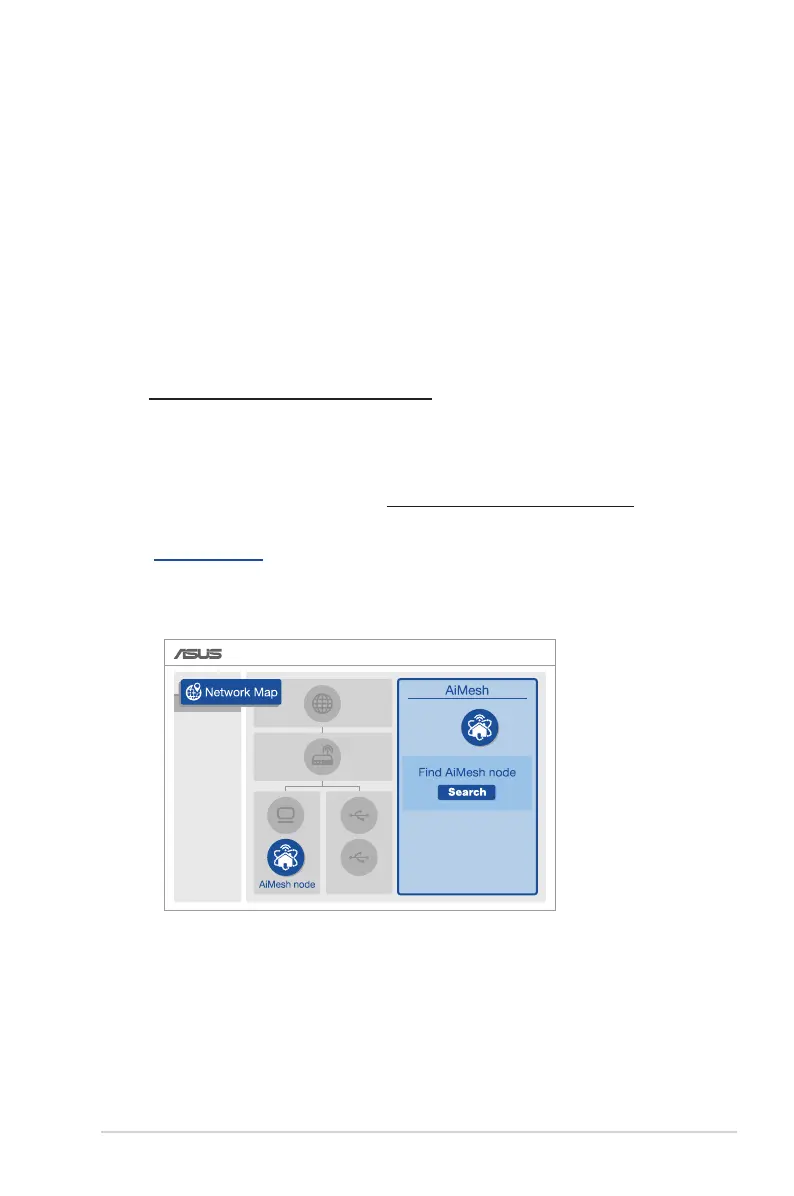
v. After firmware uploaded, please go to Network Map page to
confirm whether AiMesh icon showed up.
vi.
Press the reset button on your AiMesh node for at least 5
seconds. Release the reset button when the power LED
is flashing slowly.


 To Next Page
 Loading...