75
This section describes how to receive file from the MaxiSys tablet and perform
printing through the computer:
To perform printing through the computer
1. Make sure the tablet is connected to the computer network, either via Wi-
Fi or LAN, before printing.
2. Run the MaxiSys Printer program on the computer.
3. Click Test Print to make sure the printer is working successfully.
4. Tap the Print button on the toolbar of the tablet. A test document will be
sent to the computer.
If the Auto Print option in the MaxiSys Printer is selected, the MaxiSys
Printer will print the received document automatically.
If the Auto Print option is not selected, click Open PDF File button to view
all the temporary files. Select the file(s) to print and click Print.
NOTE
Make sure the computer installed with the Printing Services program is
connected to a printer.
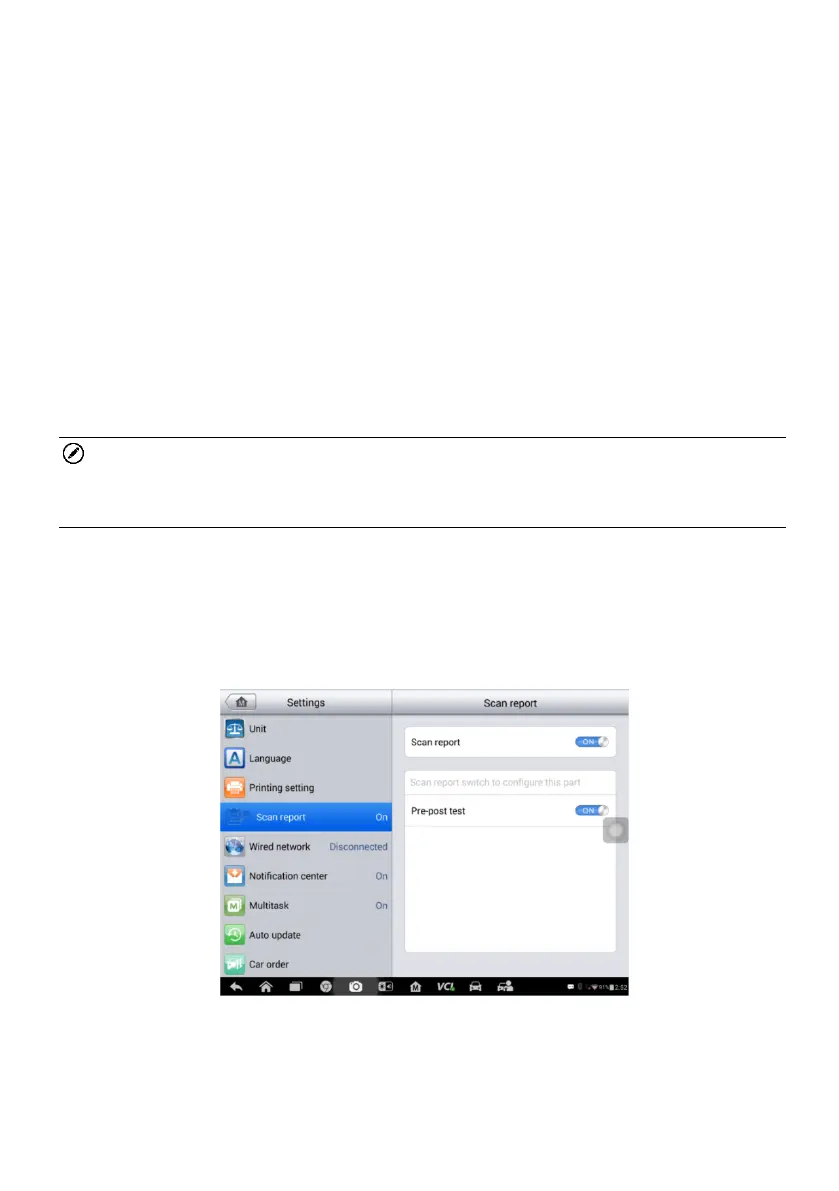
Scan Report
When the scan report is opened, click the "pre-post test" switch. At this time,
when the vehicle is selected in the diagnostic application, the “Select Test
Type” frame will appear.
Figure 7-1 Sample Scan report Screen







 To Next Page