Operational Data Items
To see a description of each of the Operational Data Items for your
vehicle, refer to the appropriate section on the following pages:
• “OBD-II Generic Operational Data Items” on page 57
• “Enhanced OBD-II Operational Data Items” on page 59
• “OBD-II Oxygen Sensor Test Readings” on page 61
• “GM Operational Data Items” on page 63
• “Chrysler Operational Data Items” on page 79
Monitoring Real Time Data
1. Make sure the EZ-SCAN scanner
cable is correctly connected to the
scanner and to the vehicle, then
press
POWER.
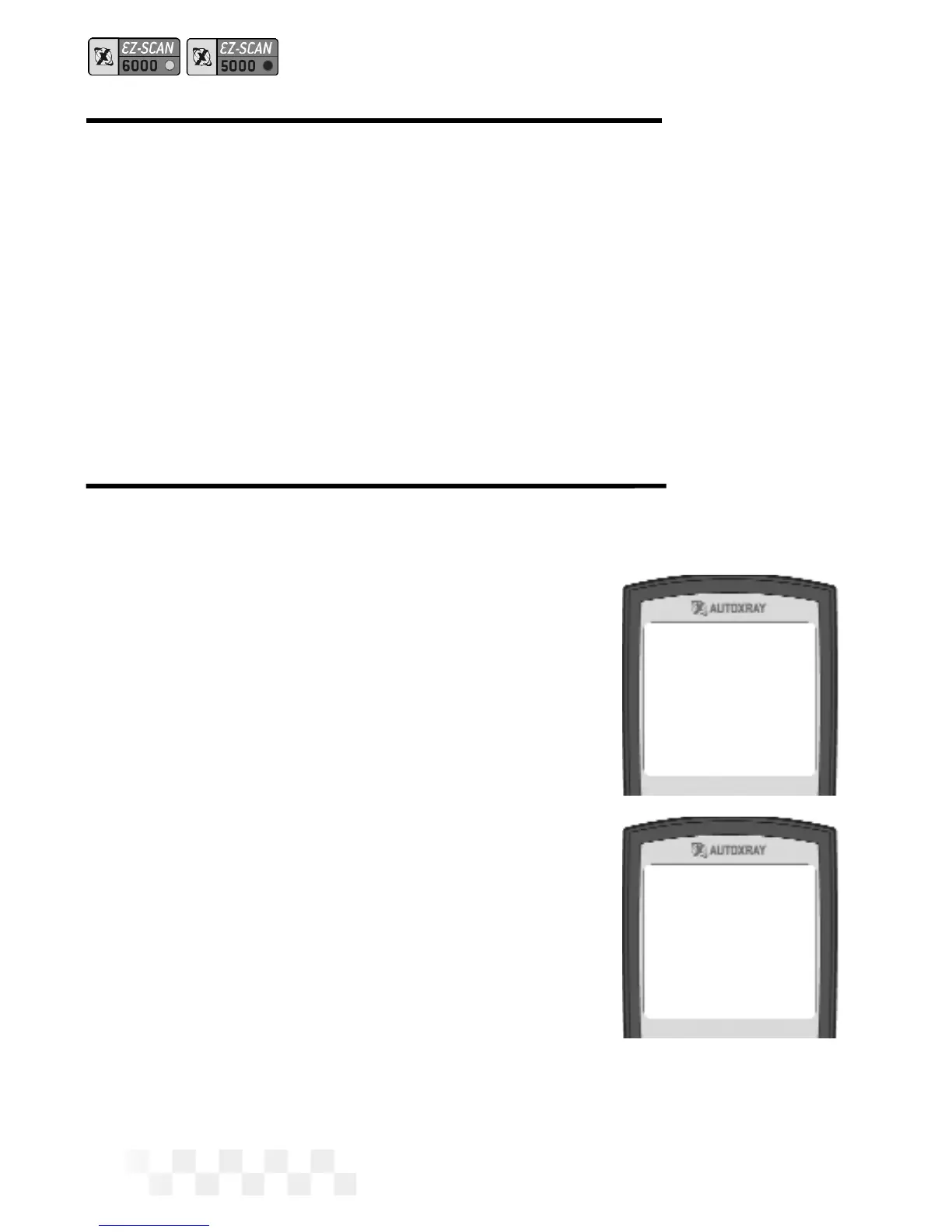
2. Press DATA to display the Data
menu. Make sure
1-Operational
Data
is highlighted, then press
ENTER.
3. To toggle real-time monitoring ON
and OFF, press
MON.
4. An Initializing screen will be
displayed while the scanner estab-
lishes a connection to the
computer/sensor.
5. When the connection has been
made, the reference number to the
right of each sensor.
NOTE: If the communication link with
the vehicle is broken during
VIEW TROUBLE CODES - ALL OBD-II, GM OBD-I, CHRYSLER OBD-I
Page 18
1-Operational Data
2-Freeze Frame Data
3-Trouble Codes
4-Clear Codes
5-Customize Data
6-EZ-PC
Initializing
Please Wait
REAL TIME DATA MONITORING



 To Next Page