The setting of the schedule recording is determined by the admin only.
2-4. Setup – Device Mode
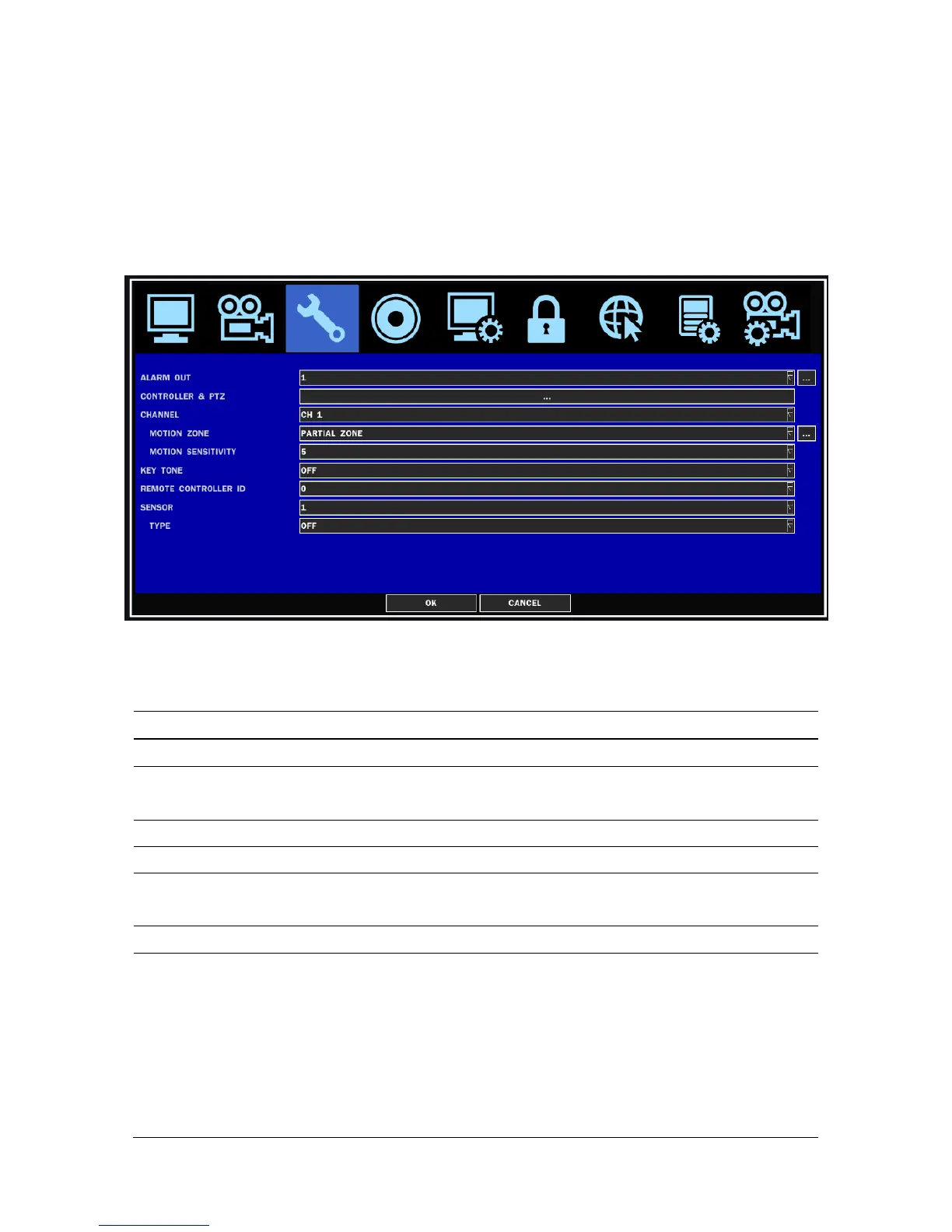
Press the SETUP button and enter the password. The setup menu is displayed as picture below. Select
DEVICE icon and press SEL button to enter the setup menu item. Navigate through the menu items using
the control button (
◀ ▲ ▶ ▼
) and change the value of the menu item using the control button (
◀ ▲ ▶
▼
).To return to setup menu screen, press the ESC button.
Figure 2.4.1. Device mode setup screen
Table 2.4.1. Menu items in Device Setup screen
Item Description
ALARM OUT
Set the sensor, motion, and video loss for each alarm.
CONTROLLER & PTZ
Set the Controller and PTZ camera speed, number, type and
ID.
CHANNEL
Select specified channel for motion zone setup.
MOTION ZONE
Set the motion sensitivity for the specified channel.
Control the motion sensitivity from 1 to 9.
KEY TONE
Enable/disable key tone.
REMOTE CONTROL ID
Select an ID of remote control.
1. Select ID.
2. Press the same number as ID set in DVR on a remote
control.
3. Then icon will be displayed on Live screen of DVR that
respond to the remote control.
The options are from 00 to 99


 To Next Page