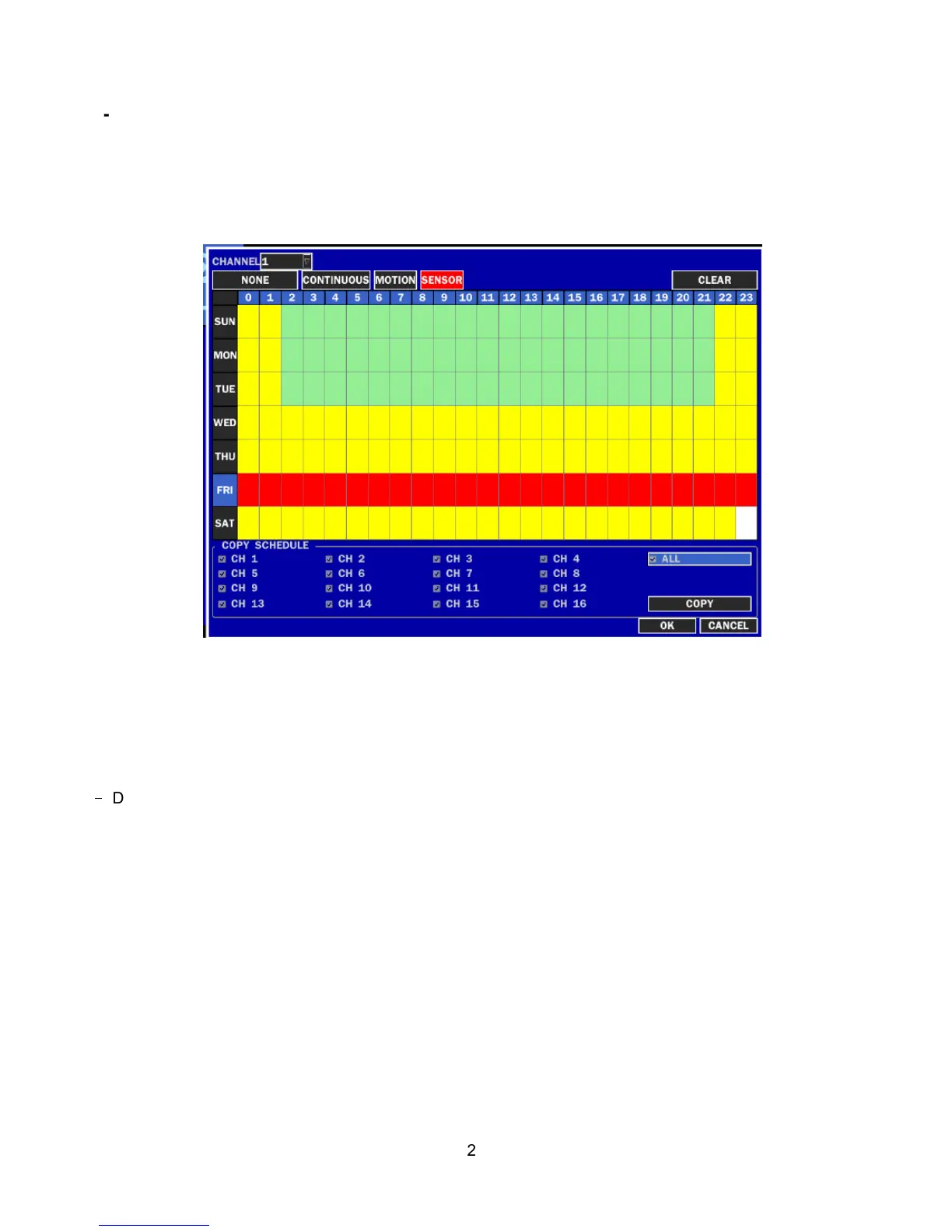
2-3-1. Recording Schedules
To setup a recording schedule, select SCHEDULE in the RECORD menu. Navigate through the items using
the control button (
◀ ▲ ▶ ▼
).
Once the channel 1 is selected, SCHEDULE-CH1 screen is displayed. Select ALL or each day using the
control button (
◀ ▲ ▶ ▼
) and set the recording mode using the SEL button repeatedly
.
Figure 2.3.2. Schedule recording setup screen
C: CONTINUOUS recording, when you select the color will change to Blue Color
M: MOTION recording, when you select the color will change to Yellow Color
S: SENSOR recording, when you select the color will change to Red Color
-
: Does not record
[ALL]: Move the cursor to ALL and select a recording mode C,M or S using the SEL button to set the same
setting for every day.
[SUN to SAT]: Move the cursor to SUN to SAT and select a recording mode C,M or S using the SEL button
to set the same setting for the whole day.
[Vertical Bar “ | “]: Move the cursor to ALL and move the cursor to the specific time using the control button
(
◀ ▲ ▶ ▼
). And select a recording mode C,M or S using the SEL button to set the same setting.
[SEL]: The recording mode can be selected by pressing repeatedly the SEL button.
[COPY FROM] [COPY TO]: Set the channel 1 schedule and select COPY TO using the control button (
◀
▲ ▶ ▼
), select CH2 using the control button (
◀ ▲ ▶ ▼
) and press the SEL button. Then the CH1
schedule is copied to CH2.
To return to setup menu screen, press the ESC button.


 To Next Page