100
APPENDIX: How to connect network
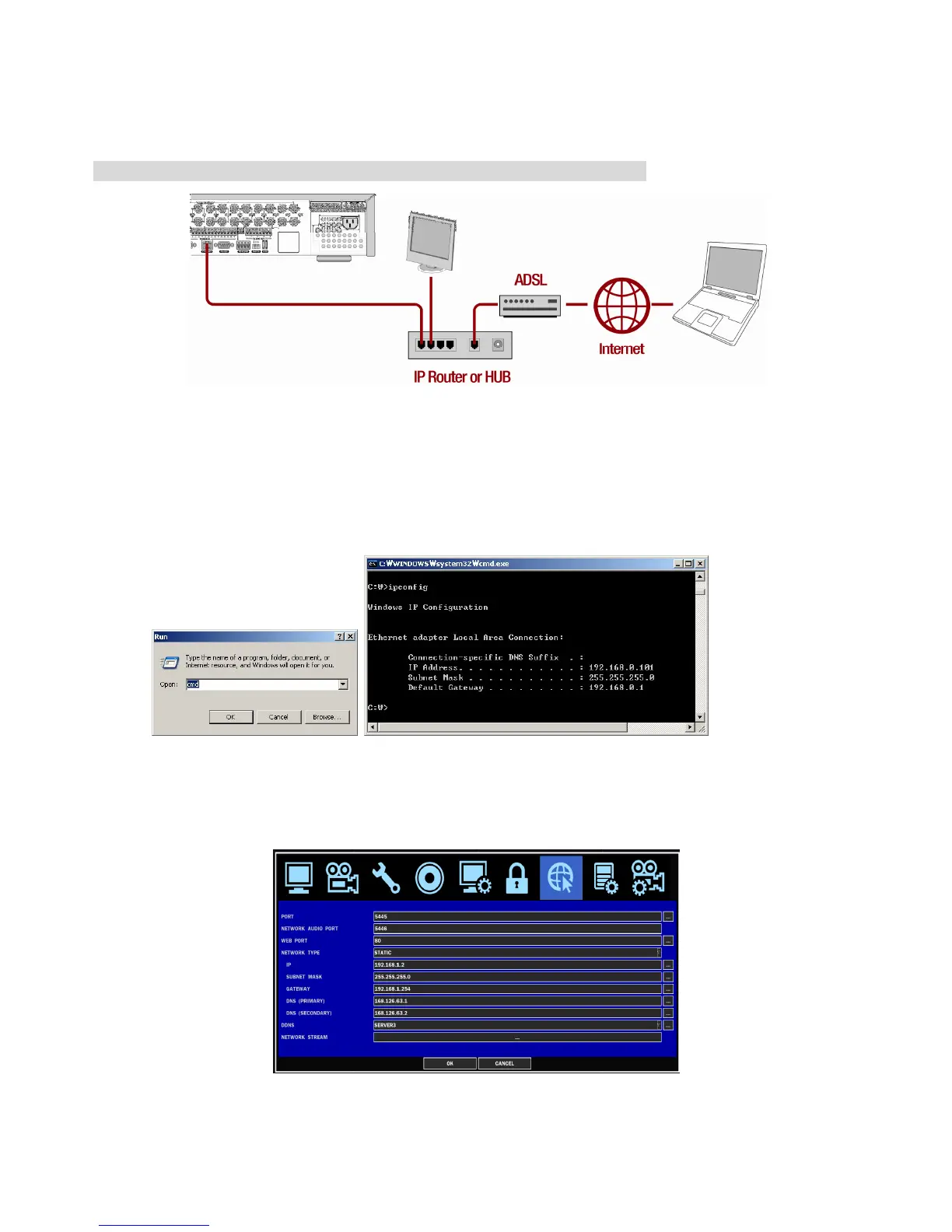
A. How to set IP address of the DVR and open TCP port of the router?
The port forwarding is dependent on the brand and model of the router. The port forwarding is required to
allow access to the DVR beyond a router.
Connect network cable between DVR and Router or ADSL modem
.
1. Default network setting on DVR are
- Port: 5445
- WEB Port : 80
- Network : DHCP
2. From PC connected in the same Router, find IP address, Gateway, and Subnet mask by
IPCONFIG command in command prompt.
3. But if IP is something else like 192.168.x.xxx., you should change IP address, Subnet, Gateway on
the DVR. Go to SETUP>NETWORK>LAN of the DVR and change the IP settings to be like IP:
192.168.XXX.XXX and Gateway: 192.168.XXX.XXX. (Refer to the user’s manual of Router.)
Open your web browser. Enter the router IP address in the address bar (The router IP address are different
with the brand and model.), click GO.


 To Next Page