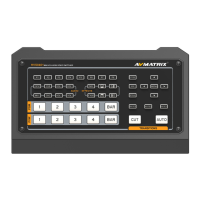
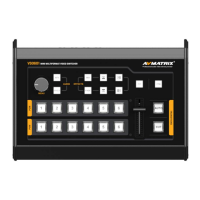
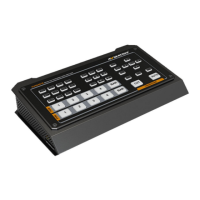
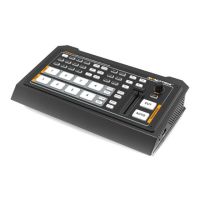
6.2. Transition: CUT/ AUTO/ T-BAR
This video switcher offers three transition control types: CUT, AUTO and T-Bar.
CUT performs a quick transition between Preview and Program, bypassing any selected transition effects
like WIPE, MIX, or DIP.
AUTO performs a smooth transition between Preview and Program, allowing to adjust the transition
speed using the speed button. WIPE, DIP, and MIX transition effects are available.
T-BAR performs manual transition, which is similar flexible to AUTO transition. Users can control the
transition speed by the movement of the T-Bar lever.
7. TRANSITION EFFECT
The video switcher provides various transition effects and settings for choice.
7.1. WIPE
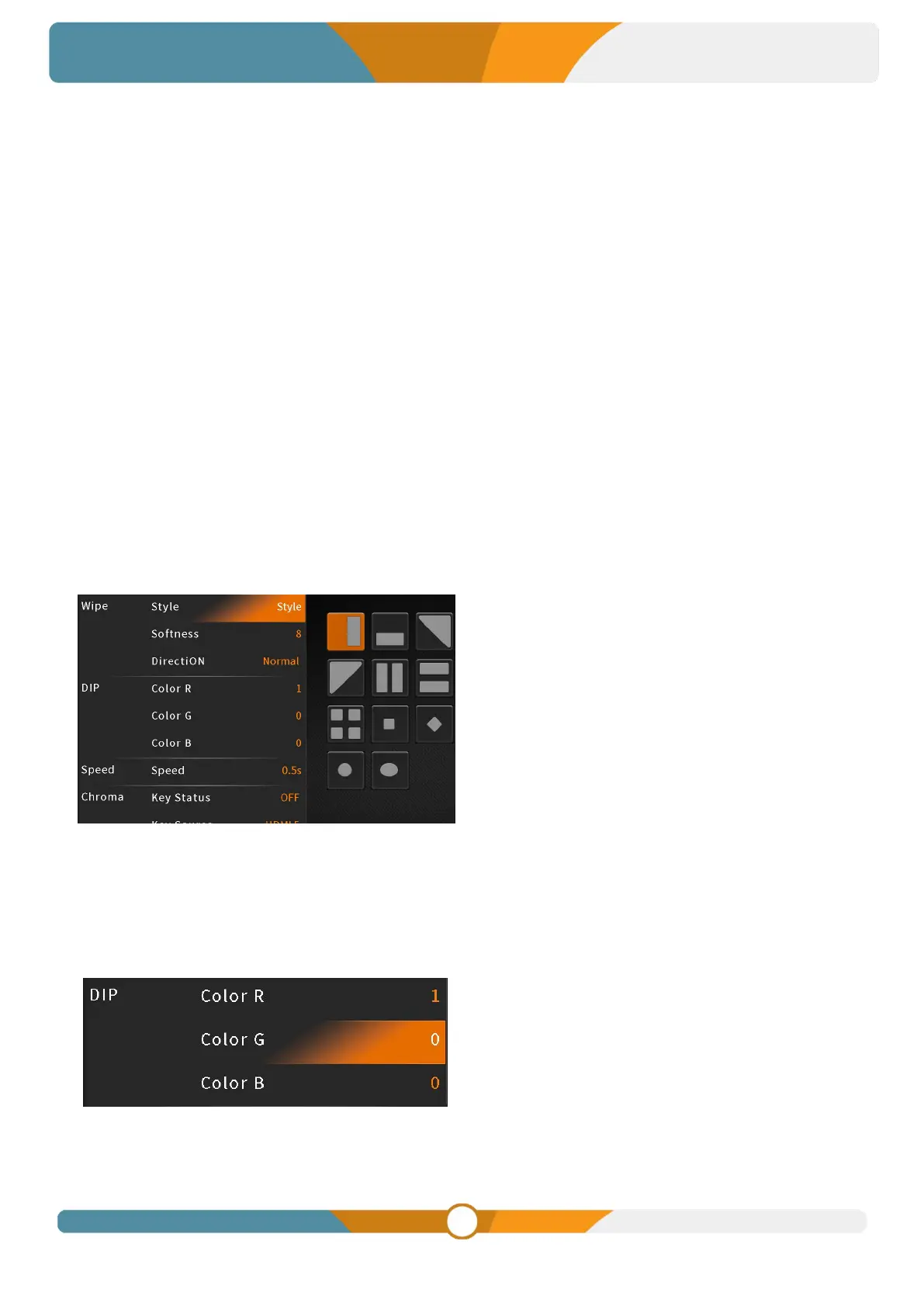
Outside of menu mode, simply press the EFFECT button on the panel to summon a quick menu in the
display's left corner. Select the WIPE option to swiftly apply the wipe transition effect. For added
customization, adjust the WIPE style and edge softness to your preference. When using the AUTO
transition, choose between Normal, Invert, and Flip-Flop directions.
7.2. DIP
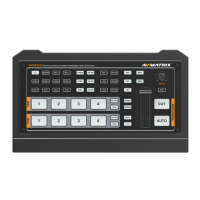
Outside of menu mode, simply press the EFFECT button on the panel to summon a quick menu in the
display's left corner. Select the DIP option to promptly apply the dip transition effect. For added
customization, adjust the DIP color through the DIP RGB menu option. The default color is black.


 To Next Page