82
2.Whentheturntableisconnected,youmaynothearanysoundifyouneedto
listen to video or music. It is because the default playback device has been
changedtoUSBAudioControlleroncetheplayerconnectstothePC.
Recommended:RemovetheUSBcablefromthePC.
Alternative:
This solutio
n requires you to change the setting manually every
timeyouconnecttheUSBcablewiththePC.
Changethesettingasfollows:
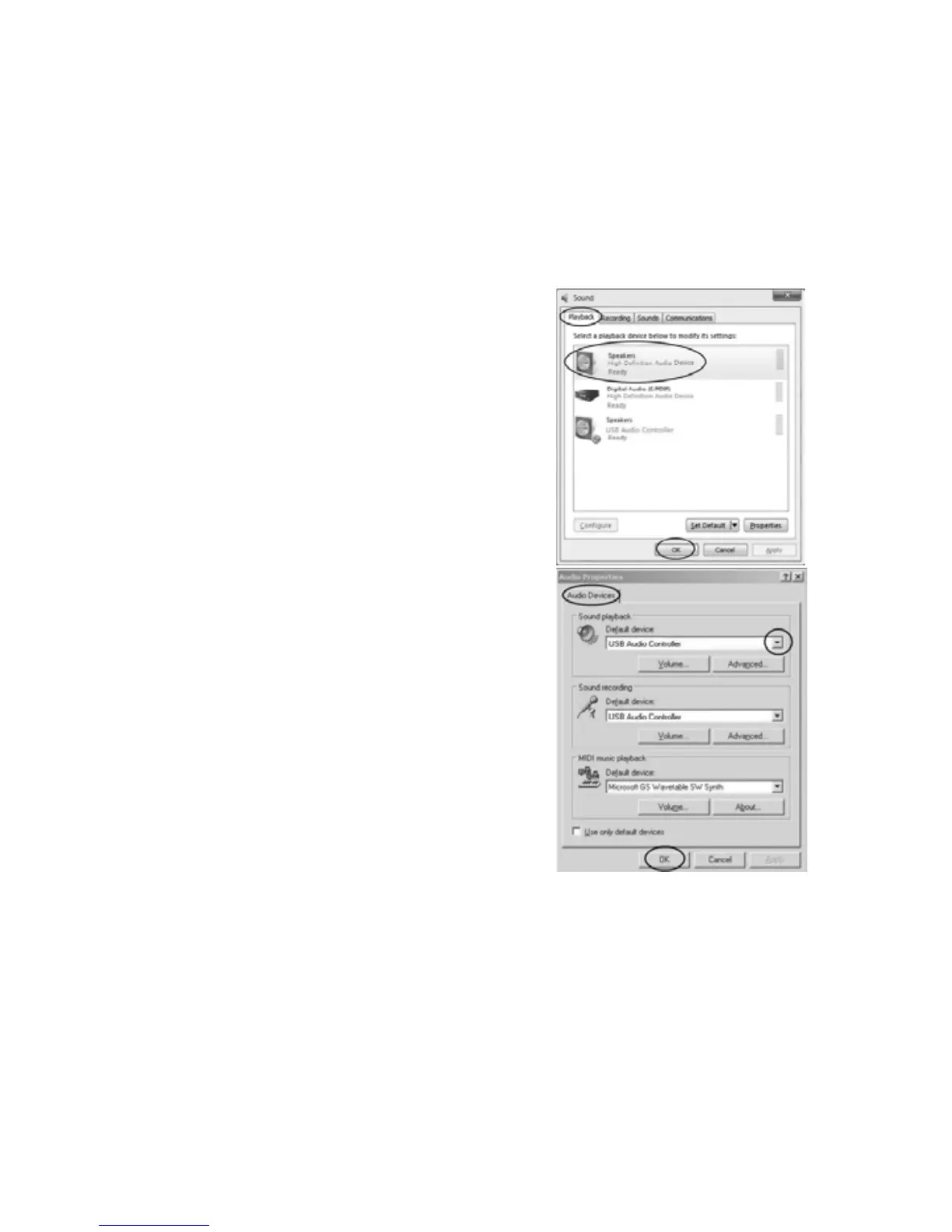
xForVistaandWindows7users:
Click “Start”andgoto the ControlPanel.Find
and click “Sound” icon. Click the “Playback”
tab, click to
change the pla
yback device (e.g.,
Speakers), then click “Set Default”. And click
OK.Thesoundshouldcomeout.
xFor Other Windows versions users (i.e.,
WindowsXP):
You may click “Start” and find “Programs”,
“Accessories”, “Entertainment”. Click “Sound
Recorder”. Then in the Sound Recorder, click
“Edit”tabandselect“AudioProperties”.
Or, find and click into Control Panel. Find and
select “Sound and audio device” and choose
“Audio”tab.
In Sound pla
yback, change the default device
by down pulling arrow. Select your playback
device(e.g.,MicrosoftSoundMapper)andclick
OK.Thenthesoundshouldcomeout.
FormoreinformationonWindowssystemsoundrequiresreset,pleasegoto
http://wiki.audacityteam.org/index.php?title=USB_turntables#Set_up_Audacity
_to_record_from_the_turntable


 To Next Page