10 ImagePRO-II • User’s Guide
2. Hardware Orientation
ImagePRO-II Front Panel
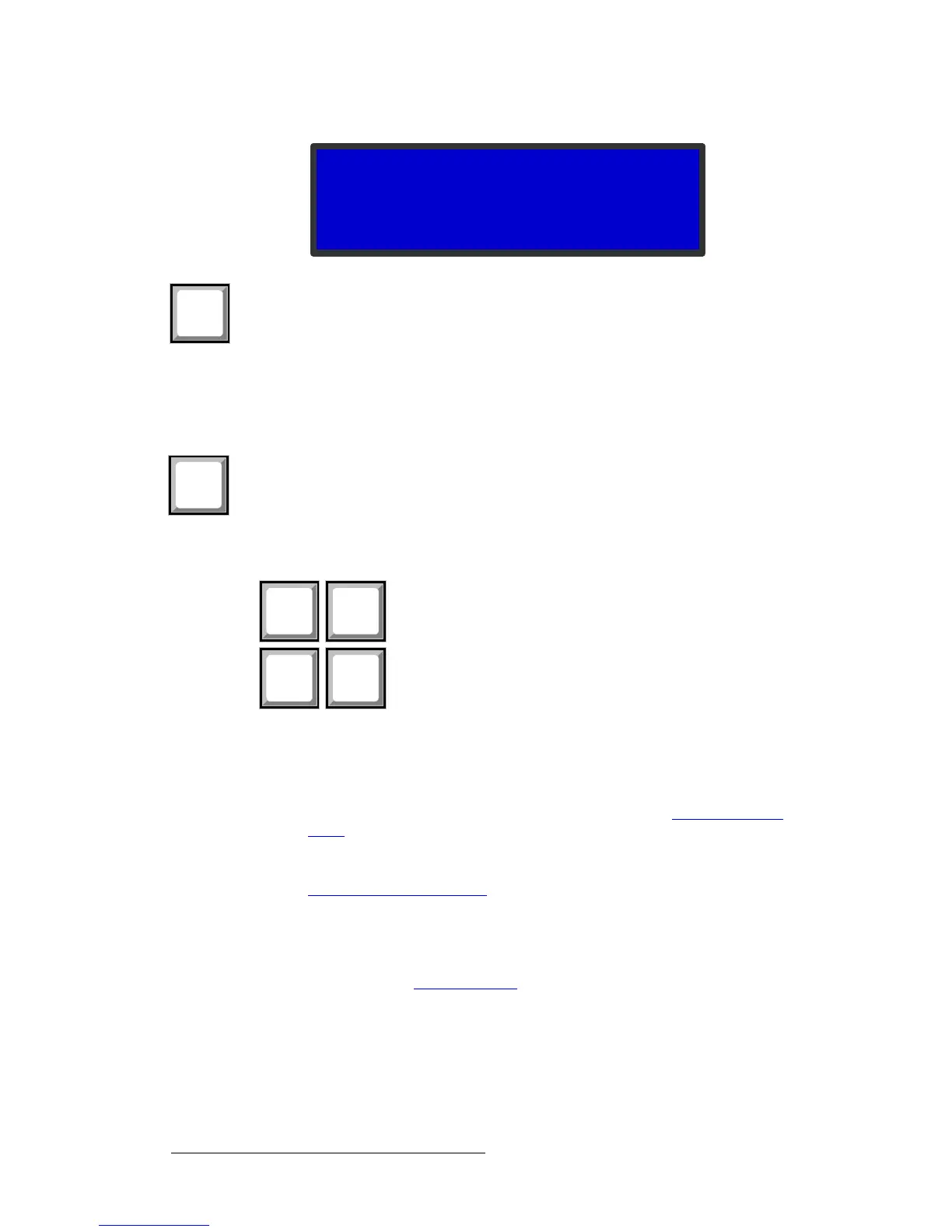
Figure 2-3. Navigation Cursor in the Transition Menu
• Press the SEL button to:
~ Enter the Setup Menu tree from the Status Menu
~ Select the menu item indicated by the navigation cursor
~ Change or accept a parameter
~ Answer Yes to menu queries
• Press the ESC button to exit a menu without making changes, to cancel an
operation, to answer No to menu queries, or to return to the Status Menu. Each
press takes you back up the menu tree one level.
jÉåì=^ÅÅÉëë=_ìííçåë
Figure 2-4. Menu Access Buttons
The Menu Access Buttons provide entry to specific locations in the menu system:
• The SETUP button accesses the Setup Menu, the ImagePRO-II’s top-level
menu. For information about Setup Menu options, refer to About the Setup
Menu in Chapter 4 on page 32.
• Press TEST PAT to access the Test Pattern Menu, which sets up a test pattern
on the selected output. For details about setting up a test pattern, refer to
Working with Test Patterns
in Chapter 4 on page 63.
• Press PAN/ZOOM to access the ZOOM/PAN Menu, from which you can set and
save zoom and pan settings for an input channel. The ZOOM/PAN Menu provides
the option to save settings in pixels or as a percentage of the original image. The
default setting is 100% zoom, 0% pan. For more information about zooming and
panning, refer to Creating a View
in Chapter 4 on page 71.
TRANSITION
> Trans With Blk Fade
Trans Time 1.0



 To Next Page