9.3 User manual
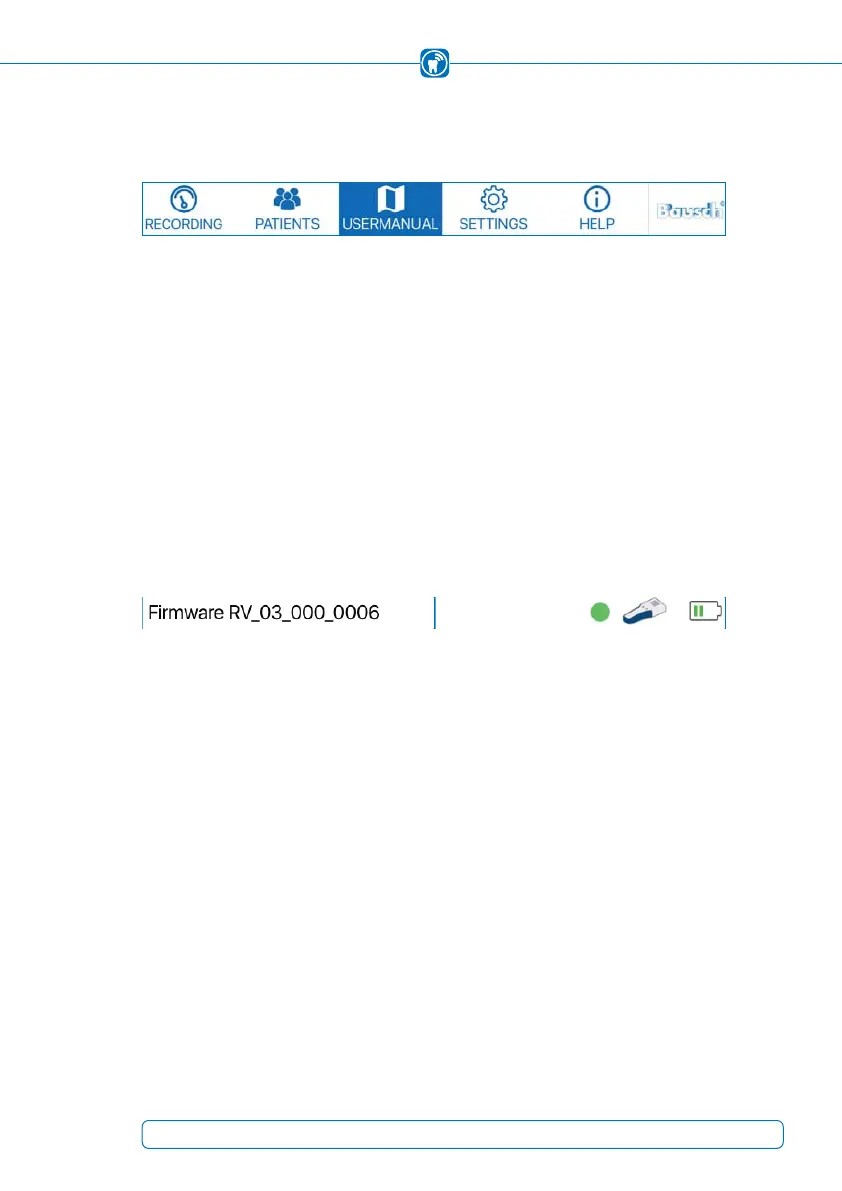
The user manual can be accessed via the integrated PDF viewer (Figure 6).
Figure 6: User manual
If you tap "MANUAL", the corresponding chapter in the PDF manual will automatically
open according to the current action.
(Example: You are in the patient management, tap on "MANUAL" and the PDF manual
opens chapter 13.)
At the bottom of the screen is the status bar
(Figure 7). If the app is not connected to a
handheld, the status bar is empty. If it is connected to a handheld, the firmware version
of the handheld is displayed on the left and the status of the handheld is displayed on
the right.
Figure 7: Status bar at the bottom of the app
Symbol of the handheld: Handheld is connected to the app
Colored dot: Quality of the WLAN connection
- Green: good connection quality
- Yellow: moderate connection quality
- Red: poor connection quality
Battery symbol: Battery condition of the handheld.
23


 To Next Page