Step 1: connect your handheld device to the app and to fill the registration form with
your name, address and e-mail address.
Step 2: tap the “Register” button to send your registration data. You will receive a con-
firmation e-mail.
Step 3: press the “Confirm” button in the e-mail and switch back to the app. The app
still needs Internet access to receive the confirmation of your registration data. If your
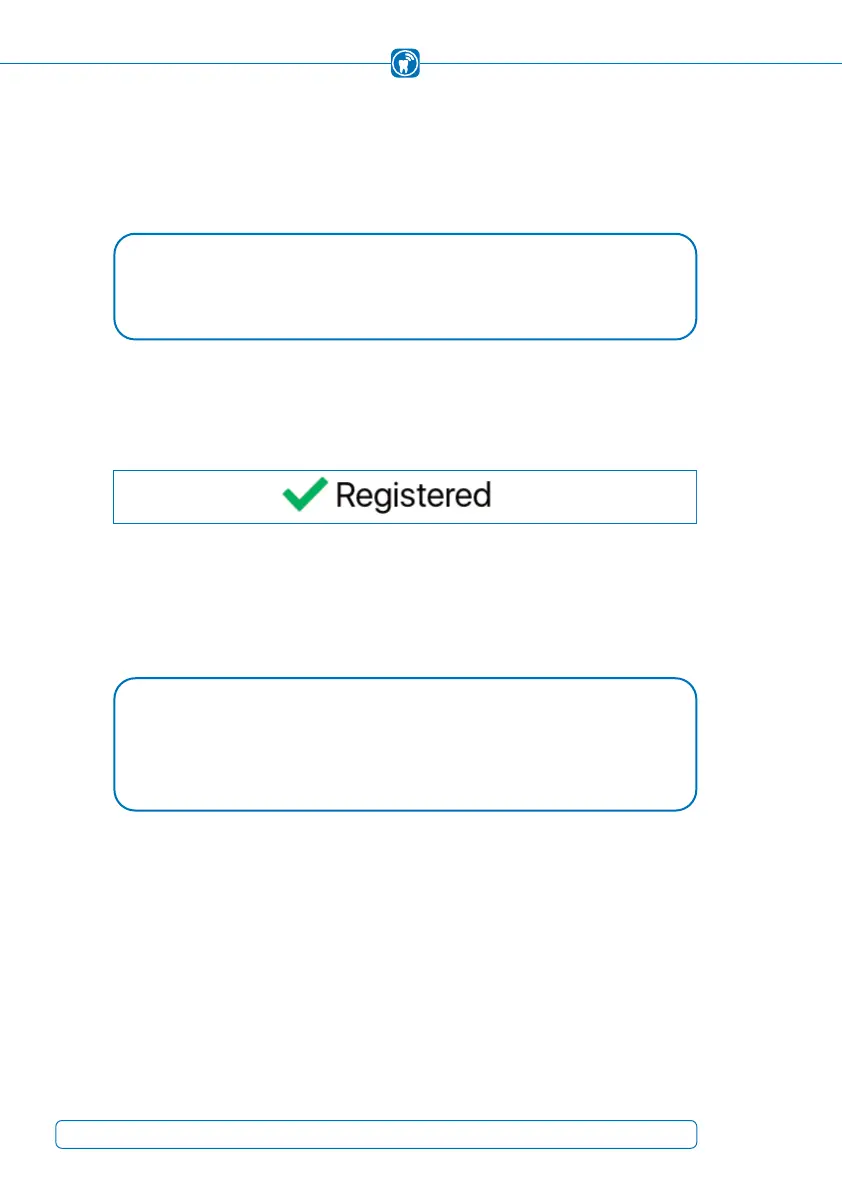
registration was successful a green checkmark is being displayed:
After the registration process, the OccluSense
®
-iPad-App has to be restarted to exit the
DEMO mode. To do this, press the home button twice (iPad without home button: swipe
up from the bottom of the screen) and swipe up the preview of the app to close it. Then
reopen the OccluSense
®
-iPad-App.
NOTE
If you have not received a confirmation e-mail, check your junk mail folder or •
check the e-mail address you have entered.
NOTE
When reactivating the demo mode none of your data will be deleted by the app •
although it is no more visible. After successful registration your data is available
again.
30


 To Next Page