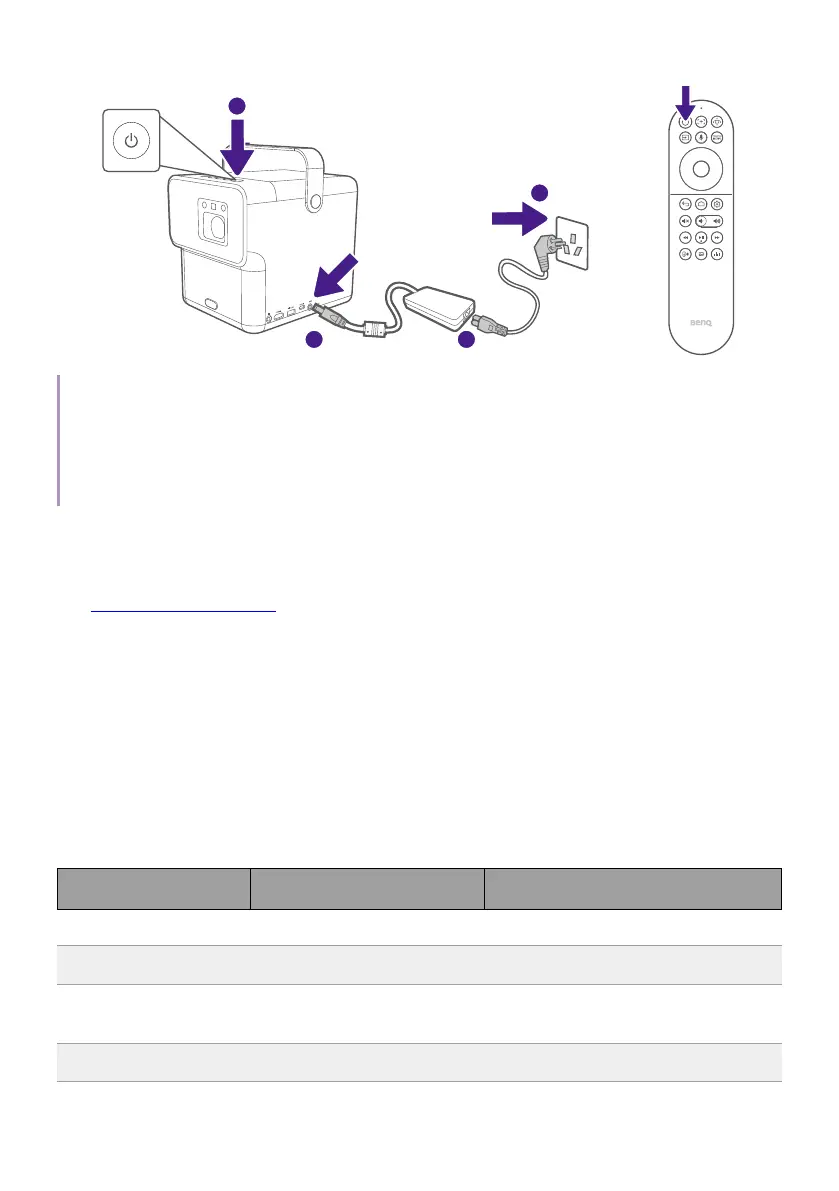
31
3
2
4
1
or
1 second
1 second
Note
• When supplying power directly to the projector via the supplied power adapter, please use the
supplied power cable to avoid possible dangers such as electric shock and re.
• Prior to pairing the remote control to your projector you must ensure that your remote control is
in range of the projector’s IR sensor. See “Remote control effective range” on page 23 for more
details.
4. Power on the projector and follow the on-screen instructions to
complete the initial setup. When you're promted to set up your remote,
select "Not now" to proceed. You can refer to QS02 user manual from
Support.BenQ.com for more information.
5. Check if an updated firmware is available to your product. Refer to
"Upgrading your projector" on page 34.
6. Go for a preferred scenario.
• "Enhancing gaming experience" on page 40
• "Watching streaming videos" on page 41
• "Projection" on page 44
• "Playing music by your projector" on page 46
LED indicator
Scenario LED status Power status
Turning on/off Flashing green Turning on/off properly
Powered-on Solid green Working properly
Solid yellow In power saving or audio-only
mode
Powered-off Solid red Powered-off


 To Next Page