BestCode Next Series 8 Technical Manual October 2022 Page 240 of 290
Graphics
Graphics are special icons users can develop and use for special print. This is used for logos and any special shapes or
characters.
Graphic Editor
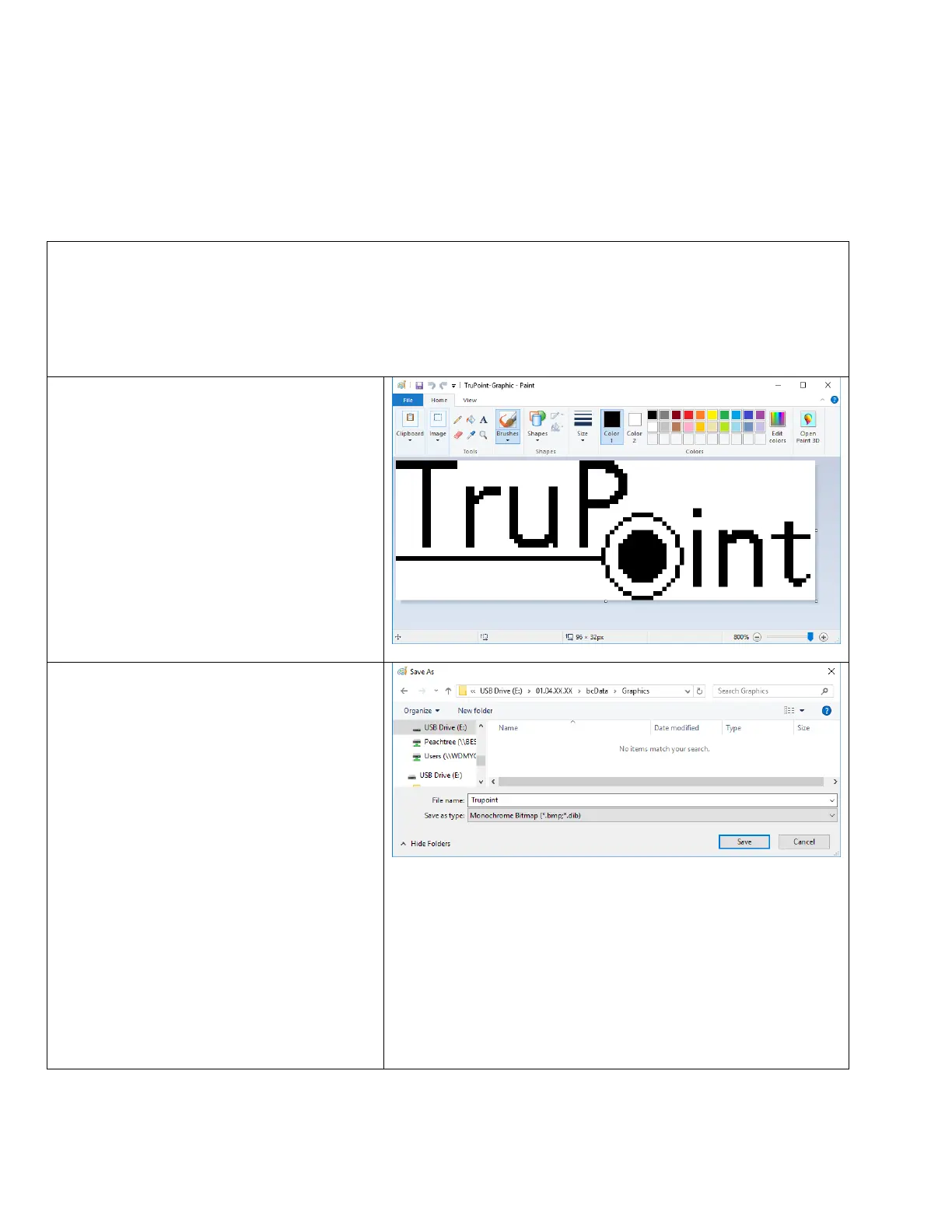
The graphic editor is a tool used to integrate graphics and logos into printable messages. Using paintbrush, graphics can
easily be drawn and installed into the machine.
1. Open the Paint Brush tool in Windows. (Start/All Programs/Accessories/Paint)
2. Click on the “View” tab in Paintbrush.
3. Turn on Gridlines and Rulers.
>Open the Properties window (Press CTRL + E as shortcut)
4. Use a maximum Width of 256 pixels and Max
Height of 32 pixels.
These represent drops.
5. Proceed to drawing the graphic.
6. Draw graphic in only black color.
7. Press the file button, then “Save As”.
8. Navigate to the BestCode USB Graphic USB
DRIVE>01.XX.XX.XX>bcData>Graphics
9. Save As XXXXXXXXX.bmp
a. Must be monochrome Bitmap
*.bmp
b. Name cannot contain the
following.
i. Numbers
(1,2,3,4,5,…etc)
ii. Symbols (!,@,#,$,?,/,…)
iii. Blank Spaces



 To Next Page