V 1.31
2021. 05 86 / 171 Doc. # : BN-OP-C7
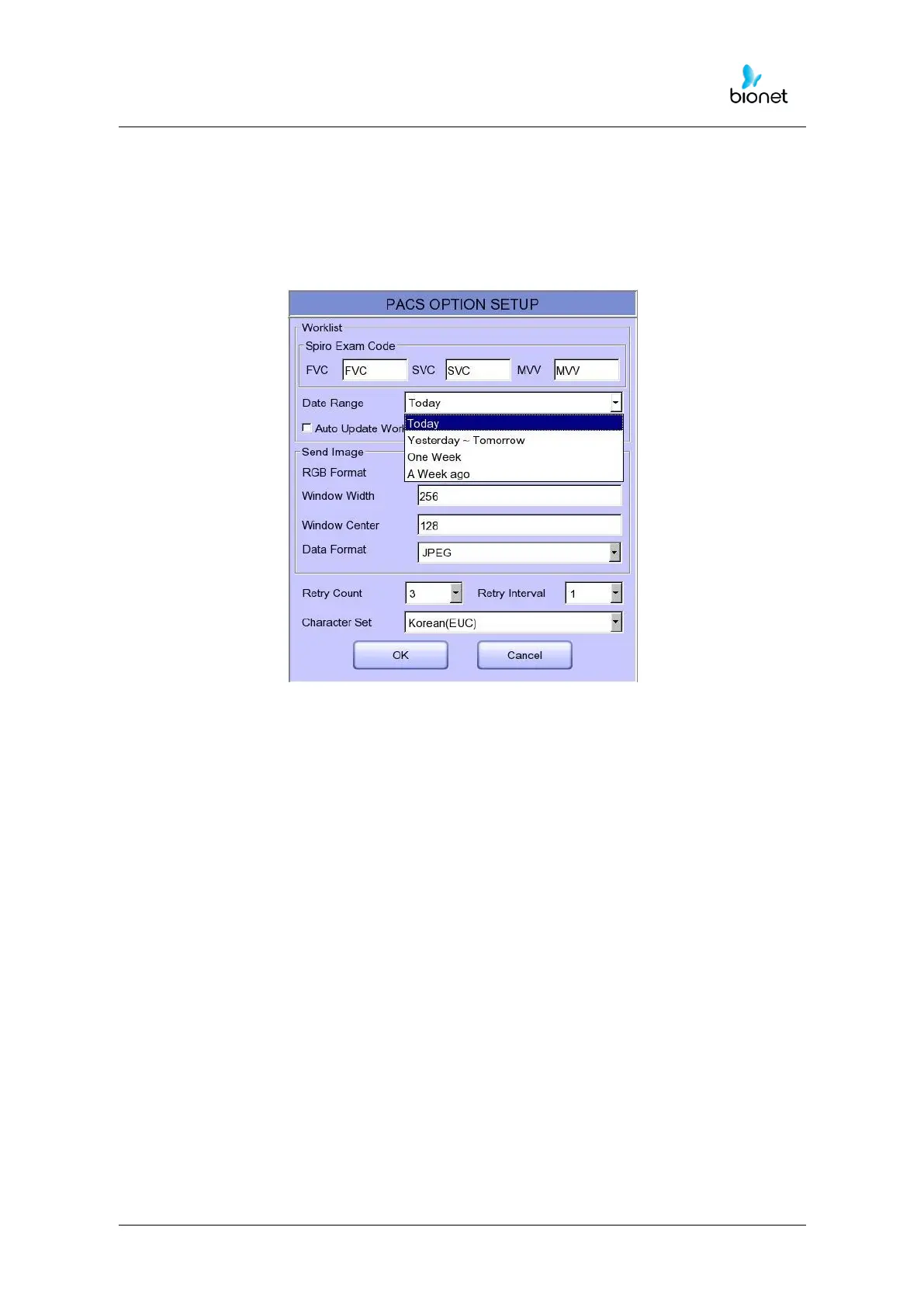
Data Range
The range of dates when the worklist is brought can be set at the Worklist Server.
You can choose appropriate one from the options such as “Today,” “Yesterday ~
Tomorrow”, “One Week” and "A Week ago".
For today (today-today), both the start and end dates are set to today, and for today
(today-blank), only the start date is set to today to get the worklist.
Auto Update Worklist
If you tick the Auto Update Worklist, the Worklist update will be run automatically
whenever you enter the Worklist screen.
Auto Return Worklist
If you tick Auto Return Worklist, data will be transferred to the PACS Server and the
Worklist screen will re-appear automatically by using the Exam button after selecting the
patient to measure, or by using the NETWORK key or AUTO key after selecting the
patient to measure.
RGB Format
Select the RGB Format when converting the image to be transferred to the PACS Server.
The basic setting shall be “RGB”; if the Grid Color of the transferred file appears as
green, it will be converted to the red color when the "BGR" is set.
Window Width / Window Center
Set the Window Width and the Window Center for the file to be transferred to the PACS
Server.
If the image of the transferred file appears blurred, check the Window Width and
Center values which the PACS Server supports, and enter them.



 To Next Page