October152009–InstallationGuideDraft–EditPurposesOnly Page65
Installation Guide – October 2009 – Edit Purposes Only
2009
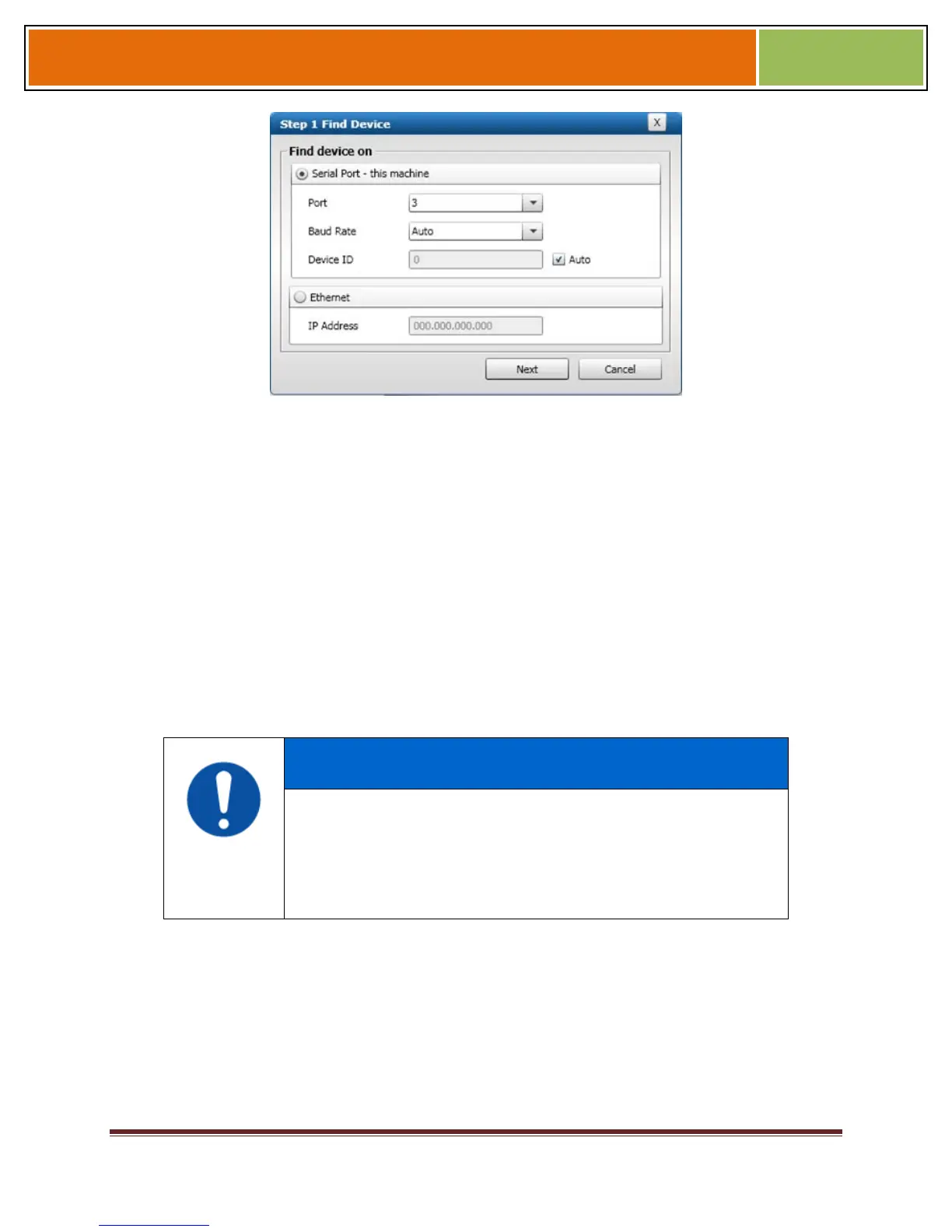
Select either Serial Port - this machine or Ethernet radio button.
Enter the appropriate connection details.
If you are connecting via USB/RS-232:
Enter the appropriate Port Number (to determine the correct port number, look in the
Win-dows Device Manager for a "Gadget Serial" entry under the "Ports (COM & LPT)"
heading), Baud Rate, and Device ID.
If you are connecting via RS-485:
Enter the appropriate Port Number (to determine the correct port number, look in the
Win-dows Device Manager for your RS-485 entry under the "Ports (COM & LPT)"
heading), Baud Rate, and Device ID.
If you are connecting via Ethernet:
Enter the network IP Address of the device you want to connect to.
NOTICE
The first time a V-Station 4G or V-Flex 4G device is connected to the
computer via the USB/RS-232 interface, the Windows Found New
Hardware Wizard might start. As all required device drivers are
installed when Secu-reAdmin is installed, simply follow the prompts,
accepting the default choices when possible, to install the device.
Click Next. The Step 2 Device Information dialog box is displayed.
Figure 6-6 Step 2 Device Information Dialog Box


 To Next Page