Create or Modify a Protocol| 33
6. Continue adding or editing steps, as needed.
7. Press Save to save the protocol. All saved protocols are put on the
Home screen for easy retrieval.
Optionally, do a test run to verify the protocol performs
as expected. Test Run executes the protocol. Fill vessels
with water or disconnect them if you want to preserve
reagent.
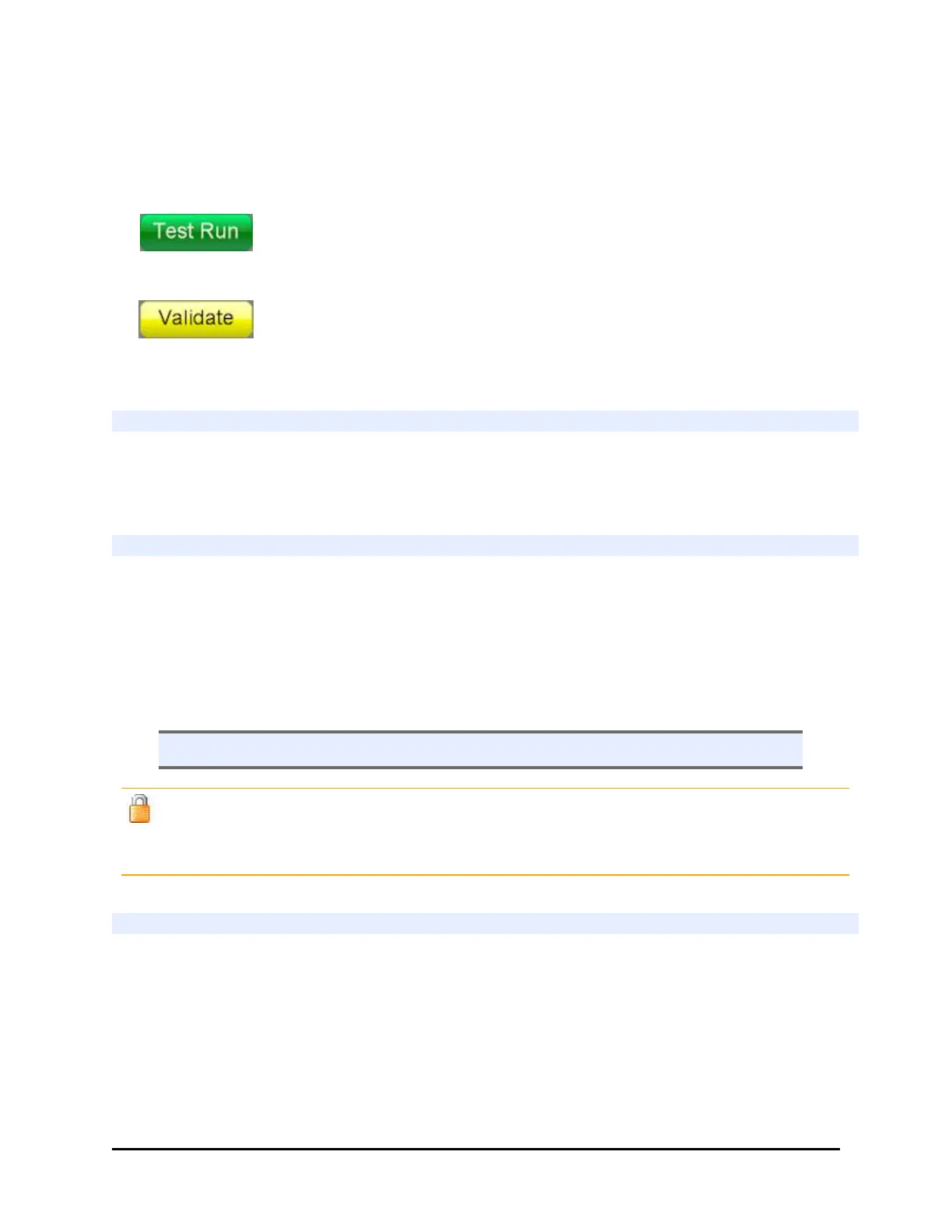
Especially when creating complex BioStack protocols, use
the Validate button to check the order of the protocol
steps.
Add protocols to the Home screen
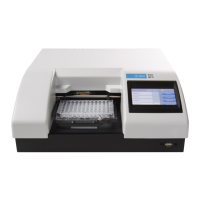
The 405 TS puts all saved protocols on the Home screen for easy retrieval. Create and
save a protocol to add it to the Home screen listing.
Remove protocols from the Home screen
All saved protocols appear on the Home screen. To remove a protocol from the
Home screen listing:
1. Select Define at the Home screen.
2. Highlight the protocol you want to remove and press Delete.
The protocol file will be permanently deleted.
l To delete a locked protocol, first unlock it.
Locked files: you can "unlock" a protocol by replacing it using the Protocol Transfer
control. Upload the protocol to a USB stick, make sure "Lock files" is disabled and re-transfer
the protocol. It will overwrite the existing file.
Change the Plate Type
Edit a protocol to change its plate type:
1. Select Define at the home screen.
2. Highlight the protocol and press Edit.
3. Press the Info button on the step definition screen and touch the Plate Type field
to change the plate type.
BioTek Instruments, Inc.


 To Next Page